Skip to content
GitHub (opens in a new tab)

GateRook: Local MCP Gateway & Firewall

Connect your AI-powered IDE
to your infrastructure.

Query databases and call APIs from VS Code, Cursor or Claude Desktop. Set access rules for each connection and choose which actions need approval.

100+

built-in connectors

Databases, logs, cloud, Kubernetes, SSH and APIs. Explore integrations

1

GateRook

Your local gateway and firewall: policy, approval and audit on every call.

64,000+

MCP servers

Add the ones you need and choose their tools. MCP server setup

Local enforcementAES-256-GCM secretsApproval by defaultTamper-evident audit logs

Connectors and MCP servers

Your whole stack.
One place to connect it.

Built-in connectors reach your databases, logs, cloud accounts, clusters and servers: nothing to write, no extra process to run. External MCP servers join through the same gateway, under the same rules.

  • 121 services, ready to connect

    PostgreSQL, MongoDB, Redis, Snowflake, BigQuery, Kubernetes, AWS, SSH, HTTP APIs and many more, including compatible services such as Supabase, Aurora and Valkey. Each has its own guide.

  • Any MCP server

    Connect a local stdio server or a remote one over Streamable HTTP or SSE, and sign in with OAuth when a server asks. Find servers in the Official MCP Registry without leaving the app.

  • You choose what AI sees

    Selecting a registry result fills the setup form; it does not start a server. A server's tools stay Off until you choose their endpoints. A registry listing identifies a publisher: it is not a security certification. How registry trust works (opens in a new tab).

Built-in connectors

121 services
  • Databases and warehouses102

  • Cloud, Kubernetes and SSH12

  • Logs and APIs7

External MCP servers

64,000+ in the registry
  • Any MCP server

Example: the public Context7 server and its two tools. Every server brings its own tools, and you set a mode for each.

Security at the point of execution

Production access deserves
more than a prompt.

GateRook checks every tool call against your rules before a connector runs it. Scope access by environment, endpoint, connection and tool, require approval for changes, and keep credentials out of AI's reach.

A mode for every tool

Each tool of each connection has its own mode. Reads start in Read only and changes in Approval; broader access is always your choice.

Off
The tool is disabled.
Read only
The tool is limited to reads.
Approval
You review the action first.
Bypass
Eligible actions run without asking.

Illustration: the four tools of a PostgreSQL production connection. Three are Read only; sql_execute needs approval.
Approve before it runs

GateRook holds the call and shows you the exact action. Approve it or deny it: an approval covers that action only, and it runs once.

Illustration: an approval request for sql_execute on a production database, showing the SQL statement and the Deny and Approve choices.

Credentials encrypted on your computer

Passwords, API credentials and OAuth tokens are encrypted before they are stored. Connectors resolve them locally; AI uses scoped tools and never receives your connection passwords.

Illustration: three layers of protection. The secret is encrypted with AES-256-GCM, its data key is wrapped by a master key, and the master keyset is protected by the operating system.

With OS protection enabled, Keychain, Windows Hello or DPAPI protects the key that encrypts the master keyset. Known secret values are masked in results and activity records.

Production, kept apart

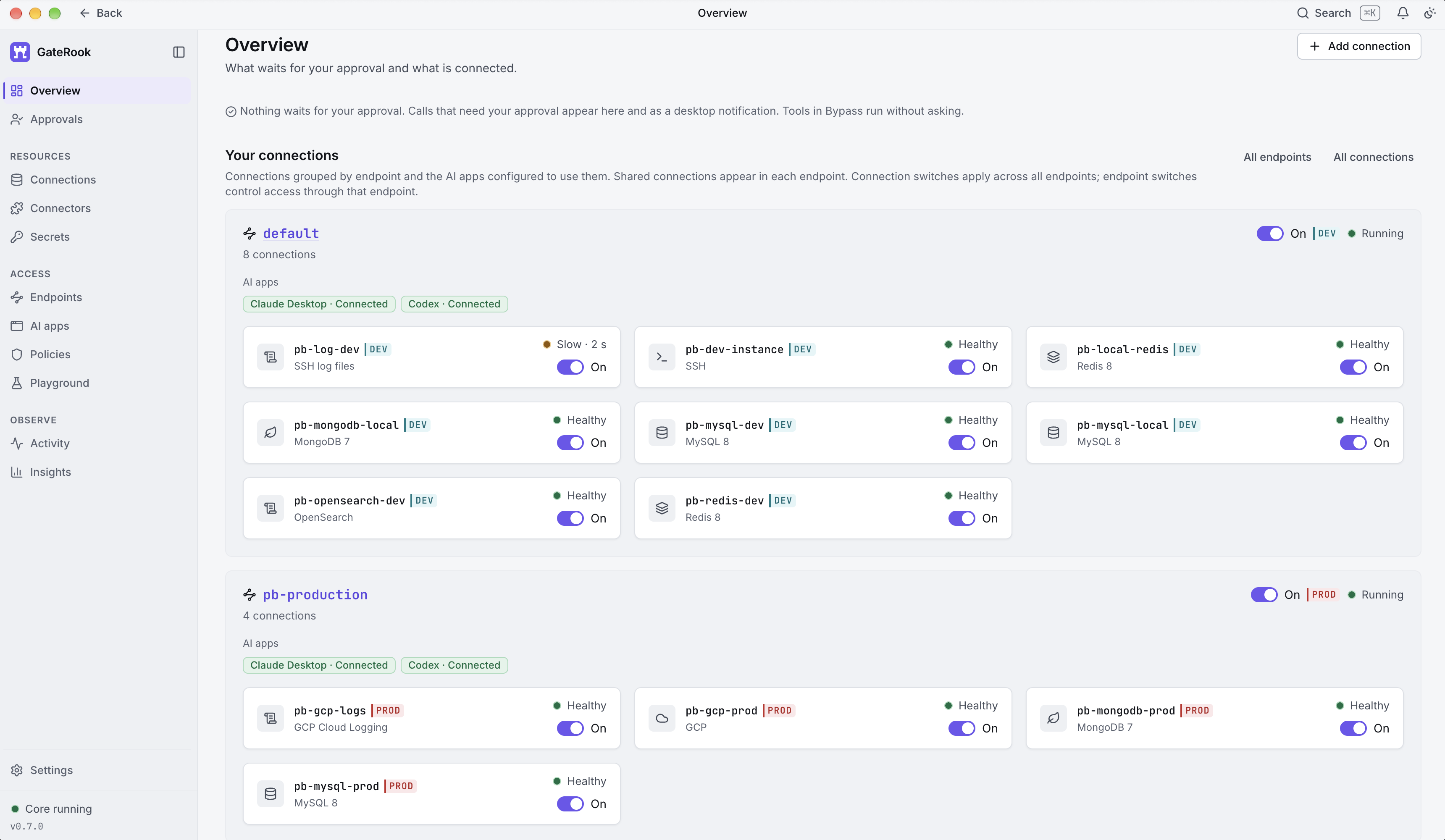
Group connections by endpoint and environment, and keep development and production behind their own boundaries. Switch off a connection across every endpoint that shares it, or one endpoint's access to it.

Access switches govern new requests. They are not a promise to cancel work already in progress.

GateRook Overview with eight development and four production connections, connected Claude Desktop and Codex clients, and individual on/off switches for each connection and endpoint.
The GateRook app · OverviewView full size

Illustration: the Activity list with four tool calls, allowed, approved or denied, and the history of the approved call: requested by Codex, approved by you, then executed.

Illustration with fictional names. History covers GateRook tool calls, with masked, size-limited argument and result previews.

Audit and Activity

Every call on the record.
Integrity you can verify.

Calls through GateRook leave a local audit trail: the request, the decision and the outcome, including denied requests and failed actions.

  • Append-only records

    Existing entries cannot be updated through normal database operations, and AI has no GateRook tool to edit or delete them.

  • Tamper-evident

    A hash chain and an authenticated head make unauthorized changes detectable.

  • Your retention policy

    Keep history for one, two, three or five years. You manage retention; AI does not. Local storage is not an indestructible archive.

Local by design

Your gateway and firewall
run on your computer.

Your connections, encrypted secrets, policies and activity history are managed on your computer. GateRook contacts the infrastructure you configure and returns allowed results to your AI client.

Diagram: your AI app and GateRook run on your computer. GateRook checks each call, connects to your infrastructure and returns allowed results to the AI app. If the AI app uses a cloud model, results may reach its provider.

If you choose a cloud model, allowed results may reach its provider. Optional tunnels, notifications and exports contact only the services you enable. Read the privacy policy

  • Open source

    Read the code that handles your credentials. Explore the source (opens in a new tab)

  • A free desktop app

    For macOS on Apple Silicon and for Windows. No server to host.

  • Your choice of AI

    Works with MCP clients such as Claude Desktop, Codex, Cursor, Antigravity and VS Code. Connect your AI app

A quick product tour

See GateRook in action.

Connect your services, review an AI request, and follow the action trail. 1 min 15 sec · English narration.

Your AI proposes. Your MCP Firewall enforces.Open video (opens in a new tab)
Read the video summary

AI agents need context from databases, logs and services. GateRook sits between your AI client and the infrastructure you connect, with local credentials, scoped access and approval controls.

The tour shows the Overview, then adds a PostgreSQL connection: enter the server details, store encrypted credentials, select the production environment and test the connection. Write tools start in Approval mode.

When Claude requests a production change, GateRook holds the call for review. You inspect the exact SQL, add a reason and approve it. The action runs once, and the request, decision and result appear in Activity.

Get started

From download to first answer
in three steps.

  1. 1

    Install GateRook

    Download the desktop app and unlock its encrypted credential storage.

  2. 2

    Connect your AI app

    Choose Claude Desktop, Codex, Cursor, Antigravity or VS Code on the AI apps page and confirm the change.

    AI app guides
  3. 3

    Add a connection and ask

    Enter the host and credentials, test the connection, then ask your AI. Reads run; changes wait for you.

    Getting started guide

Connections and control

What AI can reach.
What you allow.

How the gateway connects your tools. How the firewall controls access.

Browse all questions in the FAQ
Why a gateway and a firewall?

The gateway connects MCP-compatible AI clients to your infrastructure through built-in connectors and external MCP servers. The firewall checks the tool calls routed through GateRook against your access rules, requests approval where required, and records decisions and outcomes in Activity. Both run in the same local desktop app.

What does the MCP Firewall control?

GateRook checks AI tool calls routed through its endpoints against your configured access rules before invoking a connector. You control environments, connections, tool modes and approvals. It does not govern direct access outside GateRook or replace your infrastructure permissions. Local MCP servers run in an OS sandbox where the system supports one, but you still decide which servers to trust.

Where are my credentials and keys stored?

Locally stored secret values use AES-256-GCM envelope encryption. Each secret version has a data key wrapped by a master key. With OS protection enabled, macOS Keychain, or on Windows a Windows Hello key where Hello is available and DPAPI otherwise, protects the file key used to encrypt the master keyset. These protections operate within your OS account’s security boundary.

Are the audit logs immutable?

Records are immutable through the AI interface: GateRook exposes no tool for editing or deleting them. Append-only storage, a hash chain and an authenticated head make the retained history tamper-evident. This is not a guarantee against a compromised operating system or the loss of local storage. This covers calls through GateRook, not actions an AI performs elsewhere. You control retention: one, two, three, or five years.

Does every action need my approval?

You choose the policy for each tool. Changes require approval by default. Off disables the tool; Read only limits it to reads; Approval asks you to review; explicit Bypass allows eligible actions without asking. Read-only endpoints still block writes.

Does a connection switch stop a running action?

Use switches to control access for new requests. A connection switch applies across the endpoints sharing that connection; an endpoint switch controls access through that endpoint. Disabling access should not be treated as cancelling an action that is already running.

Are registry servers automatically trusted?

No. The Official MCP Registry provides discovery and publisher namespace verification, not a security audit of server code. Review the server, its launch command or URL, and the access it needs. Selecting a result does not start it, and you decide which tools become available to AI.

Does any data leave my computer?

GateRook runs locally, but connects to your configured infrastructure. Allowed tool results go to your chosen AI client and may reach its cloud model provider. Optional tunnels, notifications, and exports also contact services you enable. Local storage does not mean all connected services are offline.

Does it work with my AI?

GateRook uses MCP, the Model Context Protocol, with connection flows for Claude Desktop, Codex, Cursor, Antigravity and VS Code. Other clients need a compatible MCP transport and authentication method. Your chosen client and model remain your choice.

From the GateRook journal

Latest articles

Practical guides to infrastructure connectors, AI access controls and accountable work with production services.

Your local MCP gateway and firewall

Let AI work.
Keep production under your control.

Start with one connector and read-only access.
Approve changes when you need them. Verify the action trail.

Explore the source (opens in a new tab)

GateRook 2.0.0 is available for macOS (Apple Silicon). Windows is available from Microsoft Store.

Get GateRook

Download GateRook 2.0.0 for your Mac, or get the Windows app from Microsoft Store.

macOS

Version 2.0.0 for Apple Silicon (arm64). This download does not support Intel Macs.

Open the DMG and drag GateRook to Applications.

Windows

Available for free from Microsoft Store. Install GateRook and receive updates through the Store.

macOS release notes and checksums (opens in a new tab)

Optional analytics

Google Analytics measures visits and download clicks. You can turn it off here or change your choice later in Analytics settings.

Analytics is currently on.

Privacy Policy & cookie choices · Google privacy policy (opens in a new tab)