


Block a connection
Disable a resource across every endpoint that shares it. Keep its configuration ready for when you need it again.
 GateRook
 · Open-source MCP Firewall
Give AI the database, log and service context it needs to help you build and debug. GateRook’s MCP Firewall protects credentials with encryption, controls connector execution and keeps a tamper-evident audit trail.
Give AI real context. Keep execution under control.
One firewall. Explicit permissions.
Databases, APIs, cloud services and external MCP tools. Access through your MCP Firewall, governed by your rules.
GateRook
Your local MCP Firewall
Policy · Approval · Audit
Your favorite AI
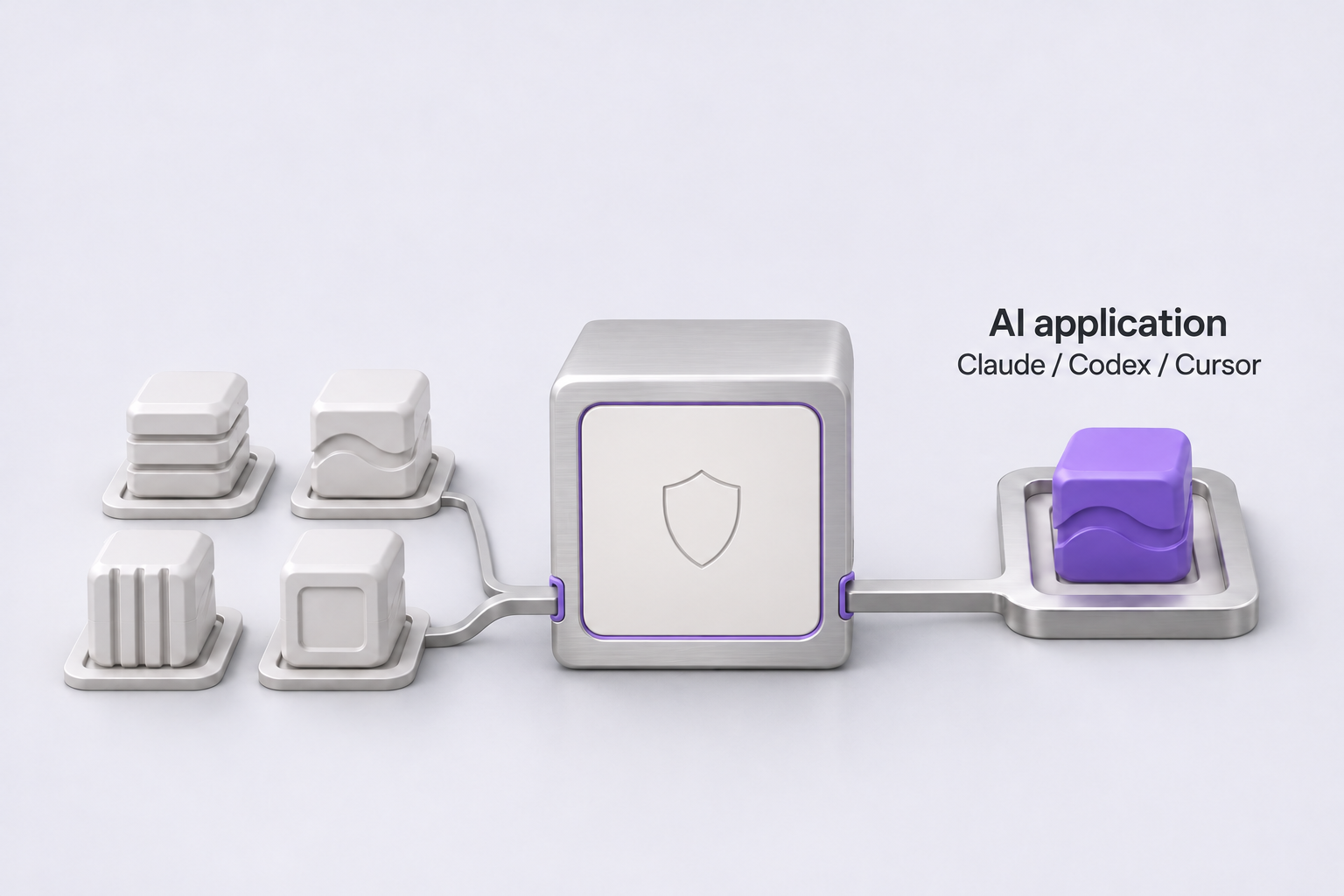
Illustrated MCP request and response flow. GateRook checks access before a connector call reaches your service.
Security at the point of execution
Production access deserves more than a prompt.
Enforce the rules before tools run.
GateRook is an MCP Firewall running on your computer. Scope access by environment, endpoint, connection and tool. Keep production read-only where needed, require approval for changes, and inspect requests, decisions and outcomes in Activity.
See GateRook in actionA quick product tour
Connect your services, review an AI request, and follow the action trail. 1 min 15 sec · English narration.
AI agents need context from databases, logs and services. GateRook sits between your AI client and the infrastructure you connect, with local credentials, scoped access and approval controls.
The tour shows the Overview, then adds a PostgreSQL connection: enter the server details, store encrypted credentials, select the production environment and test the connection. Write tools start in Approval mode.
When Claude requests a production change, GateRook holds the call for review. You inspect the exact SQL, add a reason and approve it. The action runs once, and the request, decision and result appear in Activity.
Encrypt your credentials.
Stored secrets use AES-256-GCM encryption. Connectors resolve credentials locally; AI uses scoped tools without receiving your connection passwords.
Approve before execution.
Block a tool, allow reads, or require approval. Review the requested action before it runs. Changes require approval by default; Bypass is an explicit choice.
Keep a verifiable audit trail.
Append-only records track requests, decisions and outcomes. Cryptographic checks detect changes, and AI has no GateRook tool to rewrite the history.
01 / Encrypted credentials
Local secrets. Layered encryption.
Protection rooted in your operating system.
Passwords, API credentials, and OAuth tokens are encrypted before they are stored. Each secret version has its own data key, wrapped by a master key. With OS protection enabled, the key that protects the master keyset is secured by macOS Keychain or Windows DPAPI.
GateRook resolves credentials for the connector and masks known secret values in returned results and activity records.
AES-256-GCM with a separate data key for each secret version.
A master key protects the keys that encrypt your secrets.
Keychain or DPAPI protects the file key when OS protection is enabled.
02 / Execution control
Set access for each connected service. Separate production from development, limit tools to reads, and review changes before execution.
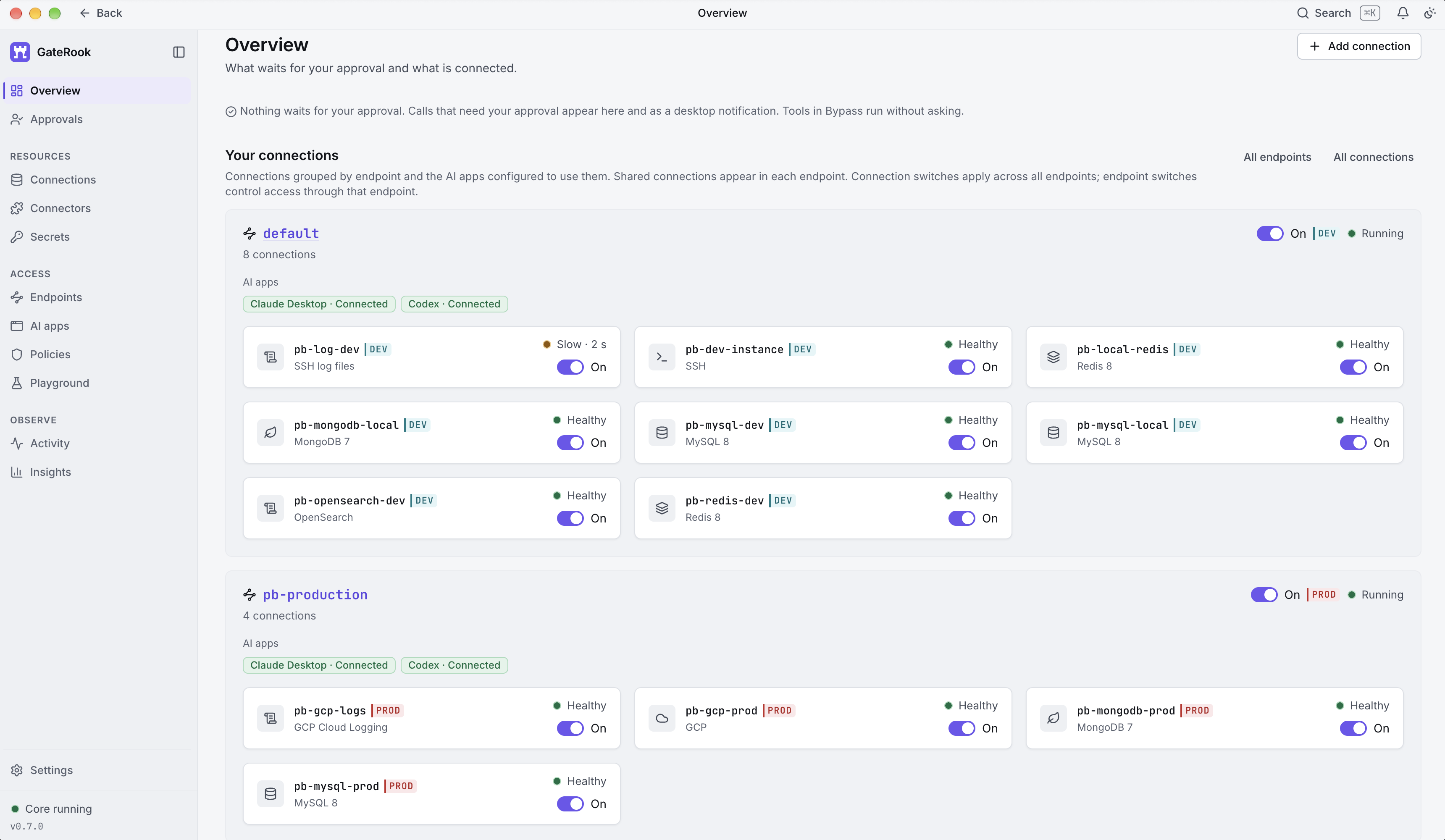
Disable a resource across every endpoint that shares it. Keep its configuration ready for when you need it again.
Turn off access through one endpoint. Keep development and production behind their own boundaries.
Off, Read only, Approval, or an explicit Bypass. Changes need approval by default; broader access is your choice.
Access switches govern new requests. They are not a promise to cancel work already in progress.
03 / Tamper-evident audit logs
An append-only history of AI tool calls.
Requests, approvals and outcomes in one place.
Tool calls through GateRook leave a local audit trail, including denied requests and failed actions. Records are immutable through the AI interface: GateRook exposes no tool to edit or delete them. Append-only storage and cryptographic checks protect their integrity.
History covers GateRook tool calls, with masked, size-limited argument and result previews. Retention remains under your control; local storage is not an indestructible archive.
04 / Connected tools, controlled access
Apply GateRook access rules to selected tools from external MCP servers.
Discover servers in the Official MCP Registry, review their connection details or launch command, and choose which tools to expose. Calls through your endpoint use GateRook’s tool permissions, approval controls and activity history.
Selecting a registry result fills the setup form. It does not start a server.
Review the provider, command, and credentials before connecting. New tools start Off.
Adding tools to an endpoint starts them in Approval mode. Adjust access for your workflow.
A registry listing identifies a publisher and describes a server. It is not a security certification. How registry trust works (opens in a new tab).
Built-in connections, too
Your connections, encrypted secrets, policies, and activity history are managed on your computer. GateRook contacts the infrastructure you configure and returns allowed results to your AI client. If you choose a cloud model, those results may reach its provider.
Know your boundaries
What stays local. What AI can do. What you control.
GateRook checks AI tool calls routed through its endpoints against your configured access rules before invoking a connector. You control environments, connections, tool modes and approvals. It does not govern direct access outside GateRook, replace your infrastructure permissions, or sandbox external MCP server processes.
Locally stored secret values use AES-256-GCM envelope encryption. Each secret version has a data key wrapped by a master key. With OS protection enabled, macOS Keychain or Windows DPAPI protects the file key used to encrypt the master keyset. These protections operate within your OS account’s security boundary.
Records are immutable through the AI interface: GateRook exposes no tool for editing or deleting them. Append-only storage, a hash chain and an authenticated head make the retained history tamper-evident. This is not a guarantee against a compromised operating system or the loss of local storage. This covers calls through GateRook, not actions an AI performs elsewhere. You control retention: one, two, three, or five years.
You choose the policy for each tool. Changes require approval by default. Off disables the tool; Read only limits it to reads; Approval asks you to review; explicit Bypass allows eligible actions without asking. Read-only endpoints still block writes.
Use switches to control access for new requests. A connection switch applies across the endpoints sharing that connection; an endpoint switch controls access through that endpoint. Disabling access should not be treated as cancelling an action that is already running.
No. The Official MCP Registry provides discovery and publisher namespace verification, not a security audit of server code. Review the server, its launch command or URL, and the access it needs. Selecting a result does not start it, and you decide which tools become available to AI.
GateRook runs locally, but connects to your configured infrastructure. Allowed tool results go to your chosen AI client and may reach its cloud model provider. Optional tunnels, notifications, and exports also contact services you enable. Local storage does not mean all connected services are offline.
GateRook uses MCP, the Model Context Protocol, with connection flows for Claude Desktop, Codex, Cursor, and Antigravity. Other clients need a compatible MCP transport and authentication method. Your chosen client and model remain your choice.
From the GateRook journal
Practical guides to AI access controls, encrypted credentials and accountable work with production services.
Bring production behind your MCP Firewall
Start with one connector and read-only access.
Approve changes when you need them. Verify the action trail.
GateRook 0.9.2 is available for macOS (Apple Silicon). Windows is available from Microsoft Store.