Claude Desktop
Installs GateRook as a Claude Desktop extension. Nothing is written to its config.
 GateRook
AI apps
GateRook finds these AI apps on your computer and connects each one in three steps: choose the app, confirm the change, then check the connection with a prompt.
One guide per app
Each guide shows the same three steps with screenshots, and how that app signs in.
Installs GateRook as a Claude Desktop extension. Nothing is written to its config.
Adds one server to ~/.codex/config.toml. A helper gives Codex short-lived tokens.
Writes a token to ~/.cursor/mcp.json, or signs in through the browser.
Writes a token to its MCP config, or signs in through the browser.
Installs through VS Code's own dialog and signs in through the browser.
GateRook connects Claude Desktop with a bridge extension. Claude Desktop installs it like any other extension. Nothing is written to claude_desktop_config.json, and the bridge gets a 15-minute token from GateRook whenever Claude needs one.
Before you start, install GateRook and your AI app. The screenshots come from a local test setup with one MySQL connection, mysql-demo, on the default endpoint. Your connections and endpoint address can differ. Select a screenshot to open it at full size.
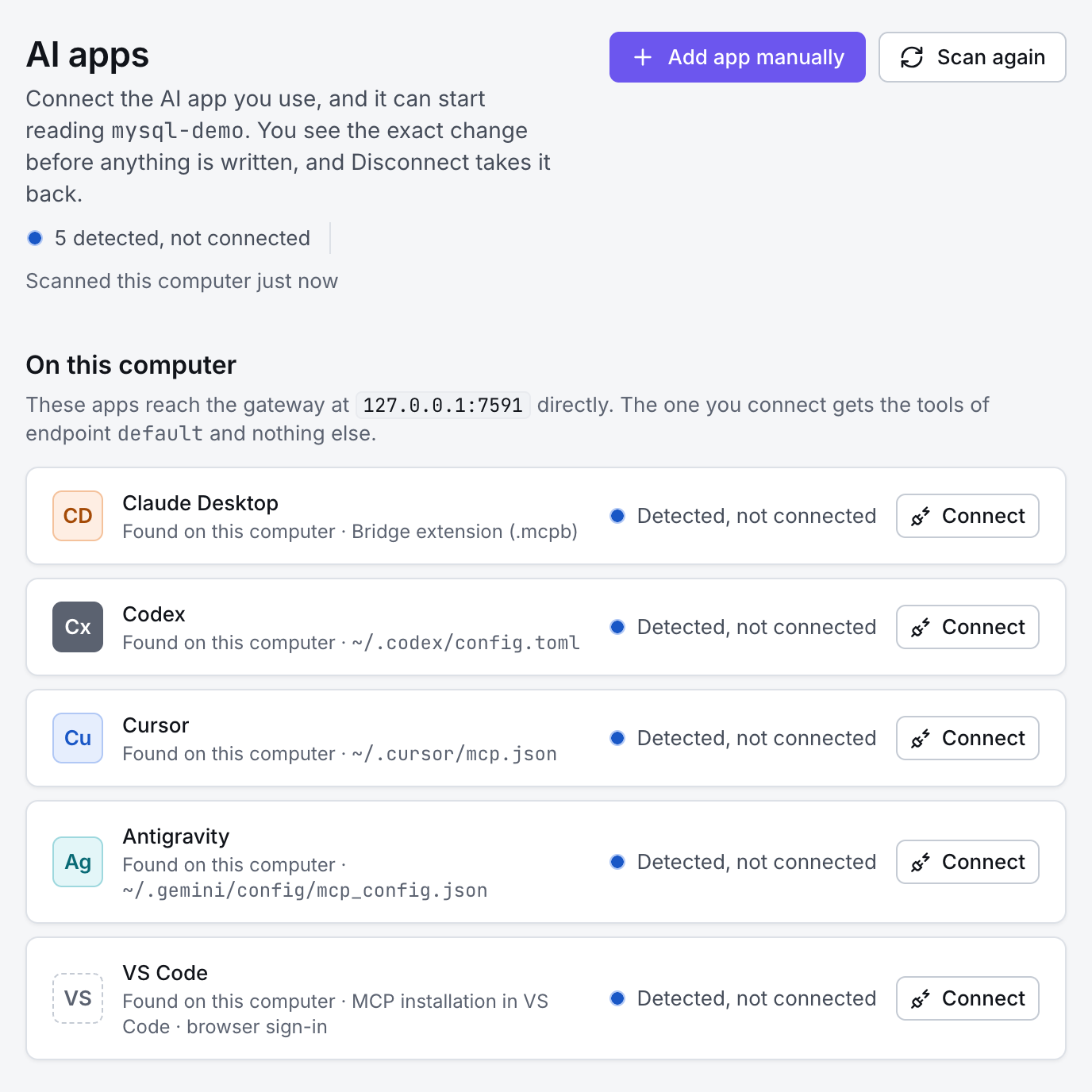
Open GateRook and go to AI apps. GateRook lists the AI apps it finds on this computer. Next to Claude Desktop, select Connect.
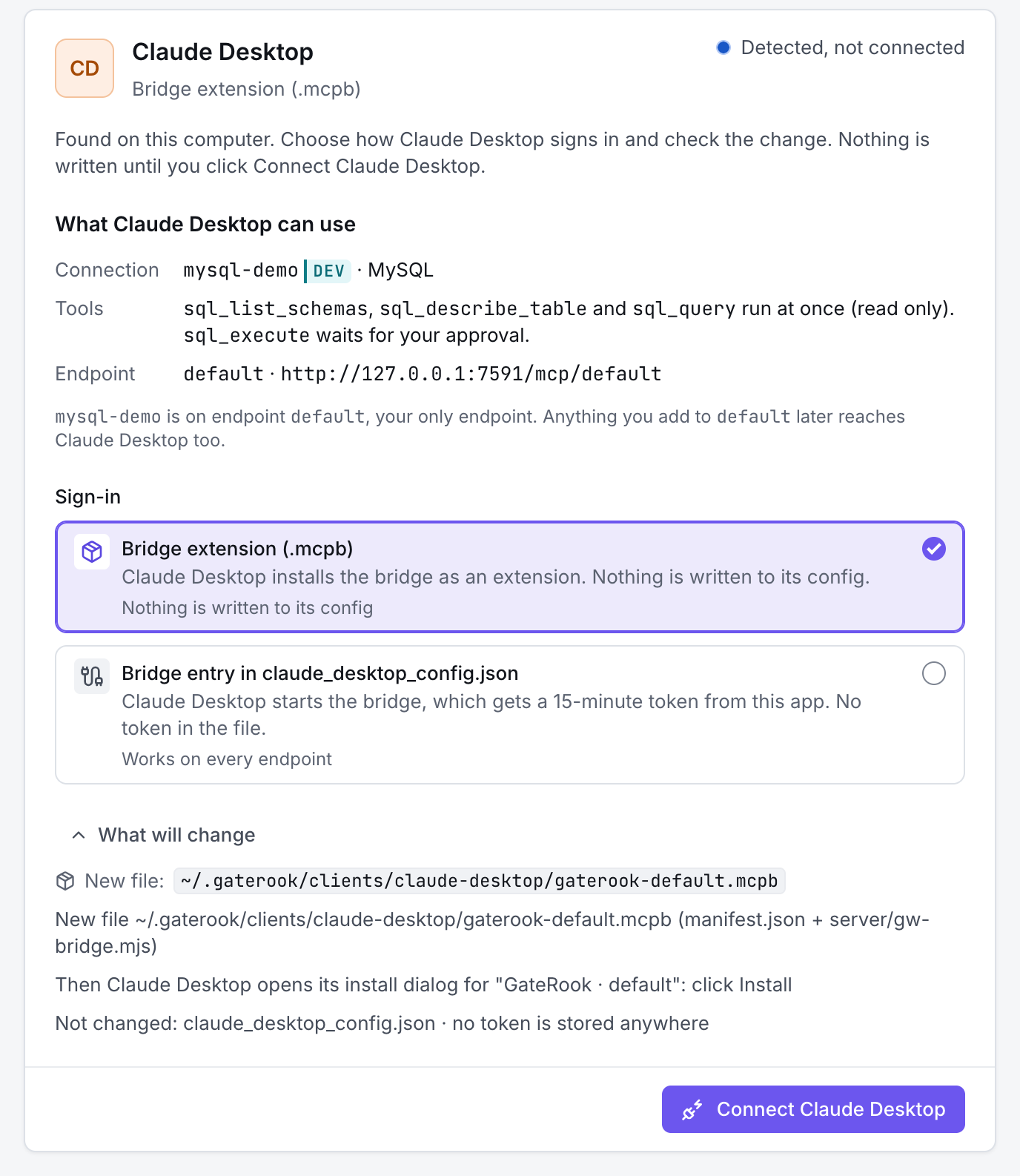
GateRook shows what Claude Desktop can use: the connections and tools on the endpoint, here default. Keep Bridge extension (.mcpb). Open What will change to see the extension file GateRook creates, then select Connect Claude Desktop.
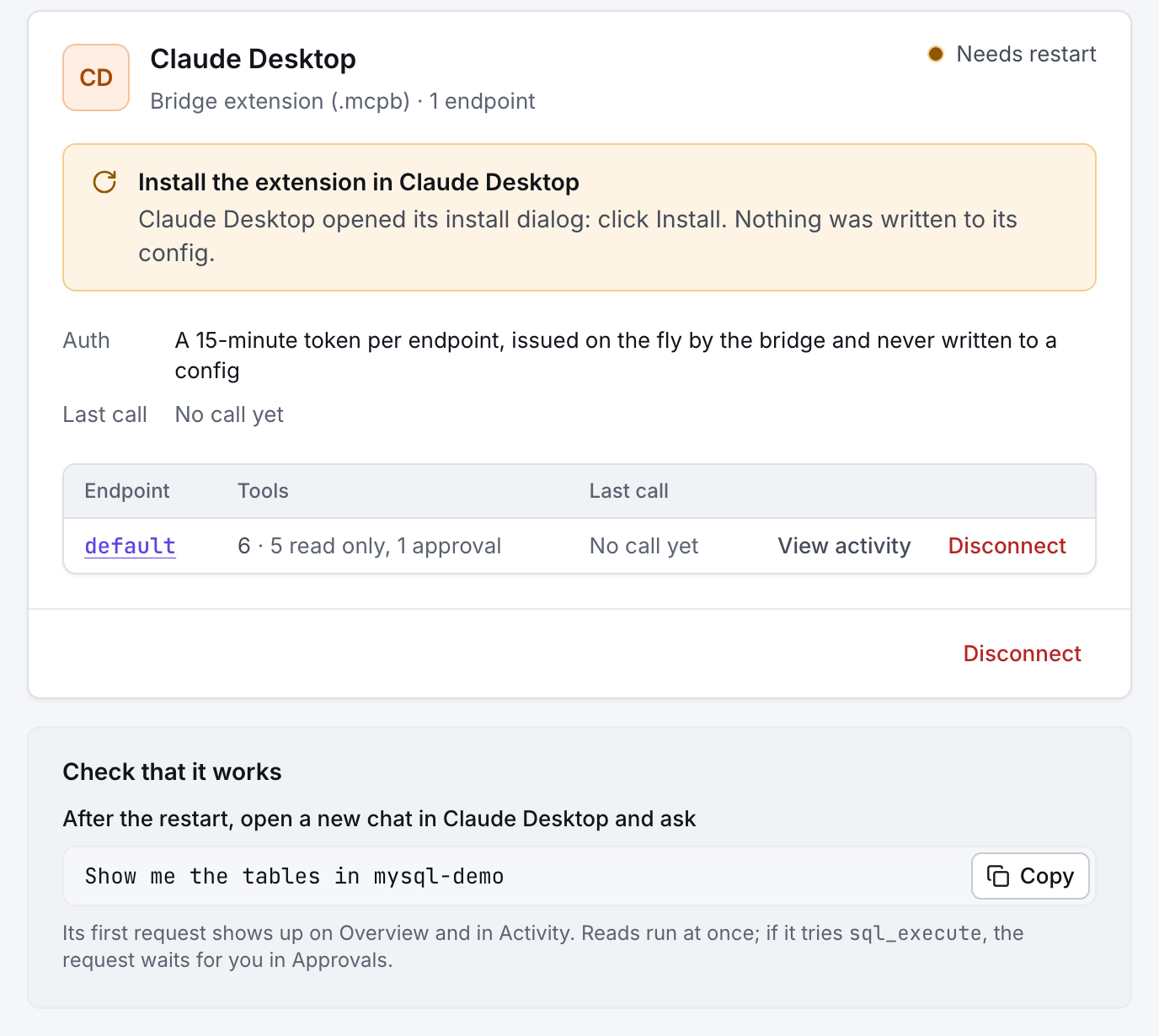
Claude Desktop opens its install dialog for GateRook · default. Select Install to confirm.
Under Check that it works, GateRook suggests a prompt for your first connection, here Show me the tables in mysql-demo. Once the extension is installed, open a new chat in Claude Desktop and ask it. If the GateRook tools do not appear, restart Claude Desktop.
Claude answers through GateRook's tools. Allow the tool when Claude asks. Reads run at once, changes wait for you in Approvals, and every request appears in Activity.
Using another app? Follow the guide for Codex, Cursor, Antigravity or VS Code. Then add a database, logs, a cloud account or an MCP server.
Your local MCP gateway and firewall.
Choose a connector. Start with read-only access. Approve changes and inspect the audit trail.