
Buckets and objects on Amazon S3, Cloudflare R2, MinIO and other S3-compatible storage. Writes wait for approval.
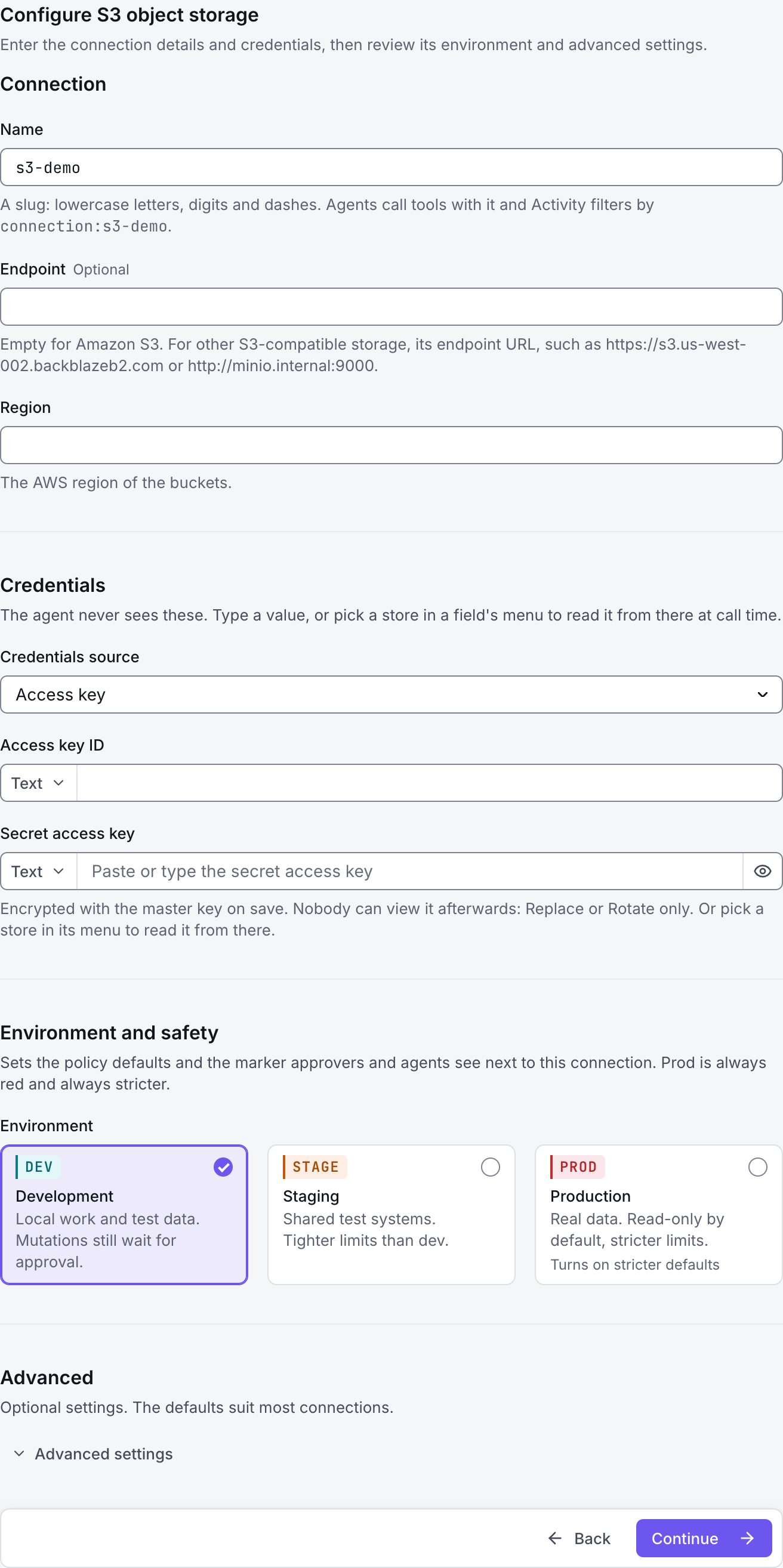
The screenshots show GateRook 2.0.0: the S3 object storage form, the endpoint selector, and this connector’s actual tool preview. The form and preview have not been saved. Select a screenshot to open it at full size.
1. Create a connection and enter the settings
In GateRook, open Connections, select Add connection, search for S3 object storage, choose its card and select Continue to configure.
Choose the object-storage account and buckets the AI may use. This connector supports Amazon S3 and S3-compatible endpoints, including providers with their own access keys.
Prepare credentials allowed to list the intended buckets or keys and read objects. Object reads return bounded text content; this is not a general binary-file download tool.
Enter a Name, for example s3-demo. Your AI app uses this name to choose the connection.
For Amazon S3, leave Endpoint empty, select Region and choose AWS profile on this computer or Access key under Credentials source.
For S3-compatible storage, enter its Endpoint, provider Region, Access key ID and Secret access key. Set Path-style addressing as the provider requires; Cloudflare R2 uses region auto.
Restrict Buckets to the intended names or patterns. On Amazon S3, use Role to assume when appropriate and keep the recommended Session policy.
Choose Development, Staging or Production to match the service. Review the connector’s limit and access settings before continuing.
2. Test the connection and add it to an endpoint
Select Continue to test. GateRook checks the settings from your computer. Review the result and resolve any connection, certificate or permission error before continuing.
Check the endpoint, region and addressing style if the provider returns signature or routing errors. Bucket listing, key listing and object reading have distinct permissions; test the operation you need on the intended bucket.
After the test passes, select Continue to add to an endpoint. Choose the endpoint your AI app uses, review its tool modes, then select Save connection. GateRook offers default as the starter endpoint.

3. Use the connection from your AI IDE
After saving S3 object storage on the endpoint and passing its connection test, ask your AI app to use s3-demo, or the name you chose. If its tools are missing, confirm the endpoint assignment and refresh the MCP connection or start a new chat.
The preview below shows this connector’s default tools before saving. The table explains what each tool can do; connection settings, credentials and endpoint policies can restrict access further.
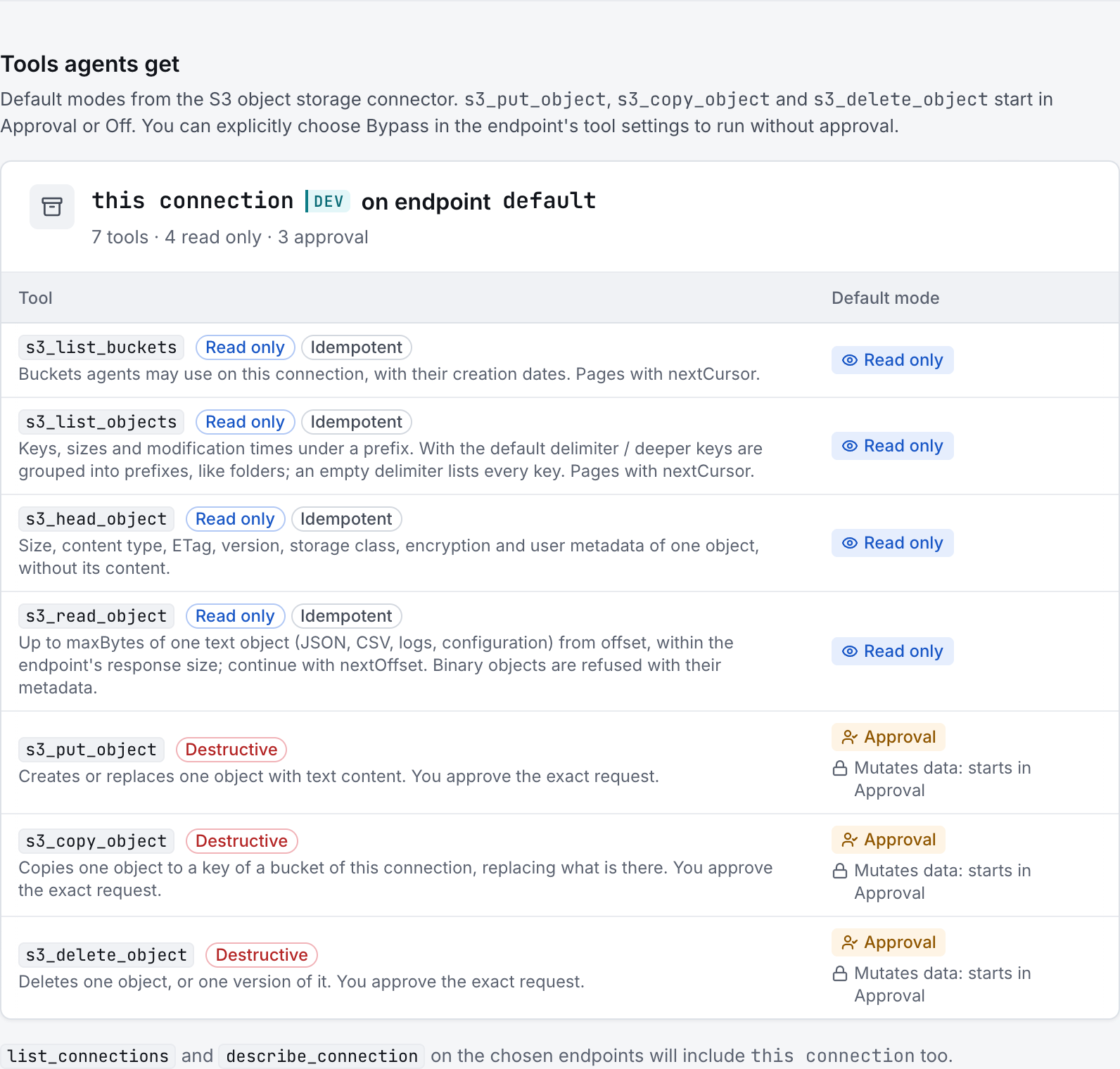
Start with a small read request. Replace example resource names with existing resources your connection may access. Open Activity after the call to inspect its connection, tool, arguments, policy decision and result metadata.
Ask your AI, for example
- “List the buckets available through s3-demo.”
- “Show the object keys and sizes under reports/ in my-reports on s3-demo.”
- “Using s3-demo, read at most 64 KB of reports/latest.json in the my-reports bucket without modifying the object.”
| Tool | What it does | Starts as |
|---|---|---|
s3_list_buckets | Buckets agents may use on this connection, with their creation dates. Pages with nextCursor. | Read only |
s3_list_objects | Keys, sizes and modification times under a prefix. With the default delimiter / deeper keys are grouped into prefixes, like folders; an empty delimiter lists every key. Pages with nextCursor. | Read only |
s3_head_object | Size, content type, ETag, version, storage class, encryption and user metadata of one object, without its content. | Read only |
s3_read_object | Up to maxBytes of one text object (JSON, CSV, logs, configuration) from offset, within the endpoint's response size; continue with nextOffset. Binary objects are refused with their metadata. | Read only |
s3_put_object | Creates or replaces one object with text content. You approve the exact request. | Approval |
s3_copy_object | Copies one object to a key of a bucket of this connection, replacing what is there. You approve the exact request. | Approval |
s3_delete_object | Deletes one object, or one version of it. You approve the exact request. | Approval |
You can change each tool’s mode on the endpoint. Every call your AI makes appears in Activity.