
Step-by-step walkthrough
Control AI queries to MySQL with GateRook’s MCP Firewall
GateRook’s MCP Firewall gives an AI app controlled access to MySQL without putting the database password in its SQL tool calls. You choose the database, expose the connection through an endpoint, and keep changes behind approval. Activity shows the request, the authorization decision, and the outcome.
This walkthrough uses GateRook 0.7.0, MySQL 8.4.10 in Docker Desktop on macOS, and Codex connected to the showcase development endpoint. We create a separate mysql-demo connection and use four fictional orders to demonstrate discovery, reads, an update request, and auditing.
1. Start an isolated MySQL server
Keep Docker Desktop and GateRook running. This example assumes that showcase already exists and your AI app is connected to it. It uses a separate container and host port, so an existing MySQL server on port 3306 can keep running.
Create a local working directory and generate independent passwords for the administrator and tutorial user. Keep the resulting environment file private and outside version control.
mkdir -p ~/gaterook-mysql-demo
cd ~/gaterook-mysql-demo
umask 077

python3 - <<'PY'
from pathlib import Path
import secrets

path = Path("mysql.env")
with path.open("x") as output:
    output.write(
        "MYSQL_ROOT_PASSWORD=" + secrets.token_hex(24) + "\n"
        "MYSQL_DATABASE=gaterook_demo\n"
        "MYSQL_USER=demo_agent\n"
        "MYSQL_PASSWORD=" + secrets.token_hex(24) + "\n"
    )
path.chmod(0o600)
PY
Create init.sql in that directory:
cat > init.sql <<'SQL'
USE gaterook_demo;

CREATE TABLE orders (
    id INT PRIMARY KEY,
    customer_name VARCHAR(100) NOT NULL,
    status VARCHAR(20) NOT NULL,
    total DECIMAL(10,2) NOT NULL,
    CONSTRAINT orders_status
        CHECK (status IN ('pending', 'paid', 'shipped'))
);

INSERT INTO orders VALUES
    (1001, 'Avery Stone', 'pending', 129.90),
    (1002, 'Morgan Reed', 'paid', 89.00),
    (1003, 'Riley Chen', 'pending', 249.00),
    (1004, 'Jordan Lee', 'shipped', 49.50);

REVOKE ALL PRIVILEGES, GRANT OPTION FROM 'demo_agent'@'%';
GRANT SELECT, UPDATE ON gaterook_demo.orders TO 'demo_agent'@'%';
SQL
The image creates demo_agent from the environment variables. The initialization script replaces its initial database privileges with SELECT and UPDATE on this one table. It does not grant INSERT, DELETE, or schema changes. See the official MySQL image documentation for environment variables and initialization scripts.
Start the container:
docker run -d \
  --name gaterook-mysql-showcase \
  -p 127.0.0.1:13306:3306 \
  --env-file mysql.env \
  --mount "type=bind,source=$(pwd)/init.sql,target=/docker-entrypoint-initdb.d/01-demo.sql,readonly" \
  --health-cmd='MYSQL_PWD="$MYSQL_PASSWORD" mysql --protocol=TCP -h 127.0.0.1 -u "$MYSQL_USER" -D "$MYSQL_DATABASE" -Nse "SELECT COUNT(*) FROM orders"' \
  --health-interval=2s \
  --health-timeout=3s \
  --health-retries=30 \
  mysql:8.4.10

docker inspect --format '{{.State.Health.Status}}' \
  gaterook-mysql-showcase
Wait until the health status is healthy. The check authenticates as the tutorial user over TCP and reads the sample table. The published address is 127.0.0.1:13306, available only from this computer. Choose a different name or port if either is already in use.
The initialization script runs when the container initializes an empty data directory. Editing the file or environment variables later does not reset an existing database. Keep the container for the stop/start commands at the end of this tutorial.
2. Choose the MySQL connector
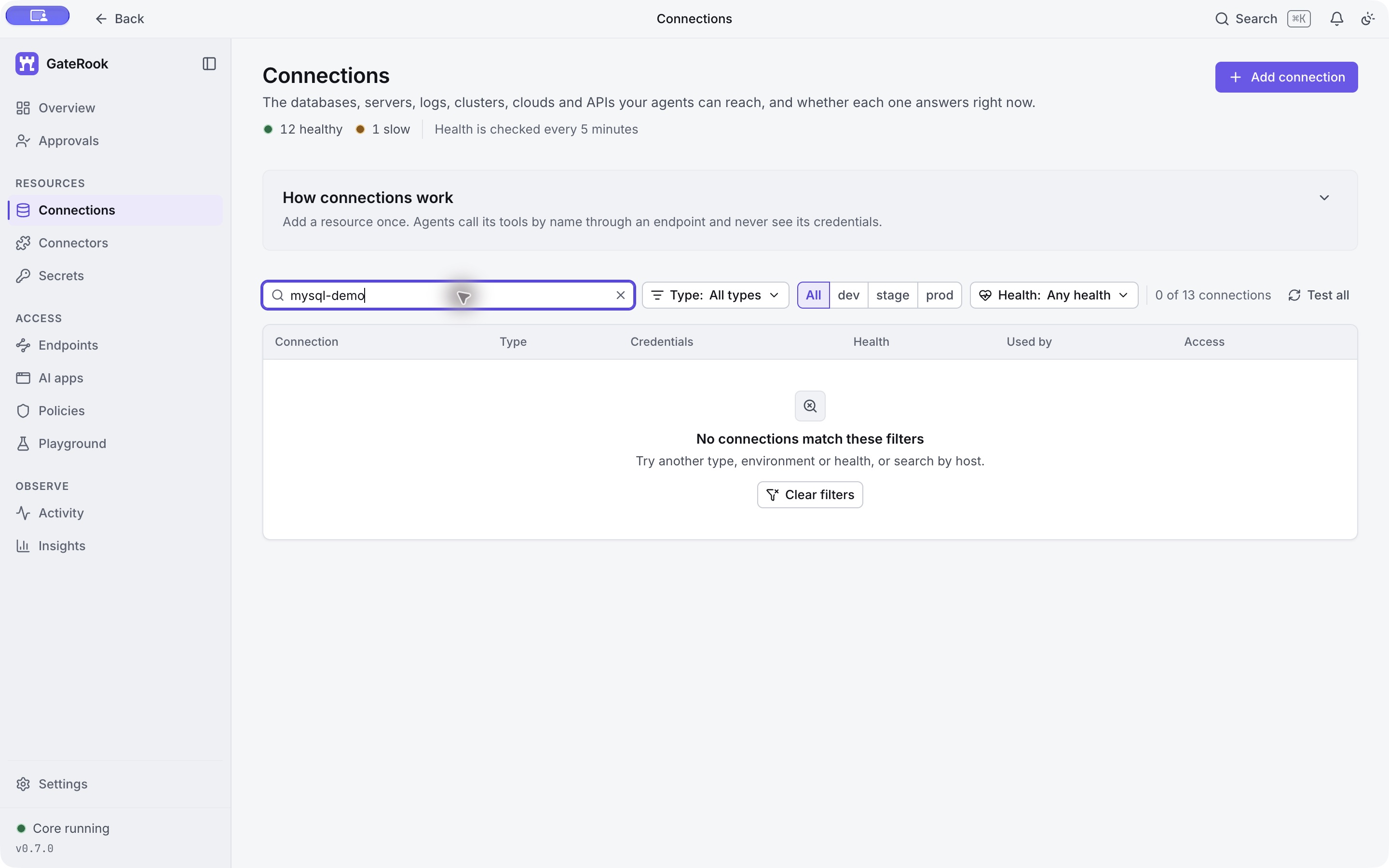
Open Connections → Add connection. In this capture, the connection list is filtered to mysql-demo so that unrelated server addresses and credential references stay out of view. An empty result is expected before creating the connection.
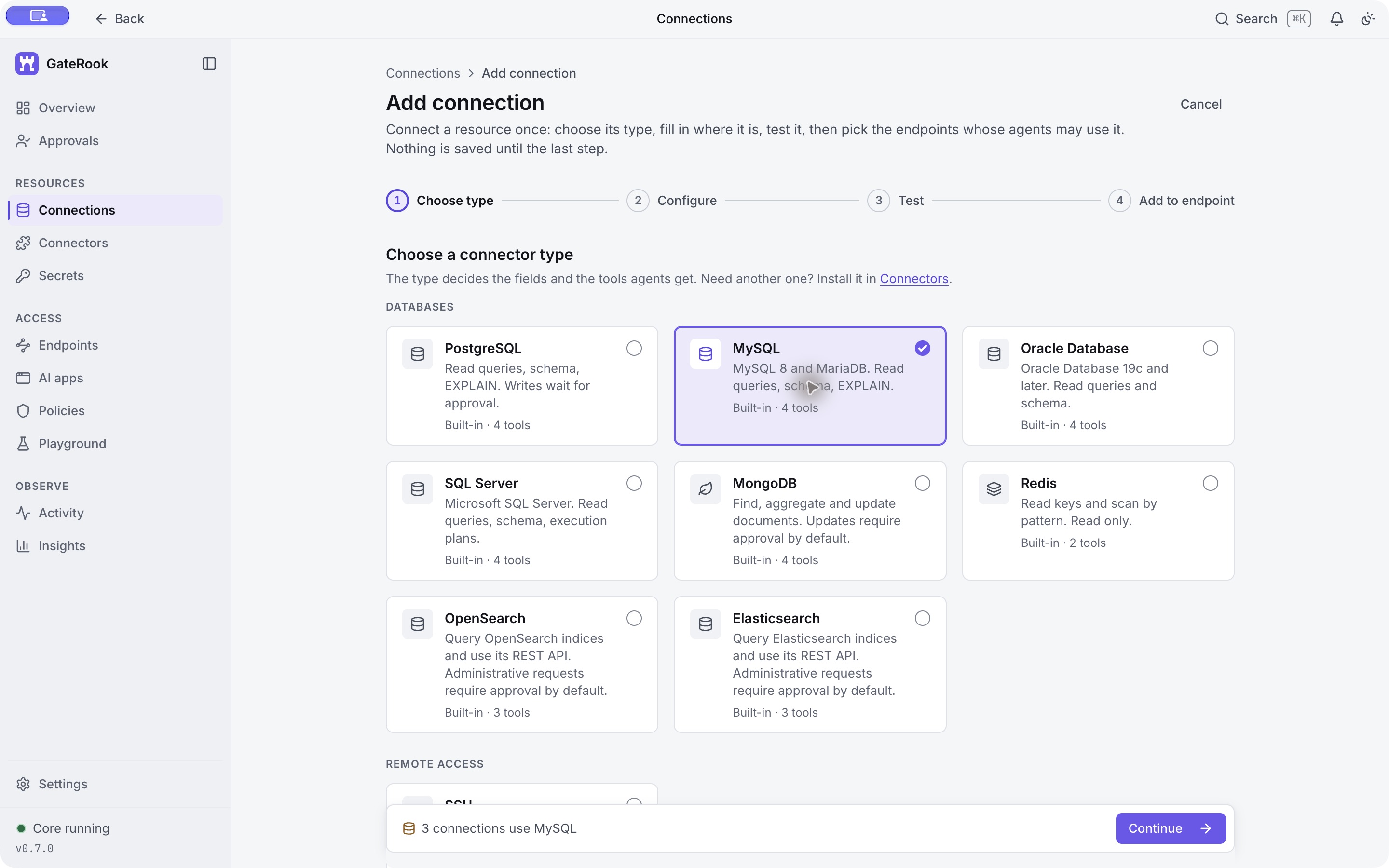
Select MySQL, then Continue. The built-in connector exposes four SQL tools.
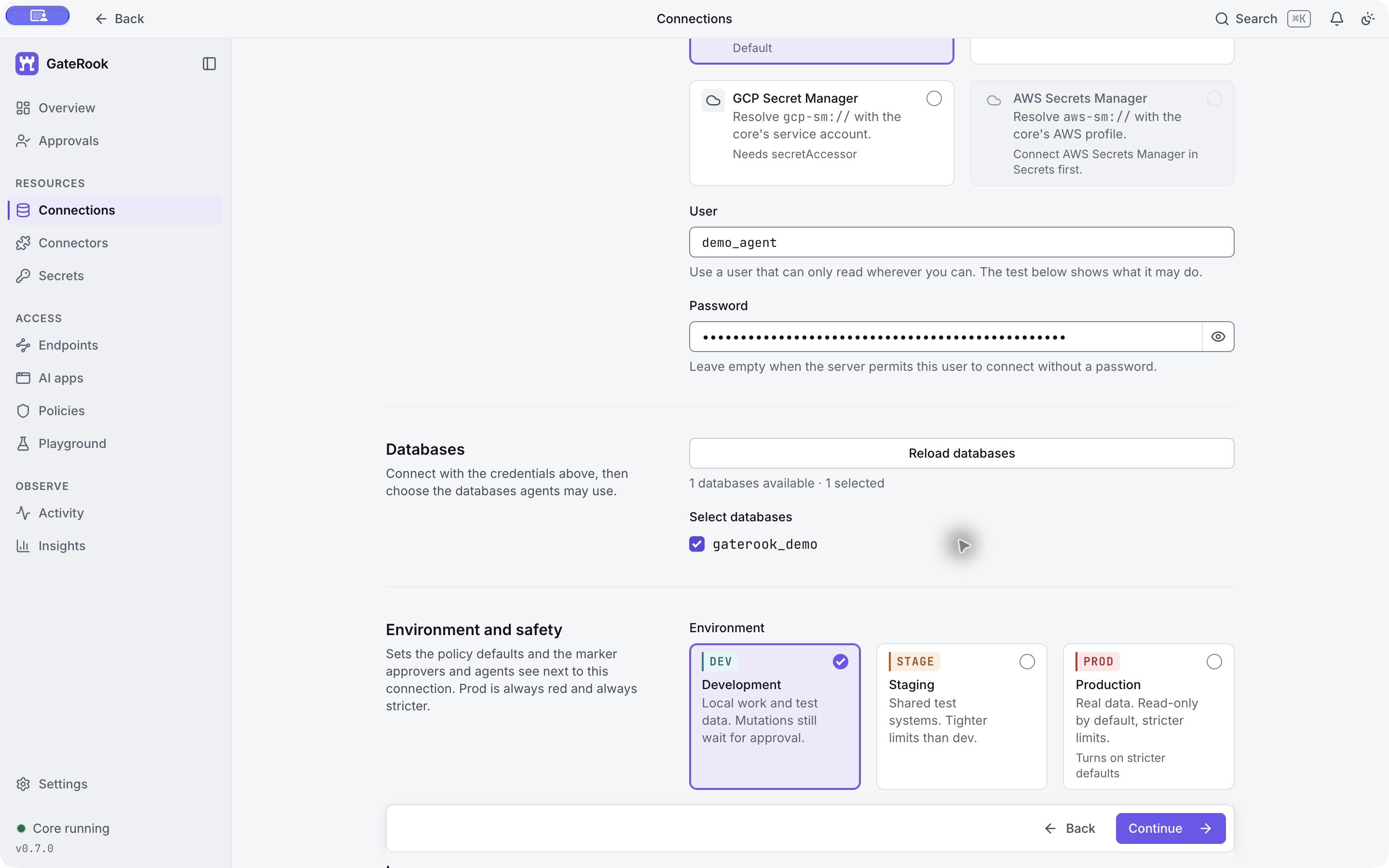
3. Enter the server and credentials
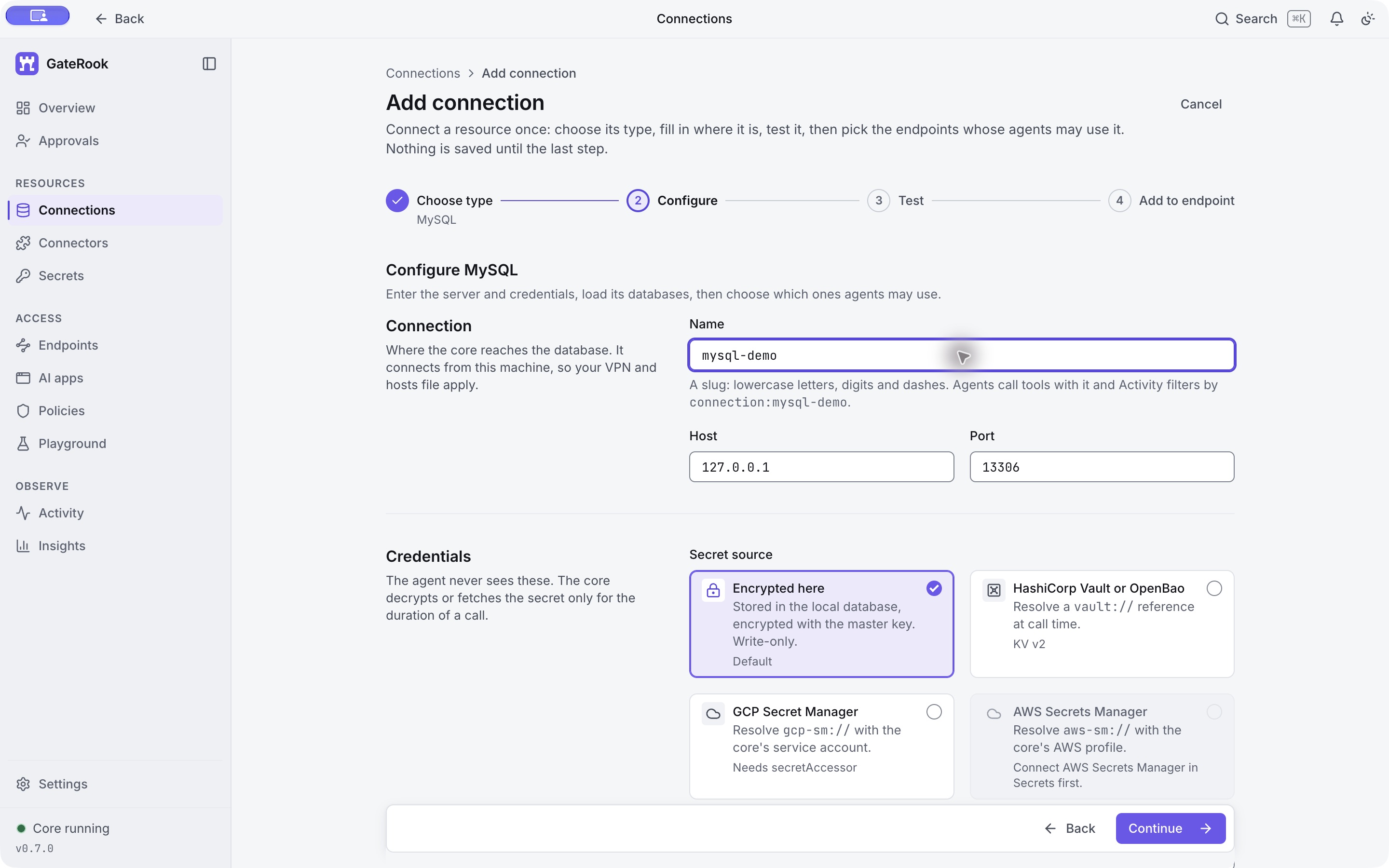
Fill in these fields:
| Field | Value |
|---|---|
| Name | mysql-demo |
| Host | 127.0.0.1 |
| Port | 13306 |
| Secret source | Encrypted here |
| User | demo_agent |
| Password | The generated MYSQL_PASSWORD value in your private mysql.env file |
| Environment | DEV Development |
Use the tutorial user's password, not MYSQL_ROOT_PASSWORD. Copy only the value after MYSQL_PASSWORD= into GateRook; do not paste the environment file or password into your AI conversation.
The connection name is the identifier used in tool calls and Activity filters. Choose it before saving: the saved name cannot be edited because calls and policies refer to it.
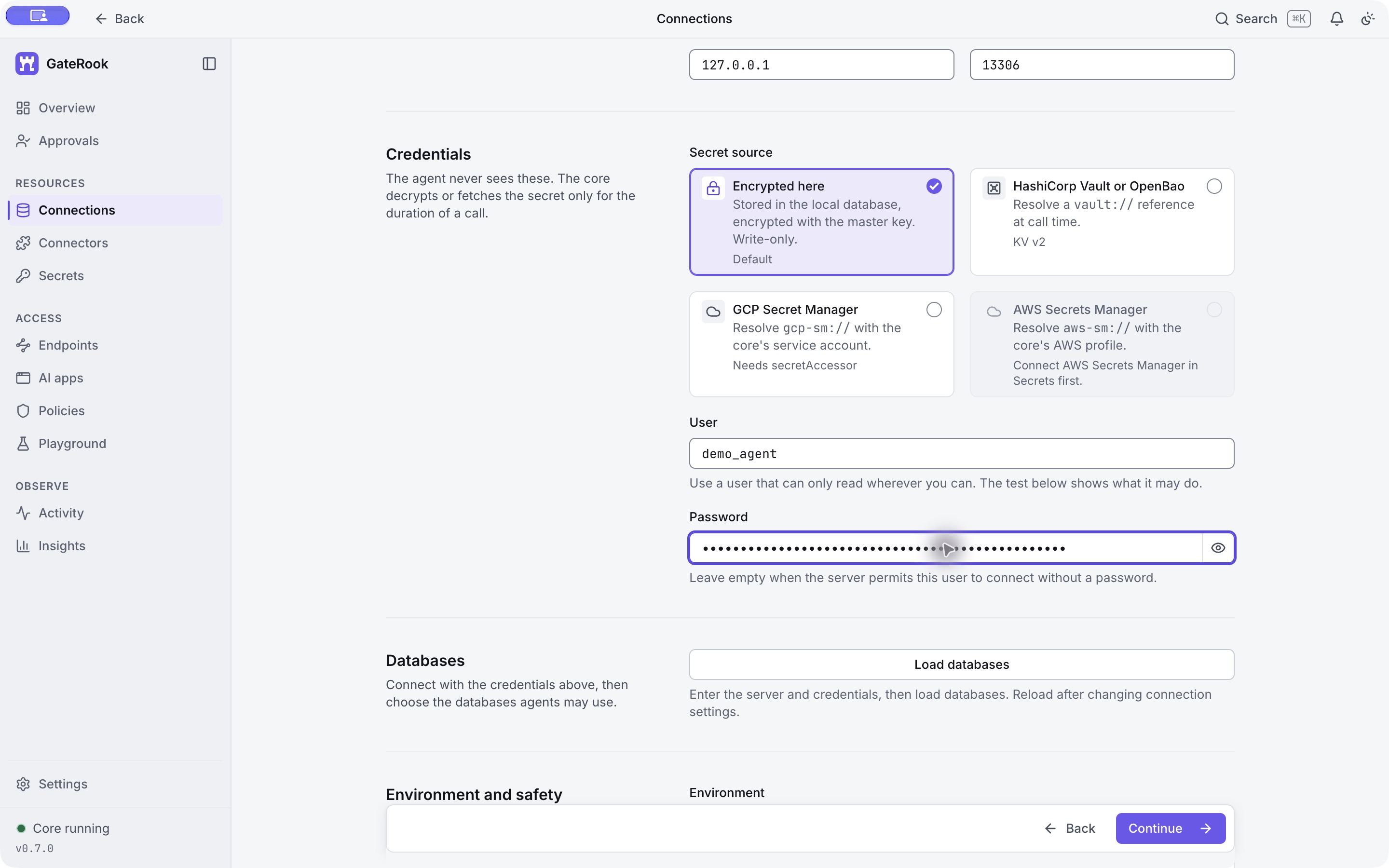
GateRook's core connects from this computer. Encrypted here stores the credential encrypted with the local master key, and the connector supplies it when connecting to MySQL. The AI's later tool arguments contain the connection name, database, and SQL, without the password.
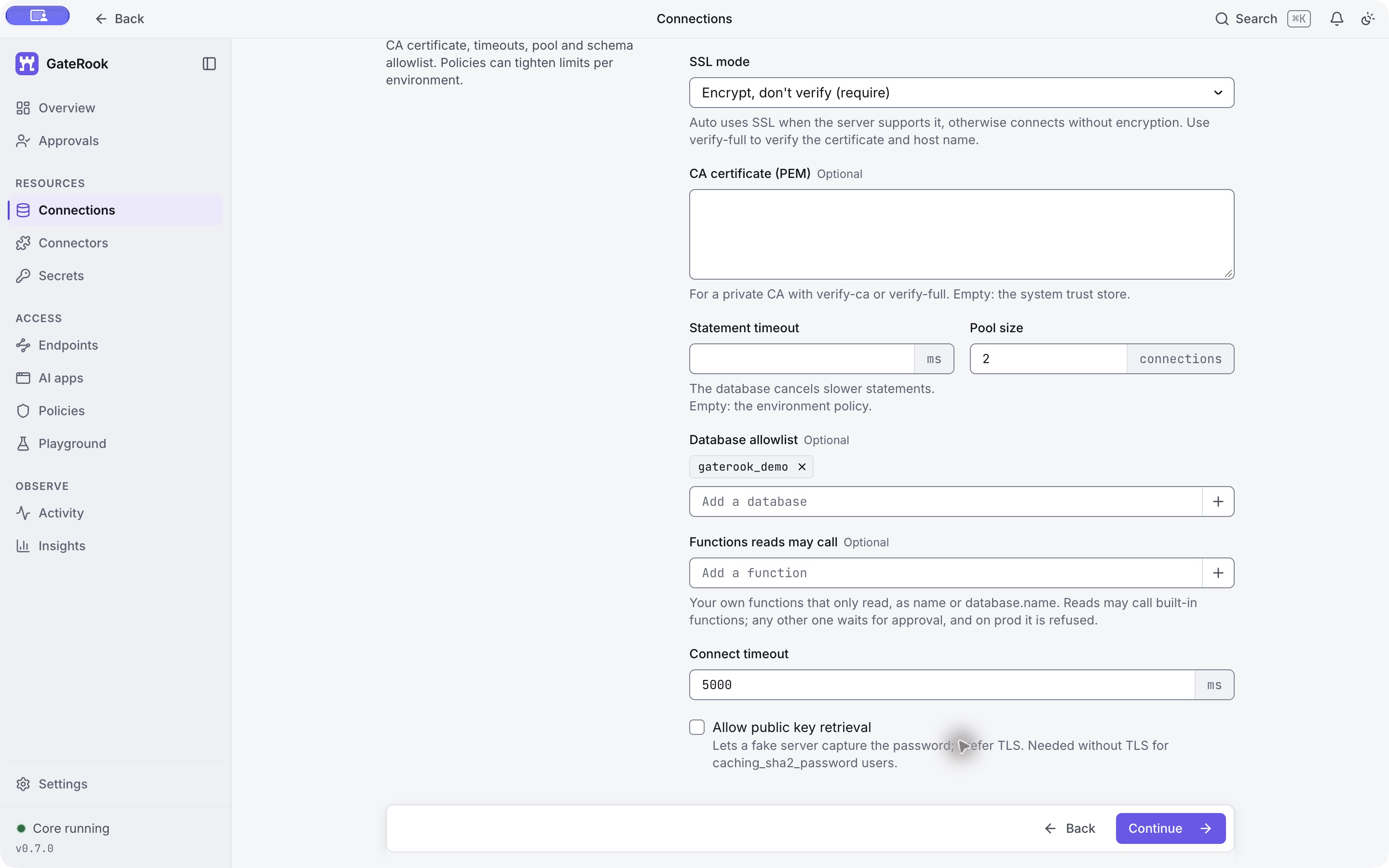
4. Configure encryption and the database allowlist
Expand Advanced and use:
| Field | Value in this example |
|---|---|
| SSL mode | Encrypt, don't verify (require) |
| CA certificate | Empty for this disposable local server |
| Database allowlist | Add gaterook_demo as a chip using the + button |
| Allow public key retrieval | Unchecked |
| Statement timeout | Leave empty to use the environment policy |
| Pool size | 2 |
| Connect timeout | 5000 ms |
| Functions reads may call | Leave empty |
This MySQL container supports TLS. The selected mode requires encryption, but does not verify the server certificate or host name. It is the setting used for this loopback-only fixture. For a remote database, configure a trusted certificate and use Verify the CA and host name (verify-full); supply a private CA certificate when needed. The distinction between encryption and server identity verification is explained in MySQL's Connector/J security settings.
Public key retrieval is unnecessary for this TLS connection and is left off. In MySQL, a schema is a database; use gaterook_demo here rather than PostgreSQL's public schema name.
5. Load and select the database
Select Load databases, then tick gaterook_demo. The example shows 1 databases available · 1 selected. Database discovery and selection are separate: a discovered database must be selected before agents can use it through this connection.
Keep DEV Development selected. Its description explicitly says that mutations still wait for approval. Reload the database list if you change the server, credentials, or transport settings.
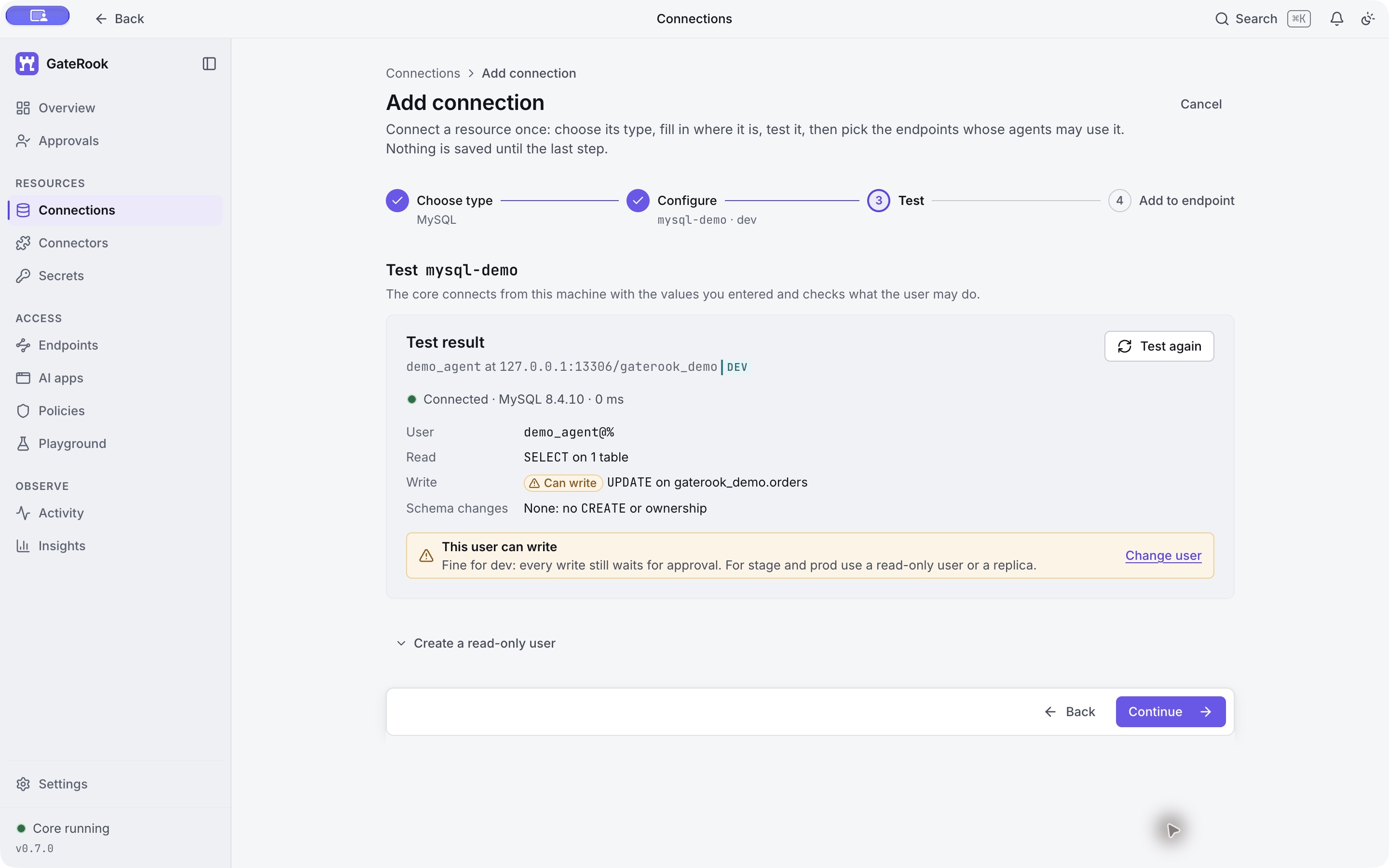
6. Test the connection
Select Continue. GateRook tests the configuration and displays the MySQL version and the user's permissions.
The actual result in this run was Connected · MySQL 8.4.10. The permissions summary reported:
SELECTon one table.UPDATEongaterook_demo.orders.- No
CREATEor ownership for schema changes.
The write warning is expected: this tutorial needs one update to demonstrate approval. For a connection that only needs analytics, grant only the necessary read privileges at the database level. An approval never grants database privileges that the login does not already have.
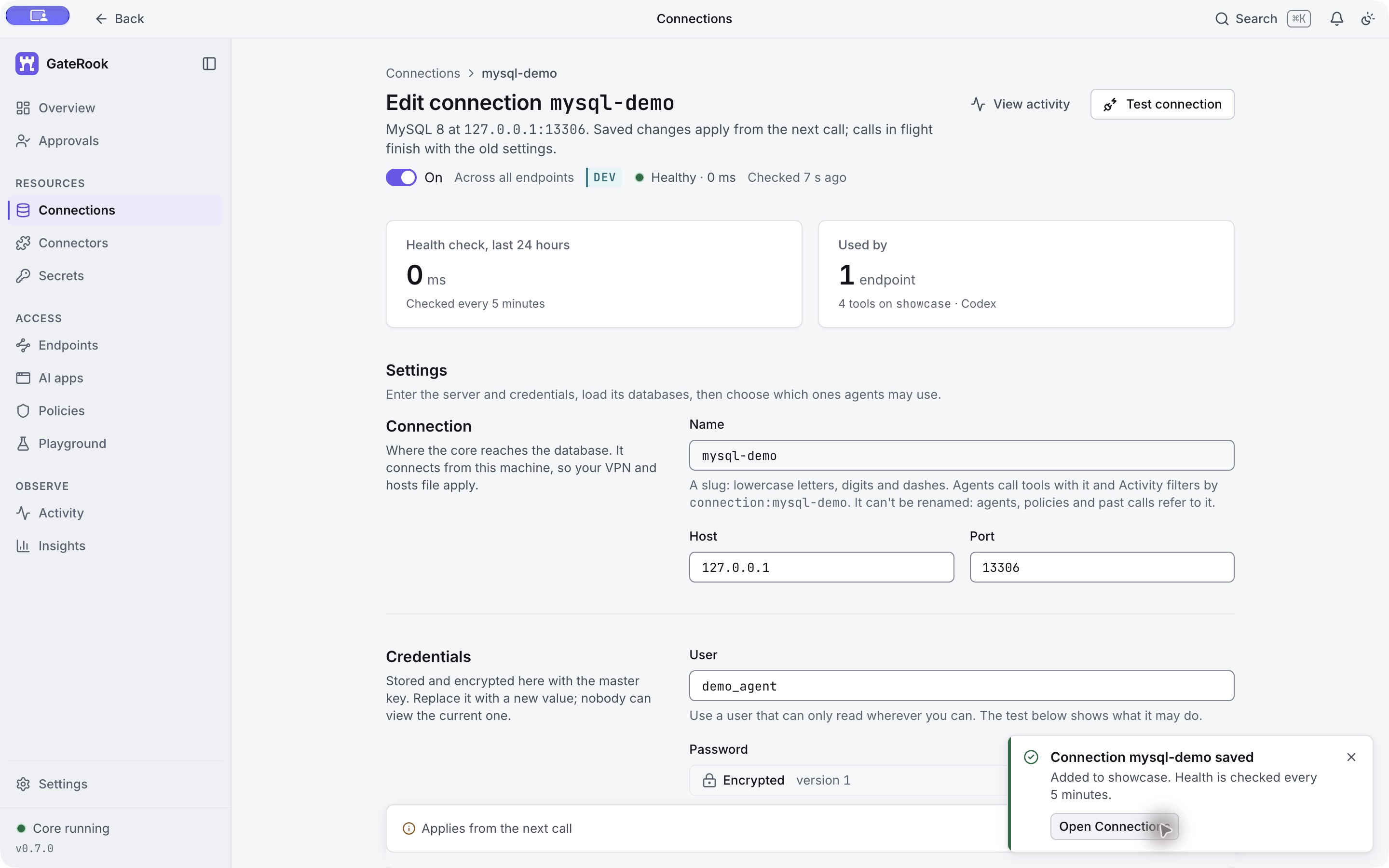
7. Add the connection to showcase
Continue to Add to endpoint. Untick default and tick only showcase. Select Save connection after reviewing the tool modes.
The saved page confirms Healthy, 1 endpoint, and 4 tools on showcase · Codex. The password appears as Encrypted version 1, with no readable value.
8. Understand how a call reaches MySQL
Open Endpoints → showcase. The diagram shows Codex calling the endpoint, which applies its modes and development policy before using a connection. In this workspace, showcase now contains the existing PostgreSQL demo and the new MySQL demo.
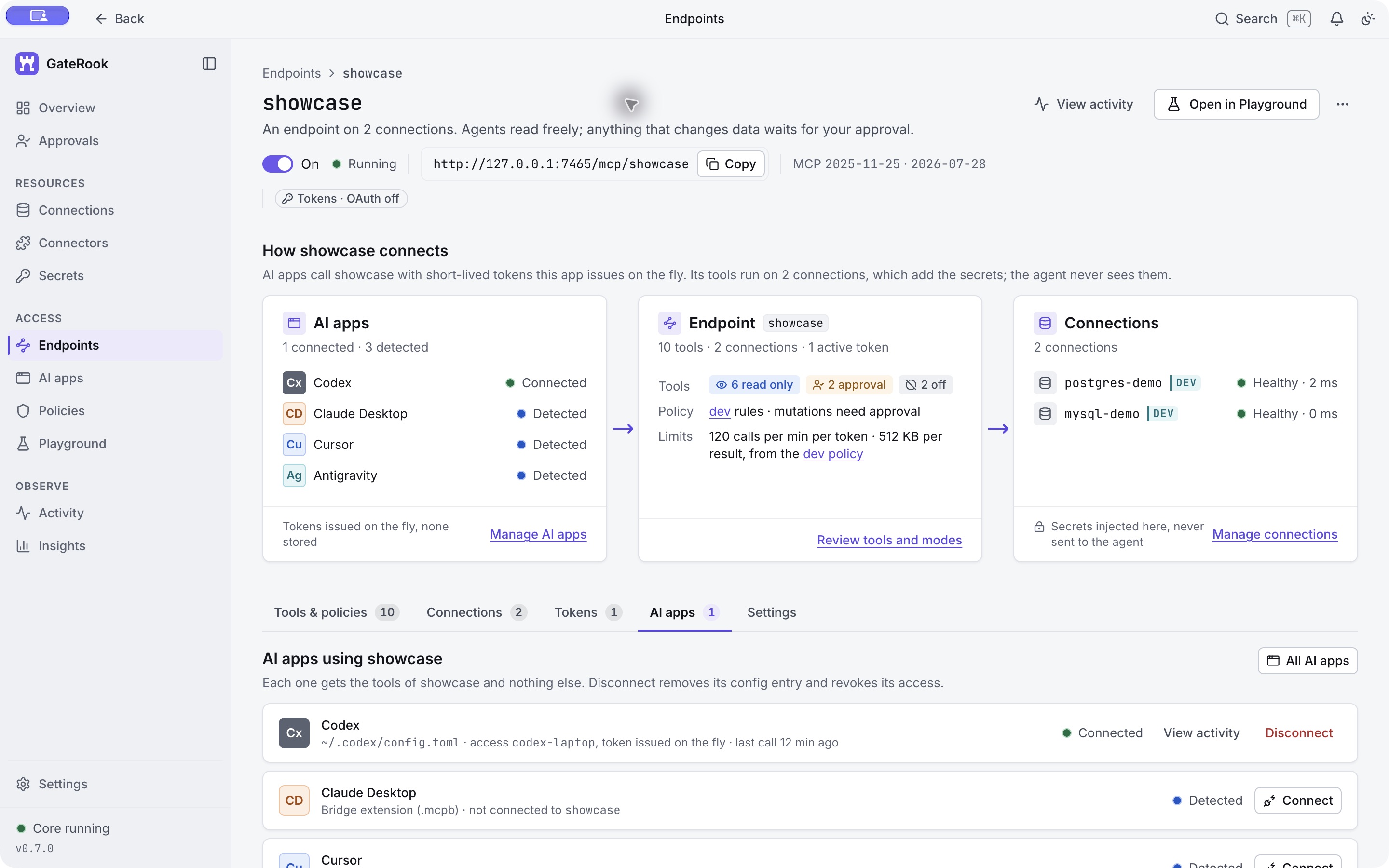
Under Tools & policies, scroll to mysql-demo:
| Tool | Mode | What it does |
|---|---|---|
sql_list_schemas | Read only | Lists accessible schemas/databases and tables. |
sql_describe_table | Read only | Describes columns, keys, indexes, and constraints. |
sql_query | Read only | Executes a validated read query. |
sql_execute | Approval | Requests a data change for a person to review. |
Keep sql_execute in Approval. Bypass would remove the approval step for future calls and is not used here. The gateway's own discovery tools can appear separately in Off mode; they are not the four MySQL connector tools.
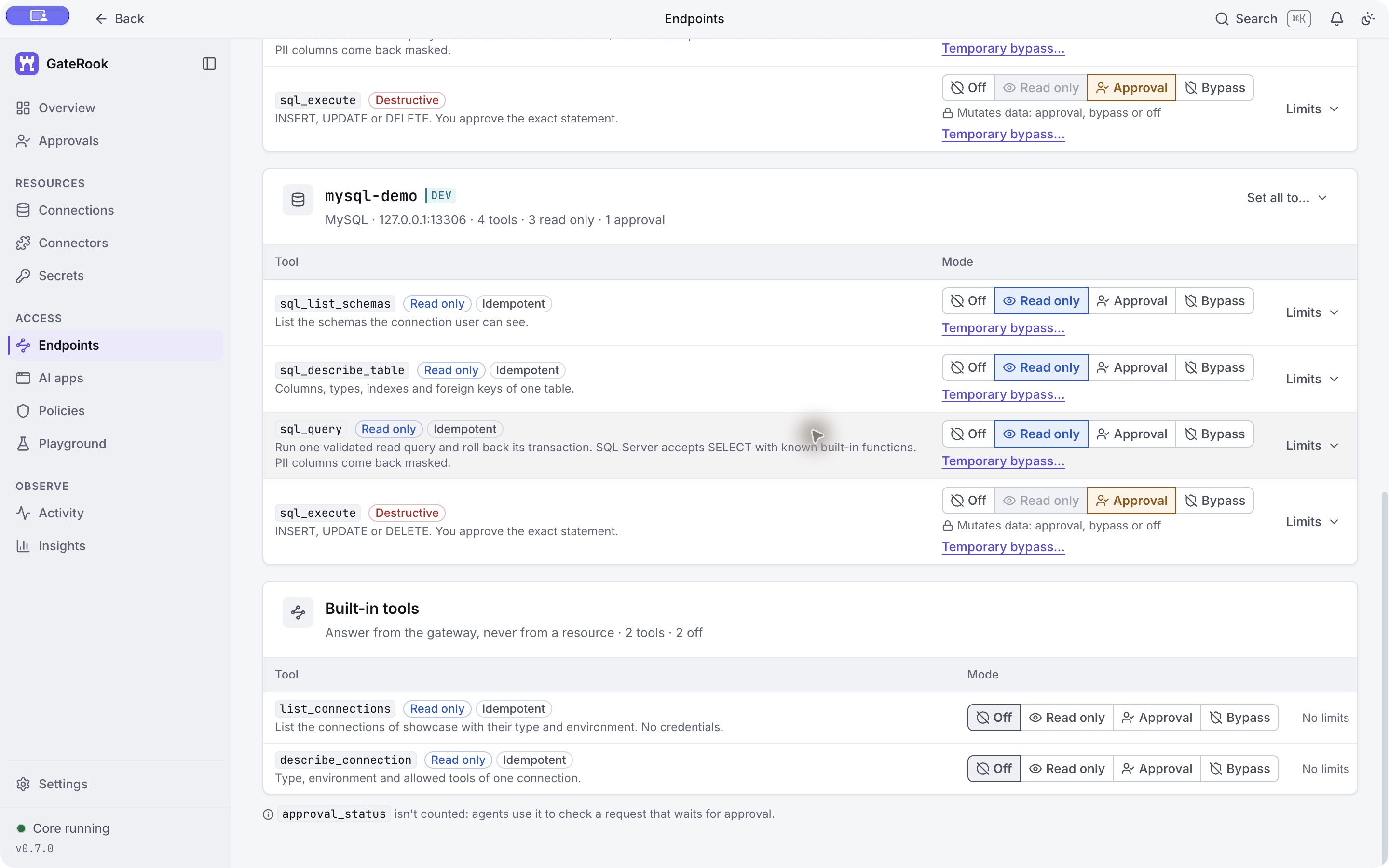
A call identifies mysql-demo and gaterook_demo. GateRook checks access, mode, policy, and limits, uses the stored credential inside the connector, and records the result in Activity. The existing Codex session successfully used the new connection in this run. If your client retains an old tool catalog, refresh its MCP tools or reconnect it before retrying discovery.
9. Discover the table and read its rows
Ask your connected AI app:
Through showcase, use mysql-demo and database gaterook_demo. List the tables, describe orders, show all four orders sorted by id, and summarize the order count and total by status.
The discovery calls returned one table, gaterook_demo.orders, with an integer primary key, a customer name, a status, and a DECIMAL(10,2) total. The status check permits pending, paid, and shipped.
The first read used:
{
  "connection": "mysql-demo",
  "database": "gaterook_demo",
  "sql": "SELECT id, customer_name, status, total FROM orders ORDER BY id",
  "limit": 10
}
It returned:
| id | customer_name | status | total |
|---|---|---|---|
| 1001 | Avery Stone | pending | 129.90 |
| 1002 | Morgan Reed | paid | 89.00 |
| 1003 | Riley Chen | pending | 249.00 |
| 1004 | Jordan Lee | shipped | 49.50 |
The grouped query was:
SELECT status, COUNT(*) AS order_count, SUM(total) AS total_amount
FROM orders
GROUP BY status
ORDER BY status;| status | order_count | total_amount |
|---|---|---|
| paid | 1 | 89.00 |
| pending | 2 | 378.90 |
| shipped | 1 | 49.50 |
For MySQL, sql_query runs a validated read in a read-only transaction and rolls it back after reading. The advertised limit in this configuration is 1,000 rows and five seconds; these examples request only ten rows. Send one SQL statement per MySQL call.
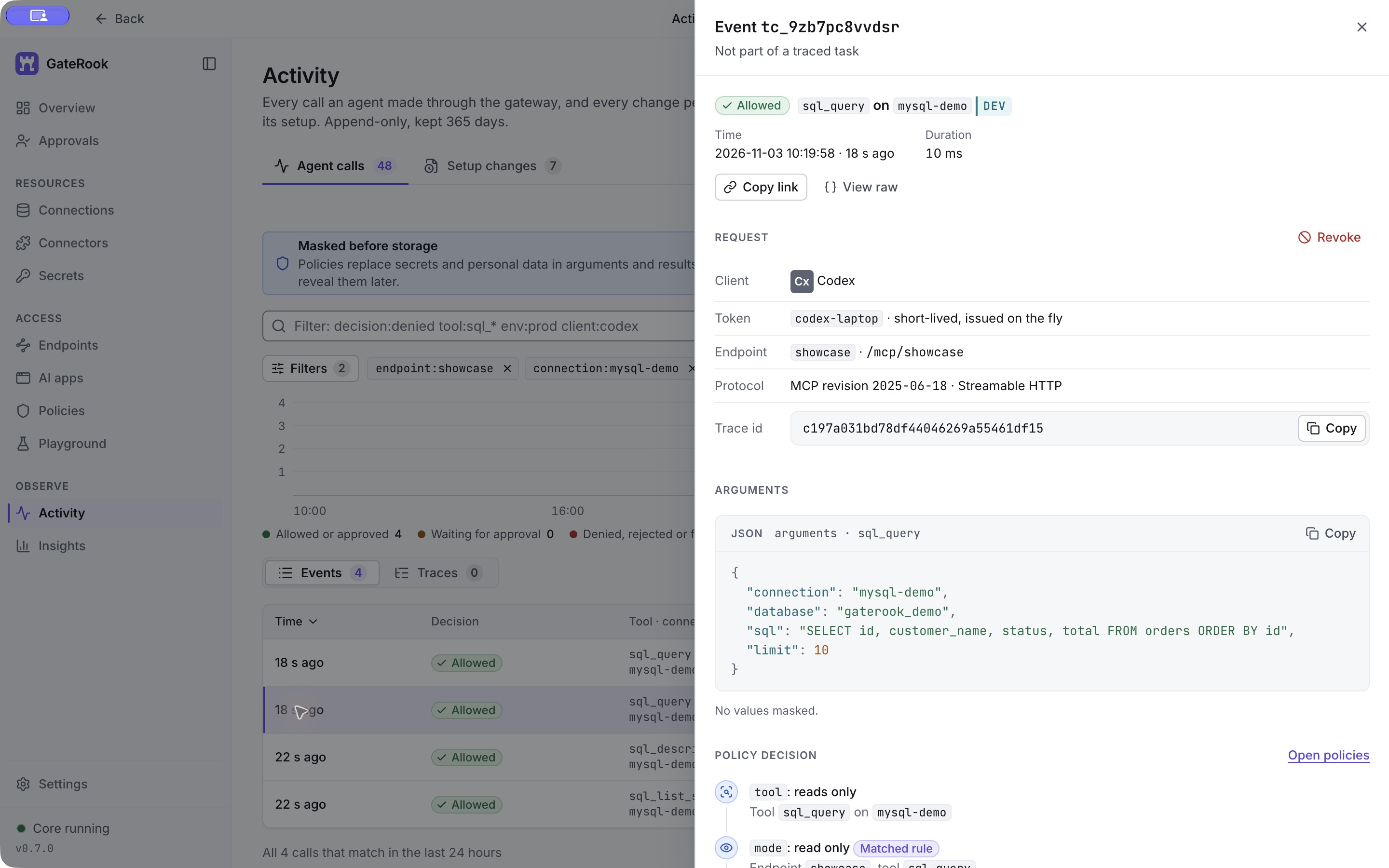
Open Activity → Agent calls, enter the following filter, and press Enter:
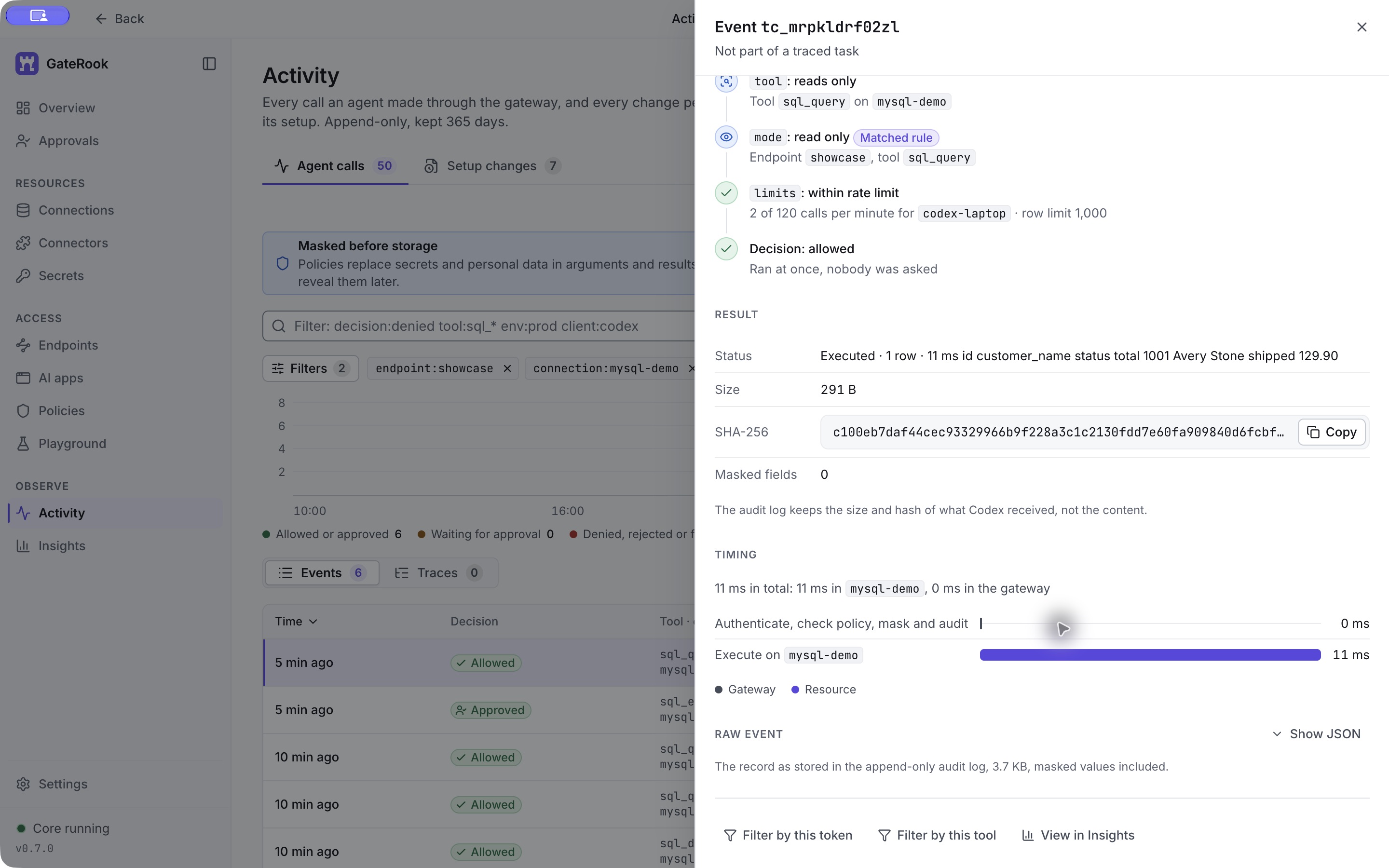
endpoint:showcase connection:mysql-demoSelect the initial sql_query event. Request identifies Codex and showcase. Arguments shows the exact SELECT, database, connection, and requested row limit.
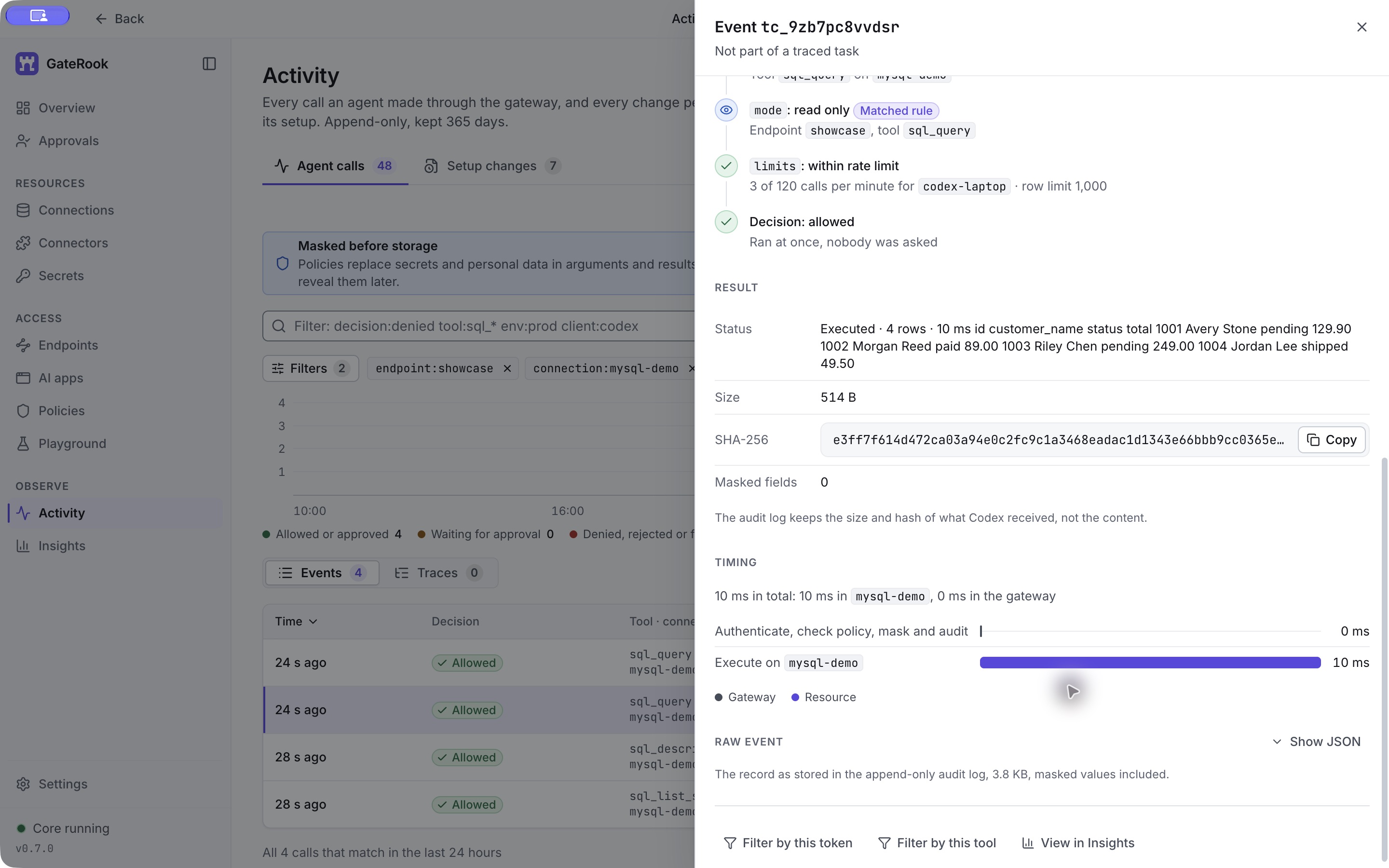
Scroll down. Policy decision says Allowed and explains that the read ran immediately. Result shows four rows, a response summary, size, hash, and zero masked fields in this fictional dataset. Timing separates resource execution from gateway overhead.
10. Request a change and review the exact action
Ask the AI to mark order 1001 as shipped only if it is still pending. The sql_execute request in this run used:
UPDATE orders
SET status = 'shipped'
WHERE id = 1001 AND status = 'pending';
GateRook returned a pending approval handle: the SQL had not executed. The AI displays the approval card once and polls that handle instead of submitting the UPDATE again.
In Approvals, review the following before deciding:
- The connection
mysql-demo, DEV environment, andshowcaseendpoint. - The exact table, assigned status, and both conditions in the
WHEREclause. - The matched rule
dev.sql.write-approval. - The impact preview: target
orders, an estimate of 1 row fromEXPLAIN, a transaction rolled back on error, and a five-second statement timeout.
The row estimate is a preview; the execution result establishes the actual affected-row count. Add an optional comment, then select Approve and run to execute this exact action, or Deny to refuse it. Only a person can approve in GateRook. Opening the chat card does not approve anything. An unanswered request expires after its displayed deadline.
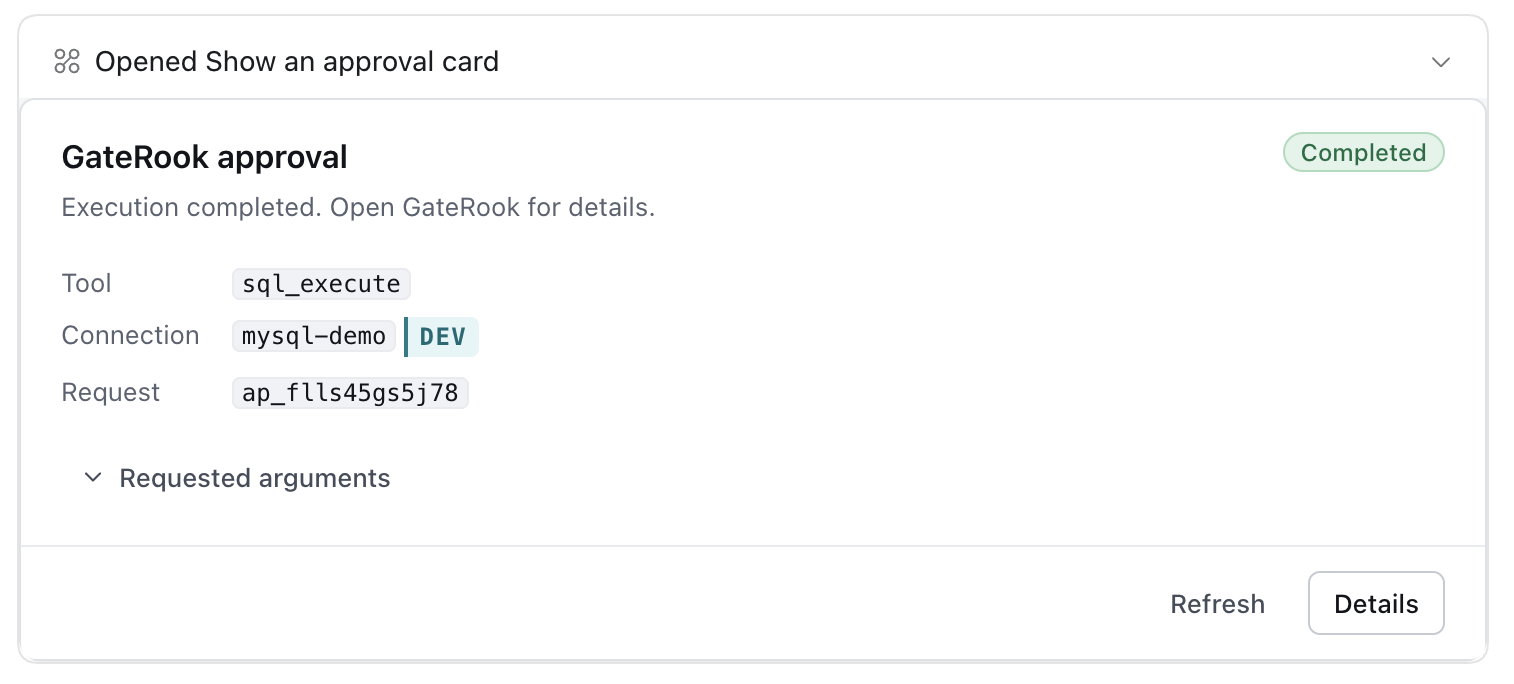
The Approvals screen is protected from automated screenshots. The screenshot below instead shows the actual client-side approval card supplied by the operator after the decision; the protection was left enabled.
The person approved the request at 10:25:03 on November 3, 2026 (Europe/Madrid). Polling the original handle returned completed, with a committed transaction and 1 row updated.
11. Verify the saved change
After approval, read the row again through the same endpoint and connection:
SELECT id, customer_name, status, total
FROM orders
WHERE id = 1001;
The follow-up sql_query returned:
| id | customer_name | status | total |
|---|---|---|---|
| 1001 | Avery Stone | shipped | 129.90 |
This verifies the database state independently of the approval message. The follow-up read is also recorded in Activity.
12. Follow the audit trail
Return to Activity → Agent calls and use:
endpoint:showcase connection:mysql-demoChoose a time range covering the test and select Refresh. The walkthrough made six calls: schema discovery, table description, the initial SELECT, the grouped SELECT, the approved UPDATE, and the verification SELECT. Read calls run immediately; the UPDATE passes through the approval workflow.
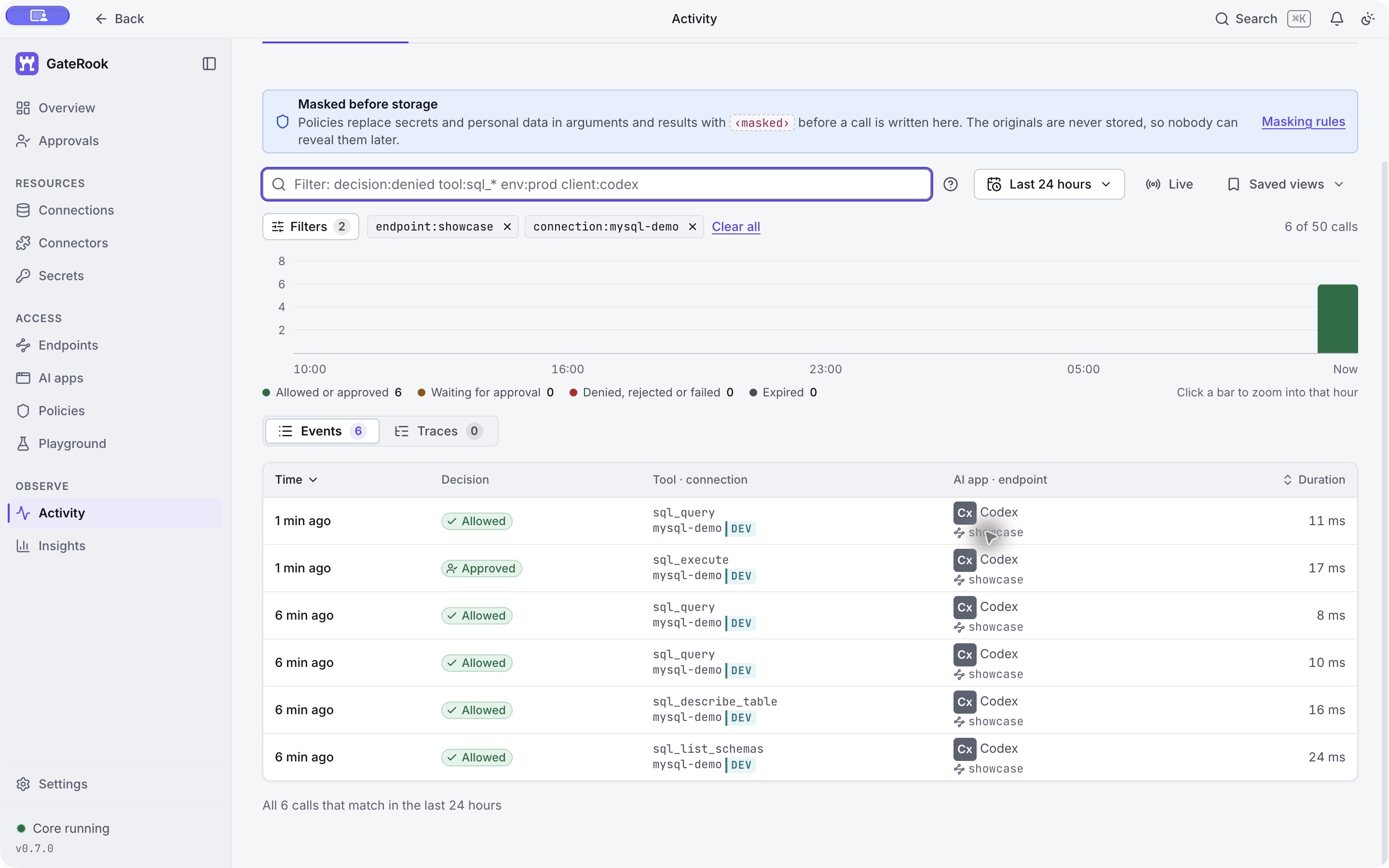
Open the sql_execute event to inspect Arguments, Policy decision, Approval, Result, and Timing. These sections connect the requested SQL to the policy, the person's decision, and the actual execution. The affected-row count distinguishes the actual outcome from the estimate shown before approval.
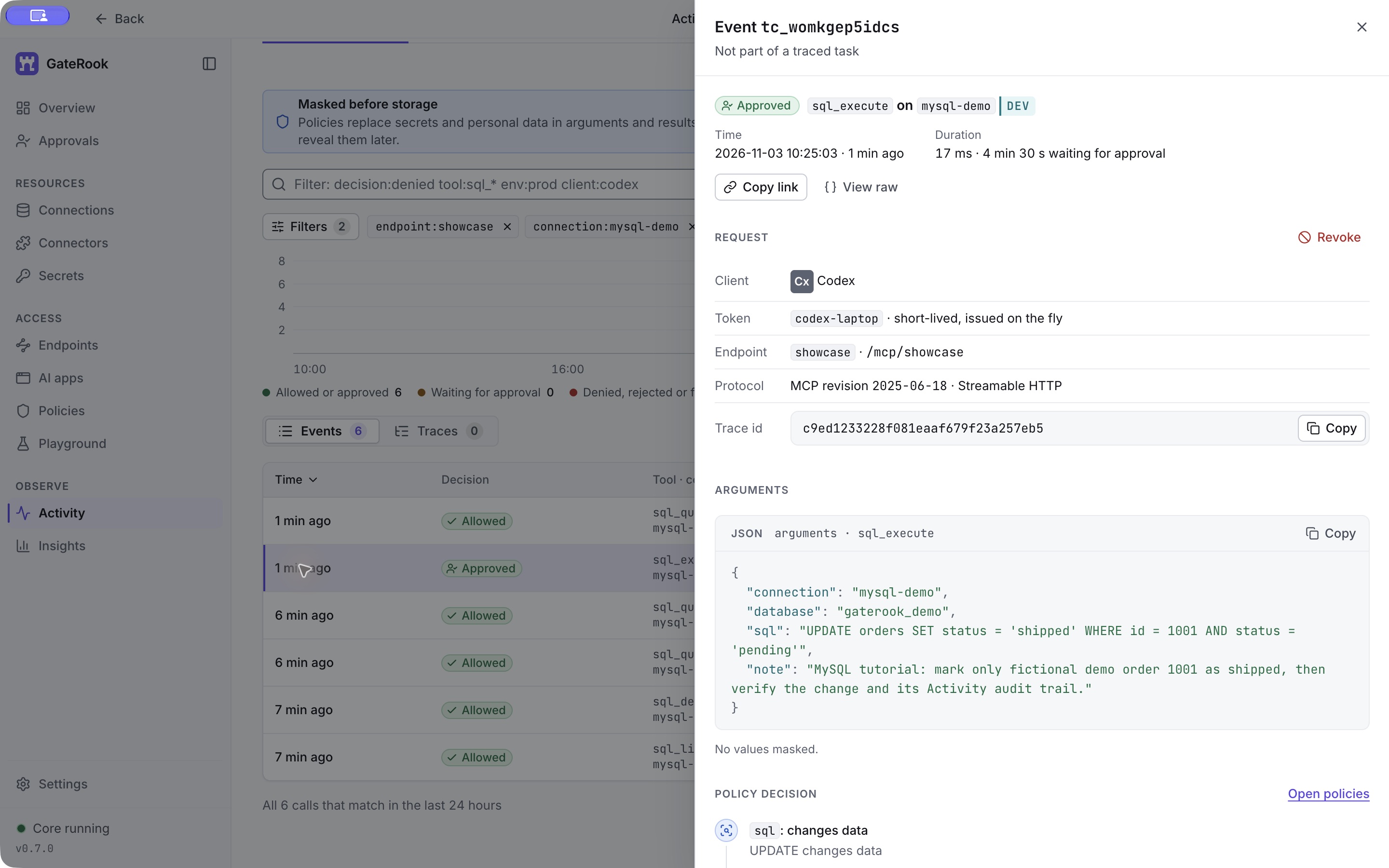
Scroll to the approval timeline. This event records the request at 10:20:33, the person's approval at 10:25:03, and execution in 17 ms with 1 row affected. The executed action matches the approved action byte for byte, with the approved action's SHA-256 displayed beside the timeline. The result contains committed: true and rowsAffected: 1.
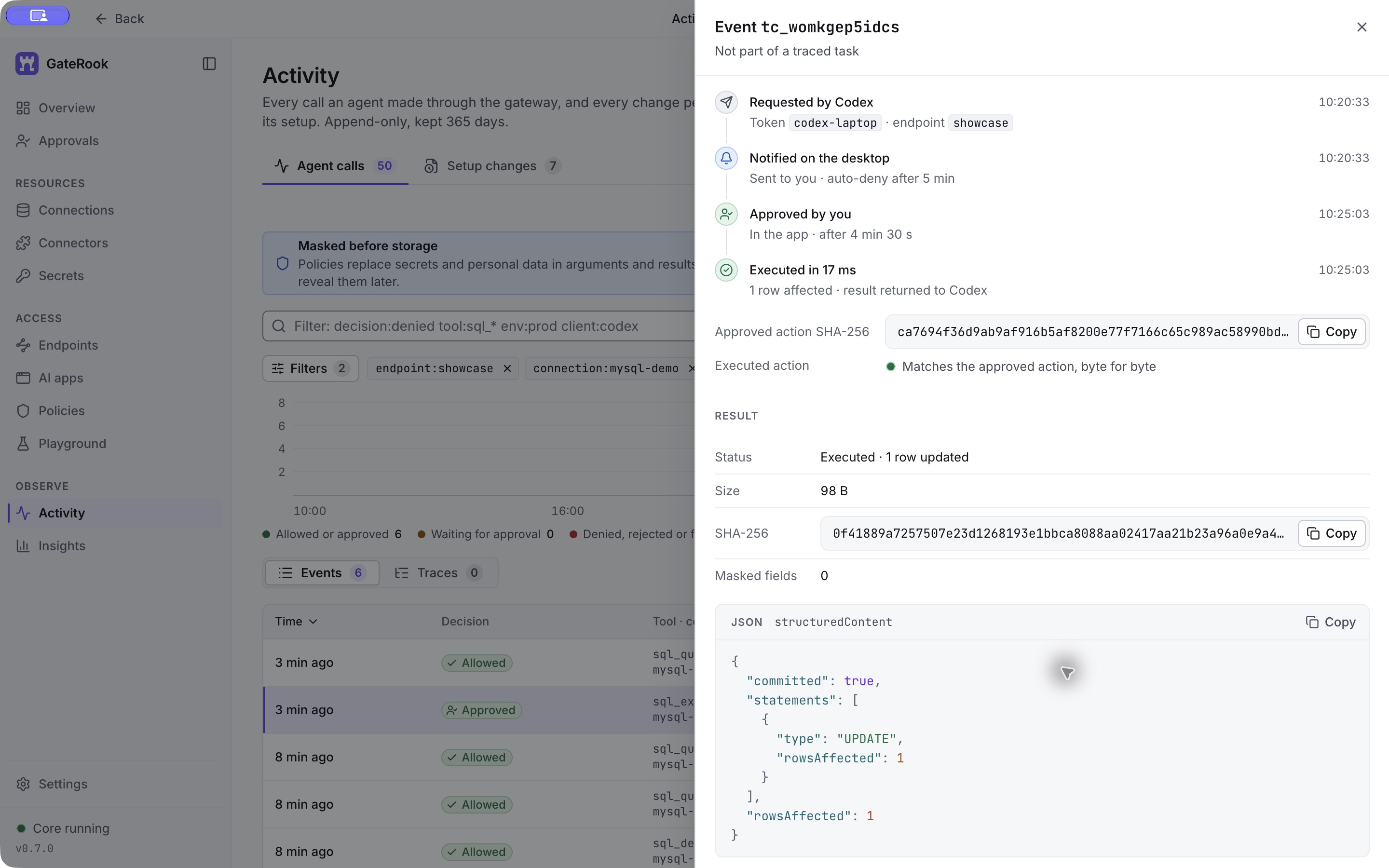
Use the filters to answer practical questions: Which client used this connection? What did it request? Why was it allowed or sent for approval? Was the exact action approved? Did it succeed, and how many rows changed?
Result detail depends on the tool. The read event shown above contains a compact text summary, response size, and hash; Activity should not be treated as a complete database-result archive. Masking follows the configured policies. The fictional records in this example returned zero masked fields; that does not establish that arbitrary personal data would be masked automatically.
Keep or stop the demo
The new connection is attached only to showcase, with reads enabled and writes requiring approval. You can keep the container running for further exploration.
To pause access while retaining configuration, turn the connection's On switch off; that affects this connection across endpoints. Turning an endpoint off pauses access through that endpoint. Previous calls remain available in Activity.
Stop the database without deleting its data:
docker stop gaterook-mysql-showcaseResume it later:
docker start gaterook-mysql-showcaseWait for healthy, then use Test connection in GateRook. Keep the private environment file and initialization file in their local working directory, and do not commit their credentials or paste them into chat.