
Step-by-step walkthrough
Control AI reads from Redis with GateRook’s MCP Firewall
GateRook’s MCP Firewall gives your AI app scoped access to Redis through two tools: redis_scan discovers keys, and redis_get inspects a key's type, expiry, and value. The Redis password stays in the connection. You can require human approval even for a read, then inspect its arguments, decision, and outcome in Activity.
This walkthrough was recorded on November 3, 2026 with GateRook 0.7.0, Redis 8.6.2 in Docker Desktop on macOS, and Codex connected to the existing showcase development endpoint. All Redis data shown here is synthetic. The screenshots are genuine application captures; connection filters keep unrelated server addresses and credentials out of view, and the tutorial password remains masked.
Keep Docker Desktop and GateRook running. If your AI app is not connected yet, follow the getting started guide first.
1. Start an isolated Redis server
Use a separate container and port so an existing Redis on port 6379 can keep running. This example publishes only 127.0.0.1:16379 and uses a named volume for persistence.
Create a private working directory, independent administrator and reader passwords, and a Redis ACL file. Run this once in a new directory; the exclusive file creation prevents accidentally replacing existing credentials.
mkdir -p ~/gaterook-redis-demo
cd ~/gaterook-redis-demo
chmod 700 .
umask 077

python3 - <<'PY'
import hashlib
import json
import secrets
from pathlib import Path

passwords = {name: secrets.token_hex(24)
             for name in ("demo_admin", "demo_reader")}
with Path("credentials.json").open("x") as output:
    json.dump(passwords, output)
Path("credentials.json").chmod(0o600)

rules = {
    "demo_admin": "~* +@all",
    "demo_reader": (
        "~demo:* +@read +@connection -@dangerous "
        "+info +acl|whoami +acl|dryrun +client|no-touch"
    ),
}
with Path("users.acl").open("x") as output:
    output.write("user default off\n")
    for name, password in passwords.items():
        digest = hashlib.sha256(password.encode()).hexdigest()
        output.write(f"user {name} on #{digest} {rules[name]}\n")
# Redis inside the container must be able to read the bind mount.
# The enclosing host directory remains private (0700).
Path("users.acl").chmod(0o644)
PY

docker run -d \
  --name gaterook-redis-showcase \
  -p 127.0.0.1:16379:6379 \
  --mount "type=bind,source=$(pwd)/users.acl,target=/usr/local/etc/redis/users.acl,readonly" \
  --mount type=volume,source=gaterook-redis-showcase-data,target=/data \
  redis@sha256:009cc37796fbdbe1b631b4cc0582bed167e5e403ed8bcd06f77eb6cb5aeb6f93 \
  redis-server --aclfile /usr/local/etc/redis/users.acl --appendonly yes
The image digest is the official Redis image used for this capture. Choose a different container name, volume, or host port if these already exist. Keep the credential files outside version control; do not paste their contents into an AI conversation.
The administrator is used only to seed this local fixture. GateRook will use demo_reader, which can read the demo:* namespace but cannot write. ACL WHOAMI and ACL DRYRUN support access diagnostics; CLIENT NO-TOUCH supports the connector's optional no-touch setting. These grants do not permit changing ACLs. Redis explains rule ordering and key patterns in its ACL documentation.
Wait for authenticated access, then create five keys in database 0:
python3 - <<'PY'
import json
import os
import subprocess
import time
from pathlib import Path

passwords = json.loads(Path("credentials.json").read_text())
env = os.environ | {"REDISCLI_AUTH": passwords["demo_admin"]}

def redis(*args):
    result = subprocess.run(
        ["docker", "exec", "-e", "REDISCLI_AUTH",
         "gaterook-redis-showcase", "redis-cli", "--user", "demo_admin",
         "--raw", "-n", "0", *args],
        env=env, capture_output=True, text=True, check=True,
    )
    reply = result.stdout.strip()
    if reply.startswith(("ERR", "NOAUTH", "NOPERM", "WRONGPASS")):
        raise RuntimeError(reply)
    return reply

for attempt in range(30):
    try:
        if redis("PING") == "PONG":
            break
    except (subprocess.CalledProcessError, RuntimeError):
        pass
    time.sleep(1)
else:
    raise SystemExit("Redis did not become ready within 30 attempts")

redis("HSET", "demo:order:1001", "status", "pending",
      "total", "149.00", "currency", "EUR")
redis("HSET", "demo:order:1002", "status", "shipped",
      "total", "89.00", "currency", "EUR")
redis("SET", "demo:cache:message", "Hello from Redis through GateRook")
redis("RPUSH", "demo:queue:shipments", "1001", "1002", "1003")
redis("SET", "demo:session:example", "synthetic-session-value")
redis("EXPIRE", "demo:order:1001", "86400")
print("Redis ready; fixture keys:", redis("DBSIZE"))
PY
The output for an empty fixture is Redis ready; fixture keys: 5. Run the seeding block once: repeating RPUSH appends another three list elements. Order 1001 expires after one day. The session key deliberately exists so we can verify that GateRook excludes it.
2. Choose the Redis connector
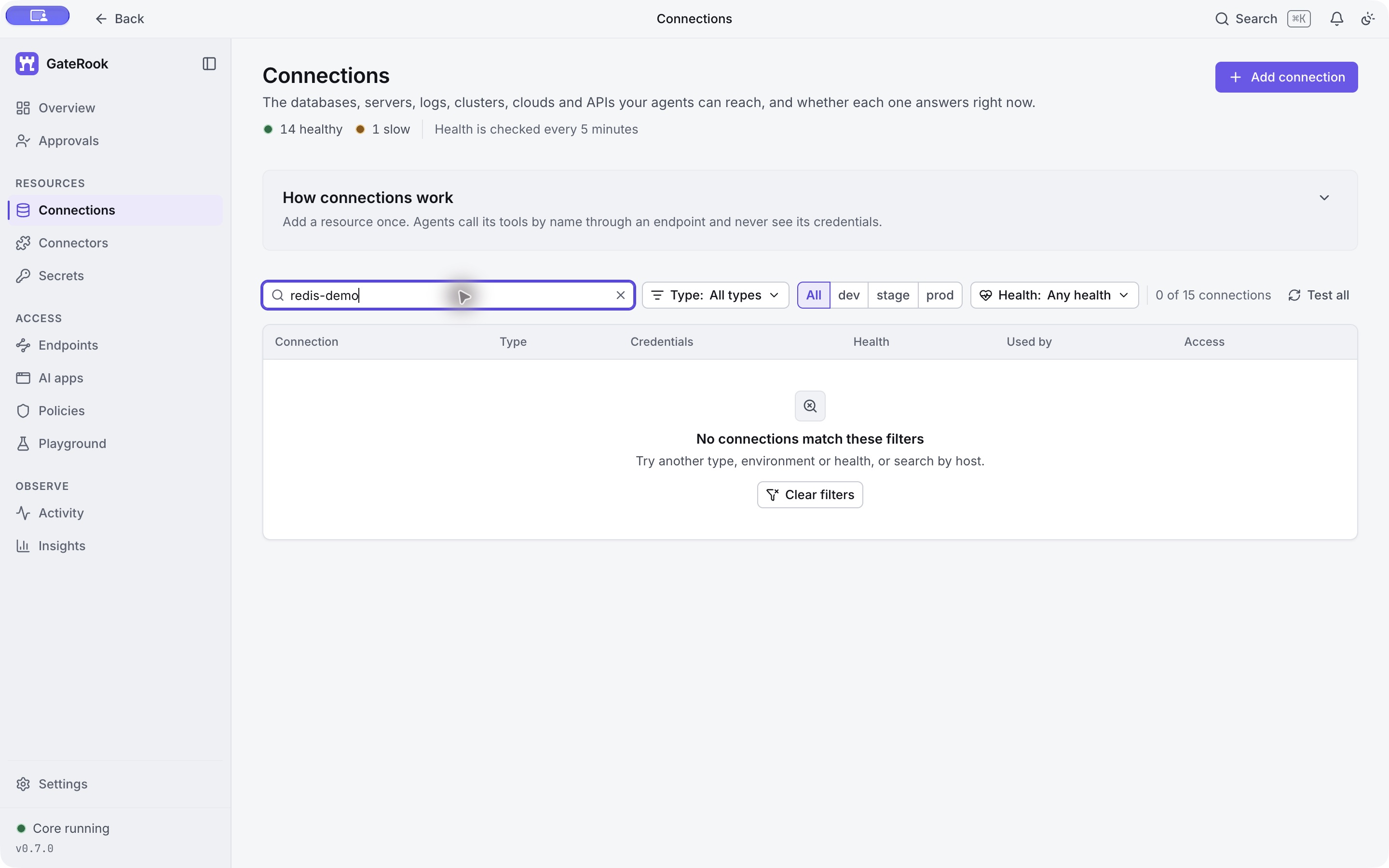
Open Connections. Filter the list to redis-demo before capturing screenshots so other connections' addresses and credential references stay out of view. No matches is expected before you create the connection.
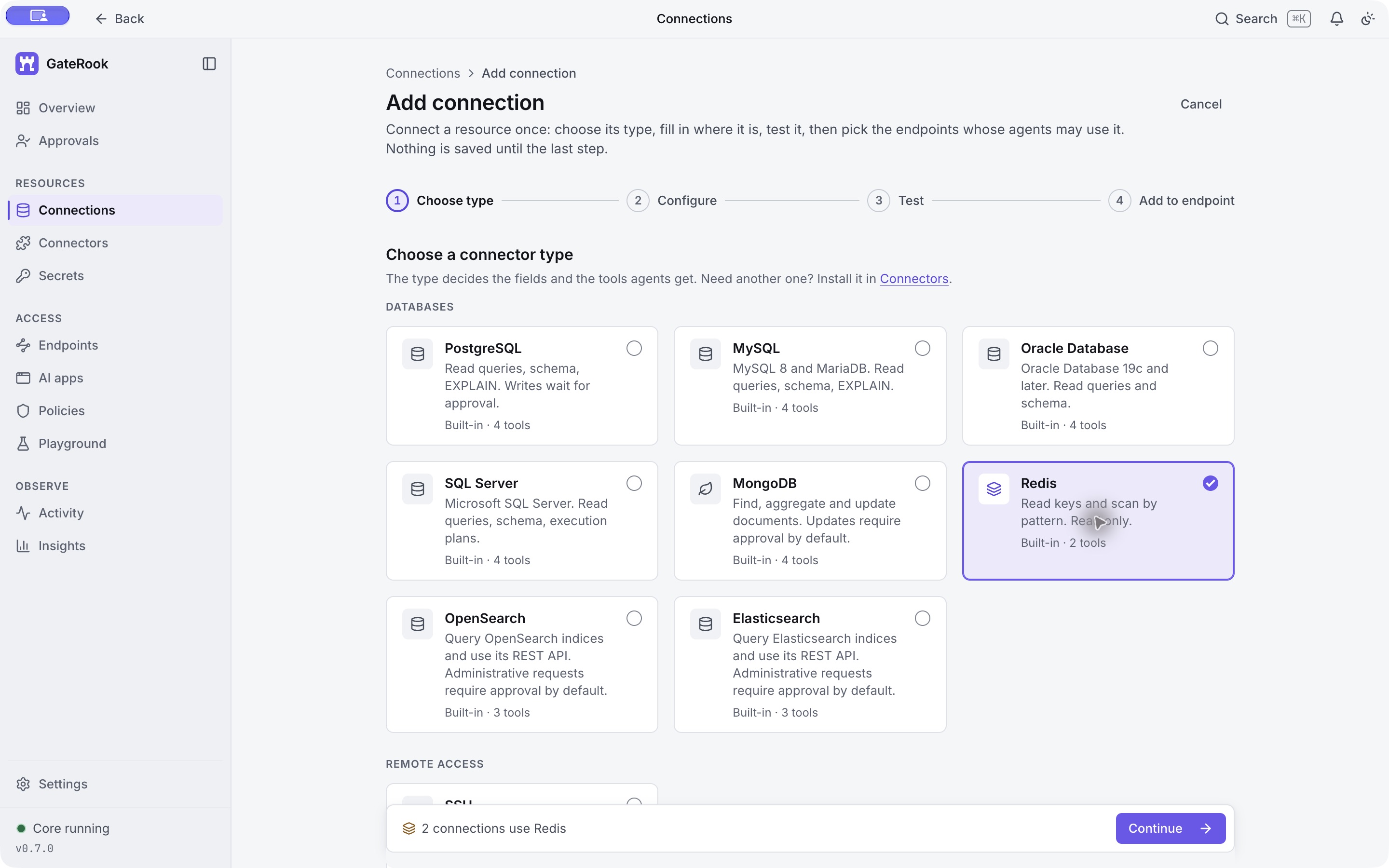
Select Add connection → Redis → Continue. Redis exposes two built-in tools, both for reading.
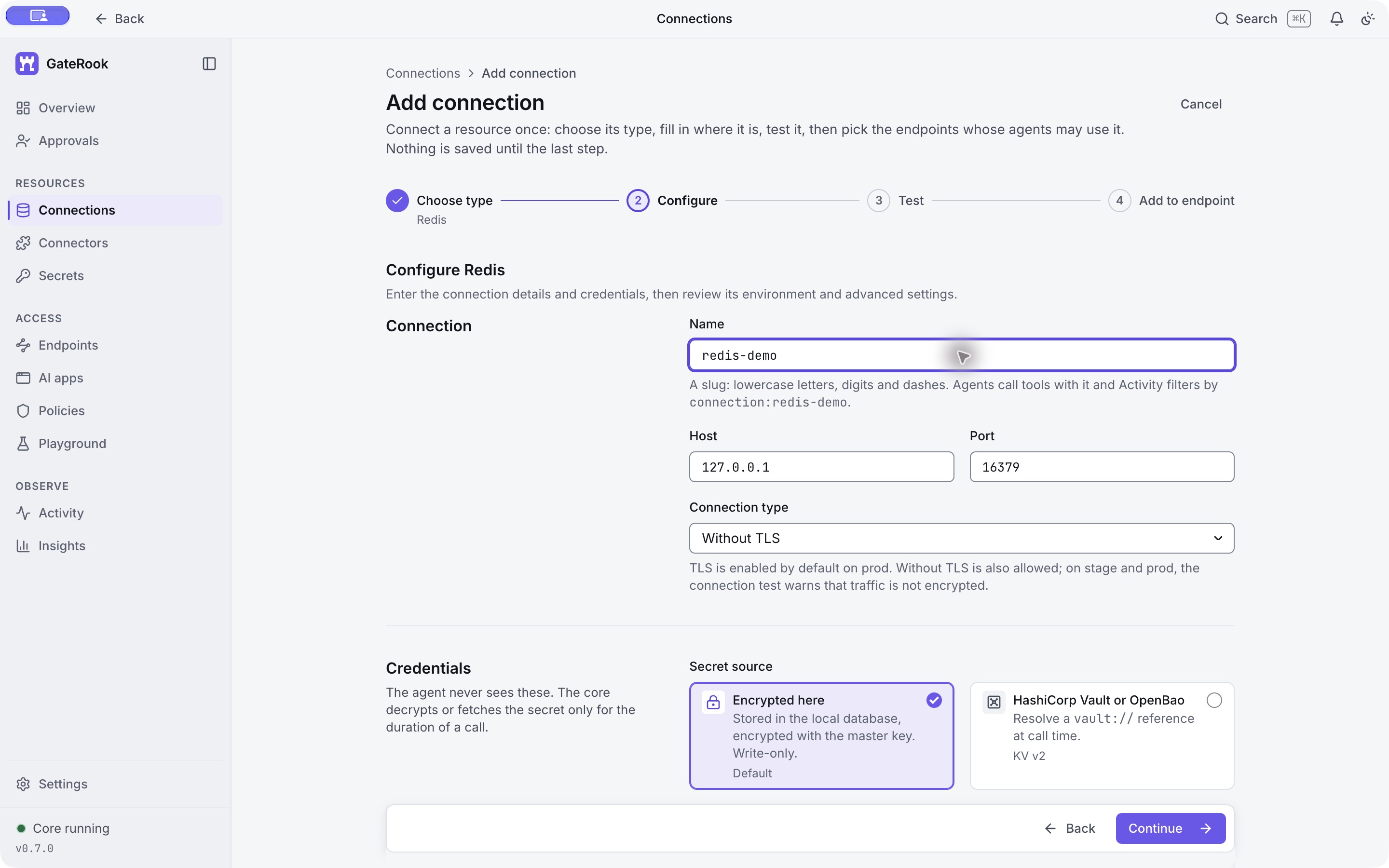
3. Enter the server and credentials
Use the following settings:
| Field | Value |
|---|---|
| Name | redis-demo |
| Host | 127.0.0.1 |
| Port | 16379 |
| Transport | Without TLS for this loopback-only fixture |
| Secret source | Encrypted here |
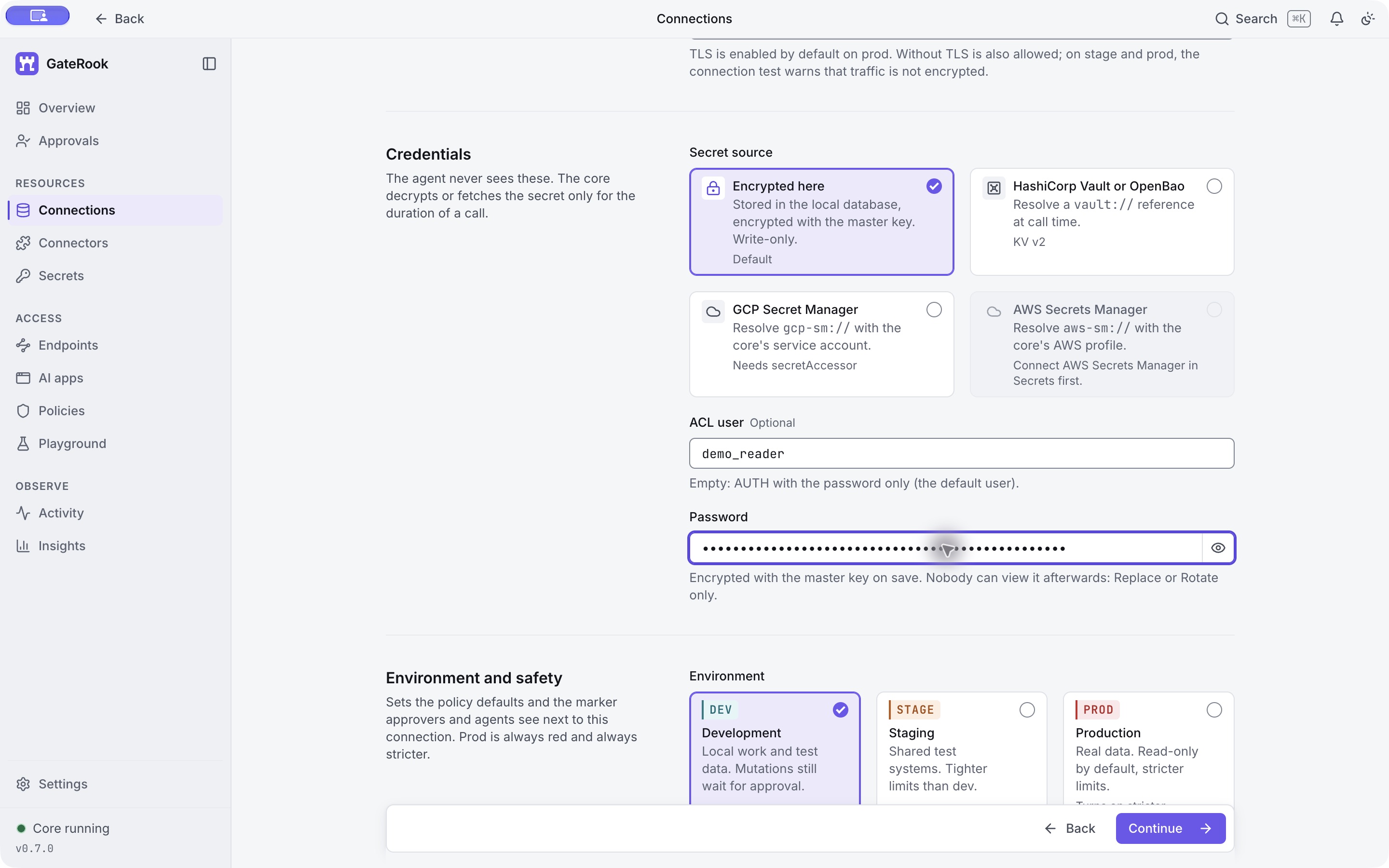
| ACL user | demo_reader |
| Password | The demo_reader value in your private credentials.json |
| Environment | DEV Development |
The container does not configure TLS. For a remote Redis server, enable TLS and verify its CA and host name, supplying a private CA when required. The local demo's transport setting is not a remote deployment recommendation.
Enter the reader password directly in GateRook. Encrypted here stores it encrypted locally; later tool calls refer to redis-demo and do not include the credential. Do not use the administrator password for this connection.
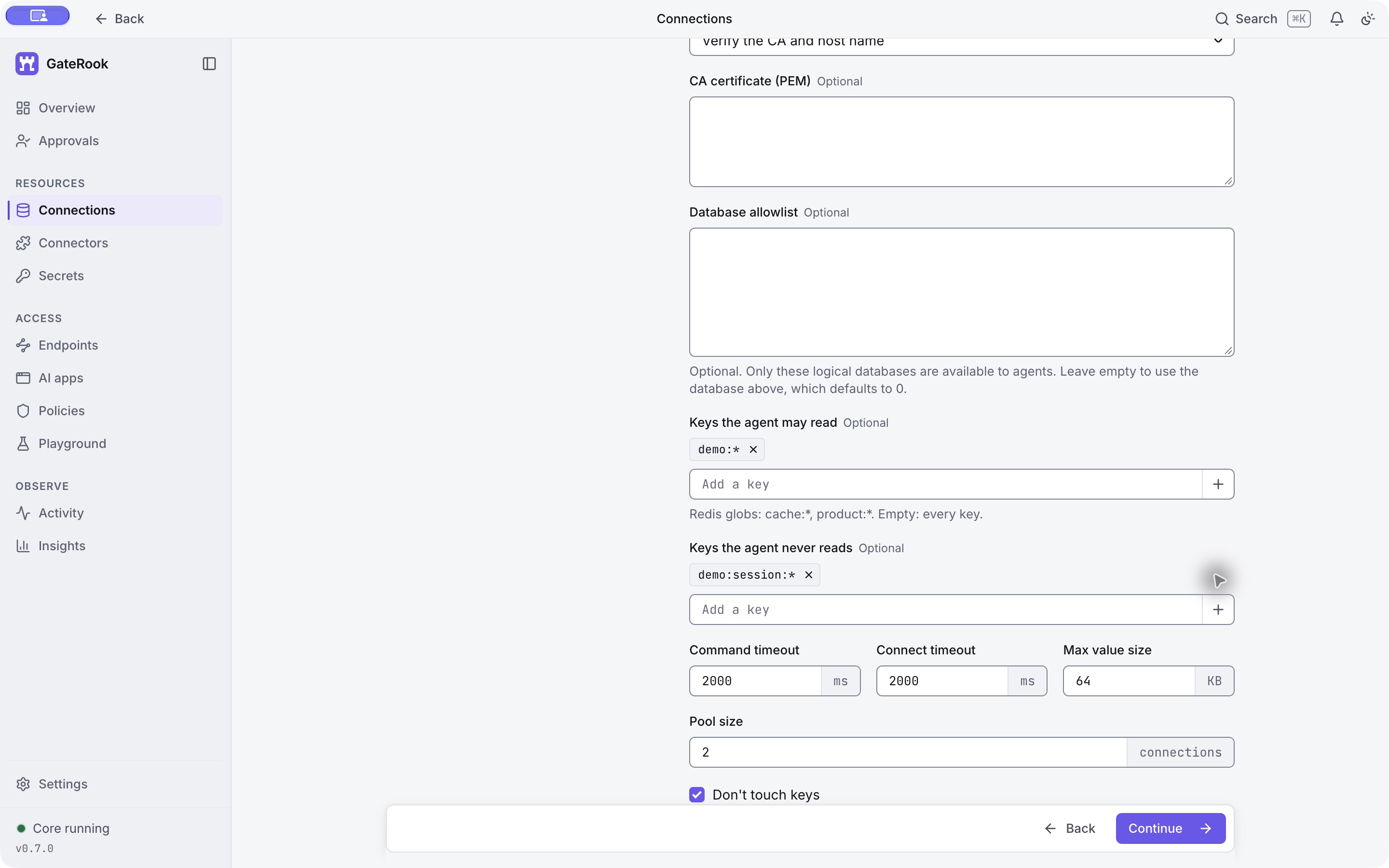
4. Limit the database, key namespace, and response size
Expand Advanced and configure:
| Setting | Value in this walkthrough |
|---|---|
| Database | 0 |
| Database allowlist | Empty: use only the selected database 0 |
| Keys the agent may read | demo:* |
| Keys the agent never reads | demo:session:* |
| Command timeout | 2000 ms |
| Maximum value size | 64 KB |
| Pool size | 2 |
| Connect timeout | 2000 ms |
| Don't touch keys | Enabled |
Add each key pattern as a chip using the + control. The denylist takes precedence: demo:session:example matches the allowlist, but is excluded by demo:session:*. These GateRook filters narrow the Redis reader's ACL further. The ACL itself still permits reading that synthetic session key directly outside GateRook; use Redis ACLs as well when a restriction must apply to every client.
The no-touch option uses CLIENT NO-TOUCH, available in Redis 7.2 and later, to avoid updating key access metadata. It does not stop the expiry clock or make reads transactional.
5. Test the connection
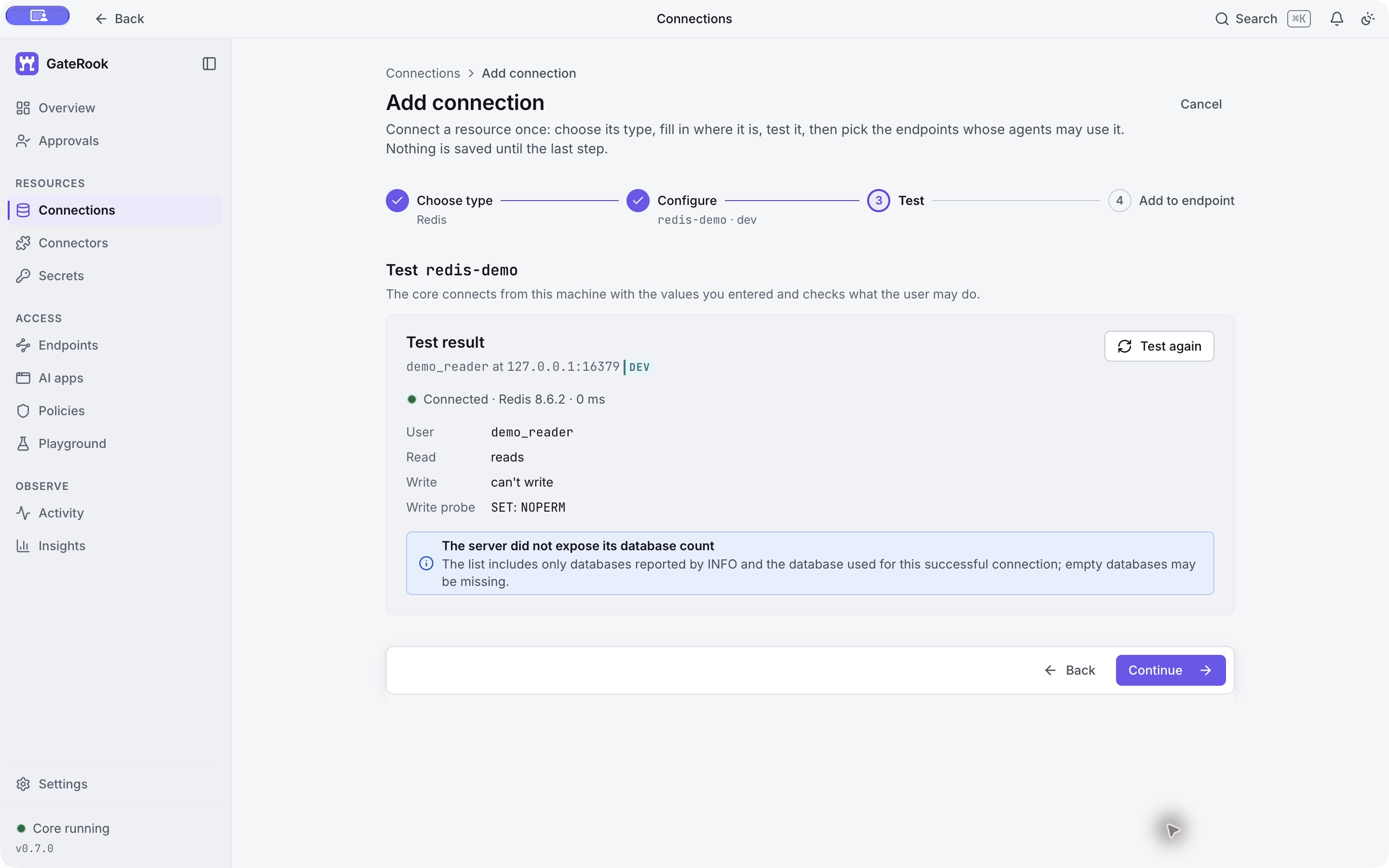
Continue to the connection test. This run reported Connected · Redis 8.6.2, with read access and no write access. The SET: NOPERM diagnostic is expected for demo_reader; it confirms the restricted credential.
GateRook also noted that the server did not expose the configured database count and that INFO lists populated databases. This does not prevent using database 0. Do not grant administrator access just to remove that informational message.
6. Add the connection to showcase
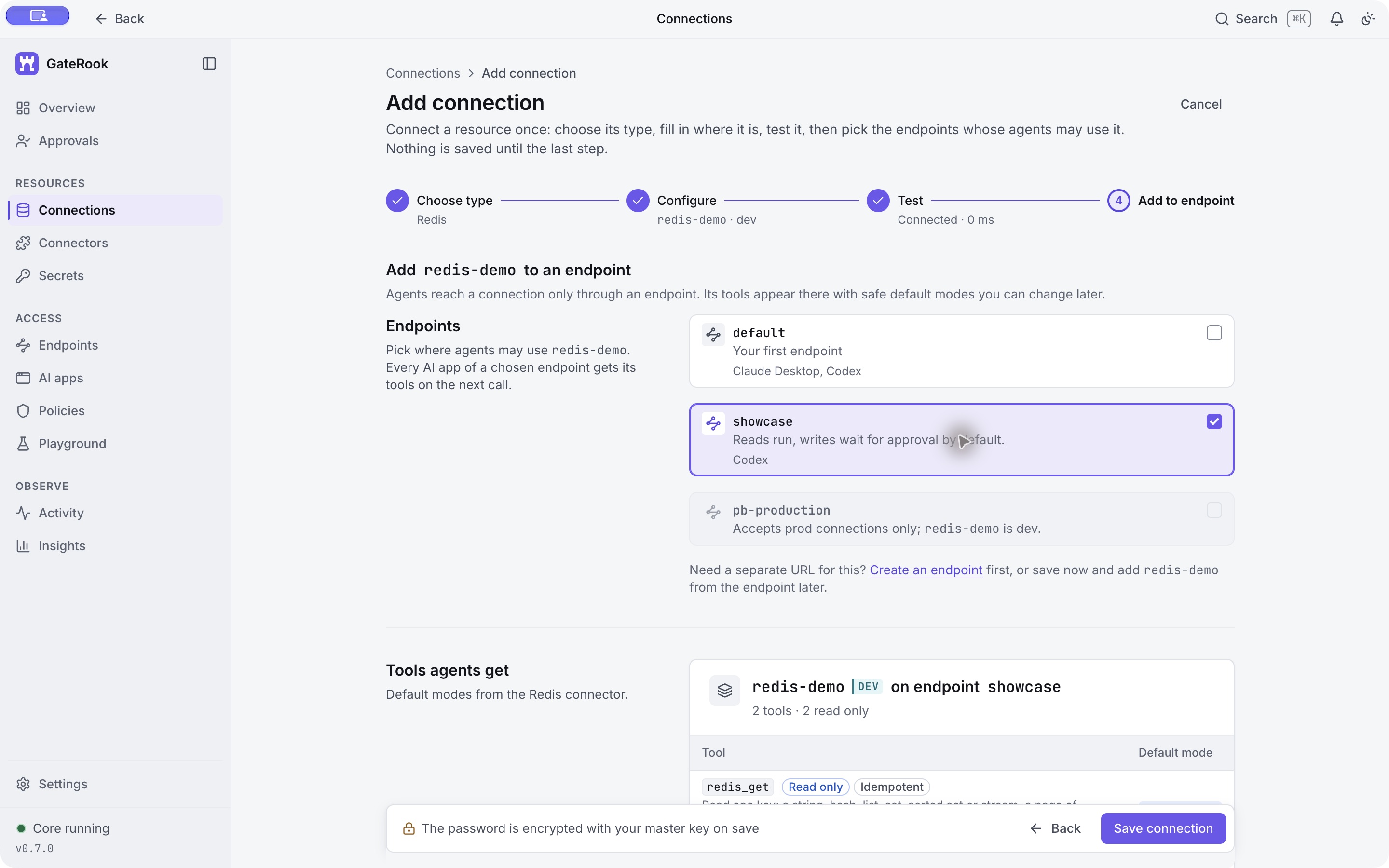
Continue to Add to endpoint. Untick default, tick only showcase, and select Save connection. A saved connection becomes available to an AI client only through an endpoint that exposes it.
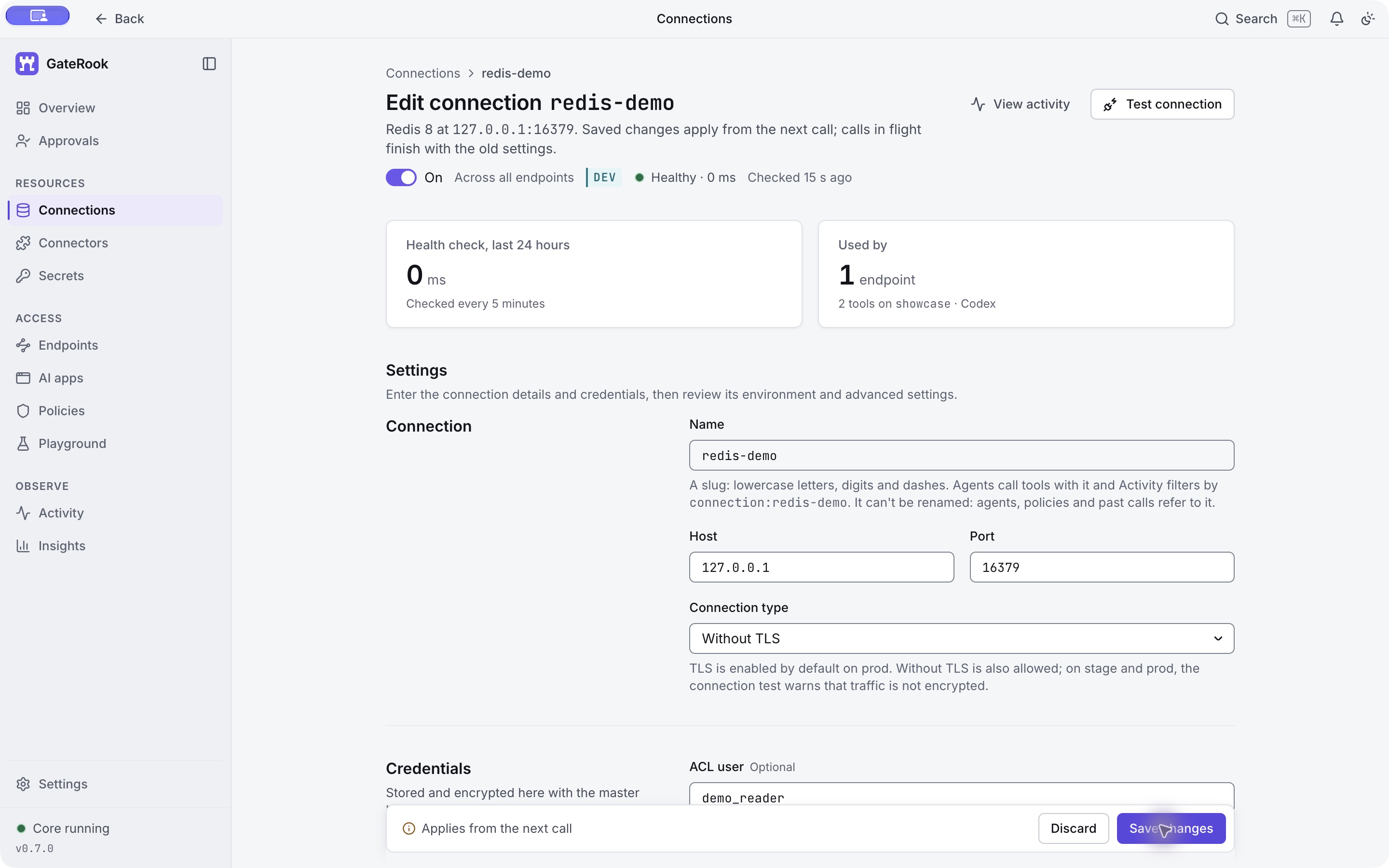
The saved connection should show Healthy, one endpoint, and two tools on showcase. Its password appears as an encrypted version without a readable value.
7. Require approval for reading a value
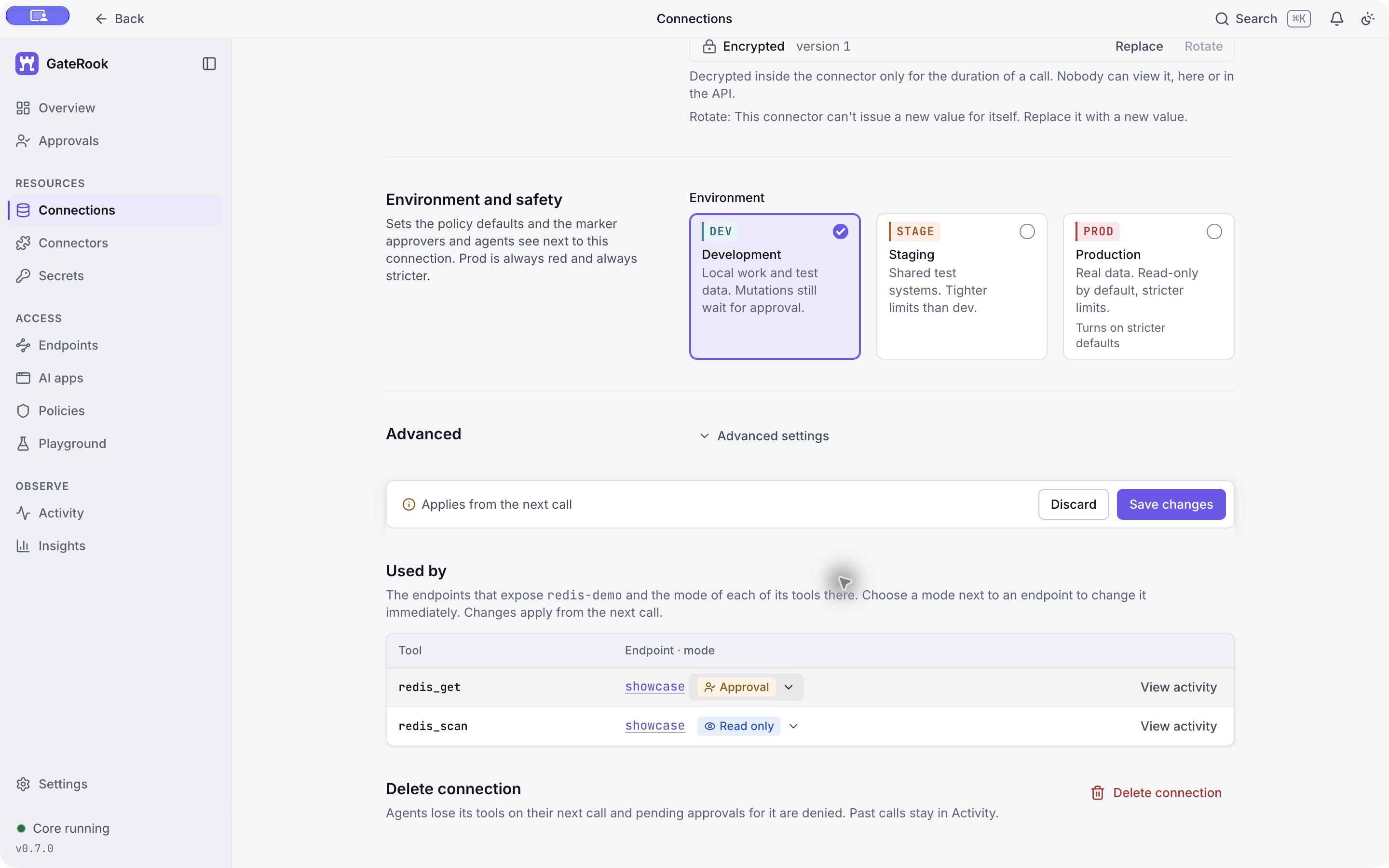
On the saved connection, scroll to Used by, or open Endpoints → showcase → Tools & policies. Set the Redis tool modes as follows:
| Tool | Mode | Purpose |
|---|---|---|
redis_scan | Read only | Discover permitted keys and optionally their types and TTLs. |
redis_get | Approval | Require a person to approve each requested value read. |
Redis read approval is supported. It is useful when discovering key names is acceptable but inspecting values should require review. The approval does not add Redis privileges or turn the connector into a write interface.
8. Understand the request path
Open Endpoints → showcase. The diagram connects Codex to the endpoint and its attached connections, including redis-demo.
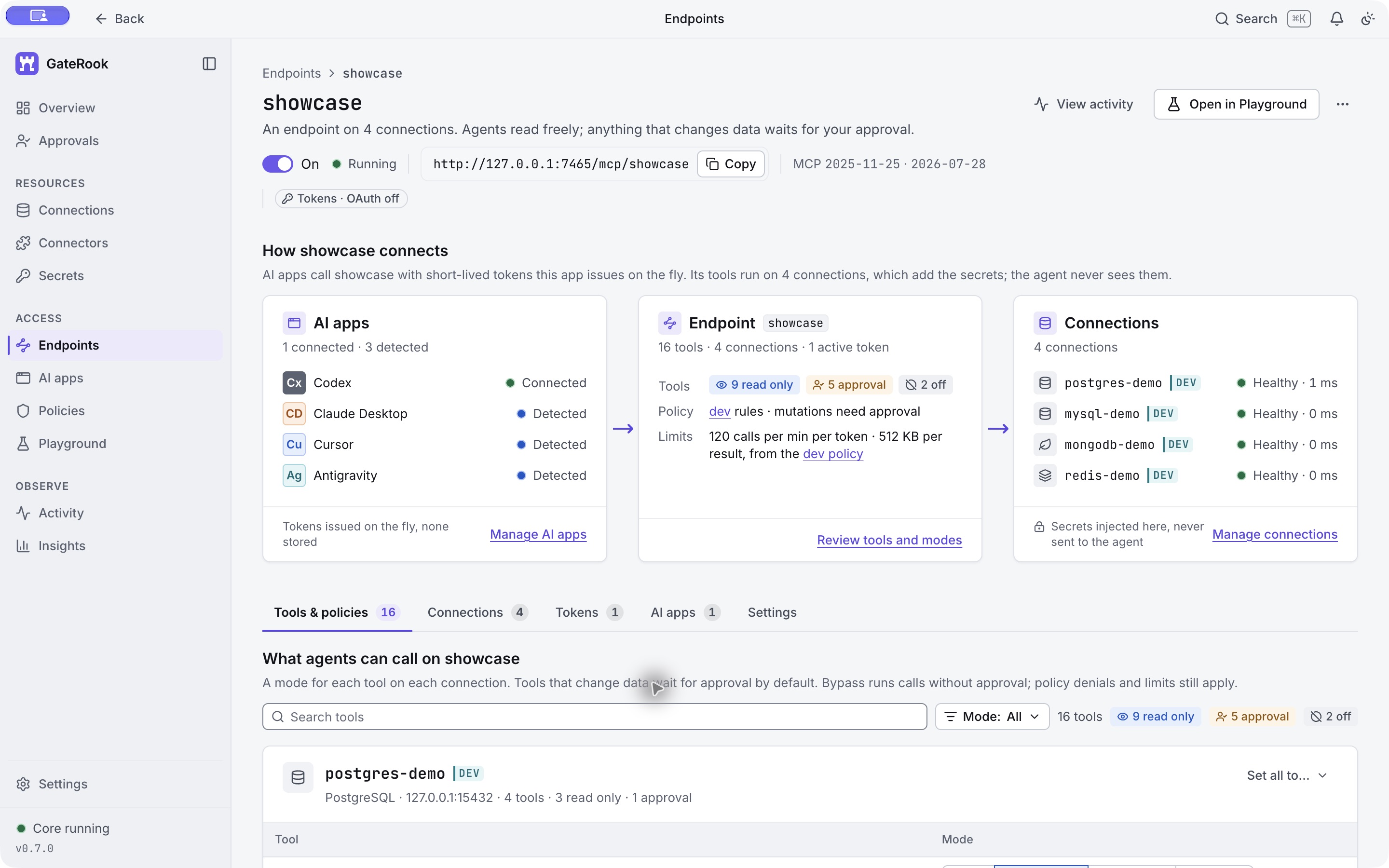
A request follows this path: AI app → showcase → tool mode and policy → redis-demo → Redis ACL → result and Activity. GateRook resolves the stored credentials, applies key restrictions and response limits, and returns the permitted result to the client. The AI provider can process that returned data, so scope values as carefully as credentials.
The connector supports a standalone Redis server or a directly reachable replica. Cluster routing and Sentinel discovery are not supported. There are no SET, DEL, FLUSHALL, or arbitrary-command tools. redis_get reads strings, hashes, lists, sets, sorted sets, and streams through bounded operations appropriate to each type.
If your AI client cached its tool list before the connection was added, refresh its MCP connection so it discovers the Redis tools. Use the names currently advertised by your endpoint.
9. Scan permitted keys
Ask your AI:
Use redis-demo on showcase to scan demo:* with types and TTLs, requesting up to 20 keys. Do not change any data.
The redis_scan arguments used in this run were:
{
  "connection": "redis-demo",
  "pattern": "demo:*",
  "count": 20,
  "details": true
}
The call ran immediately in Read only mode. It returned four keys:
| Key | Type | Expiry at scan time |
|---|---|---|
demo:order:1002 | hash | Persistent |
demo:order:1001 | hash | 86236618 ms remaining |
demo:cache:message | string | Persistent |
demo:queue:shipments | list | Persistent |
The result reported returned: 4, iterations: 1, complete: true, nextCursor: null, and keyListsApply: true. The session key was excluded and was not counted. TTLs and key order can differ when you repeat the example.
In Activity → Agent calls, filter to endpoint:showcase connection:redis-demo, then open the redis_scan event to inspect the exact request.
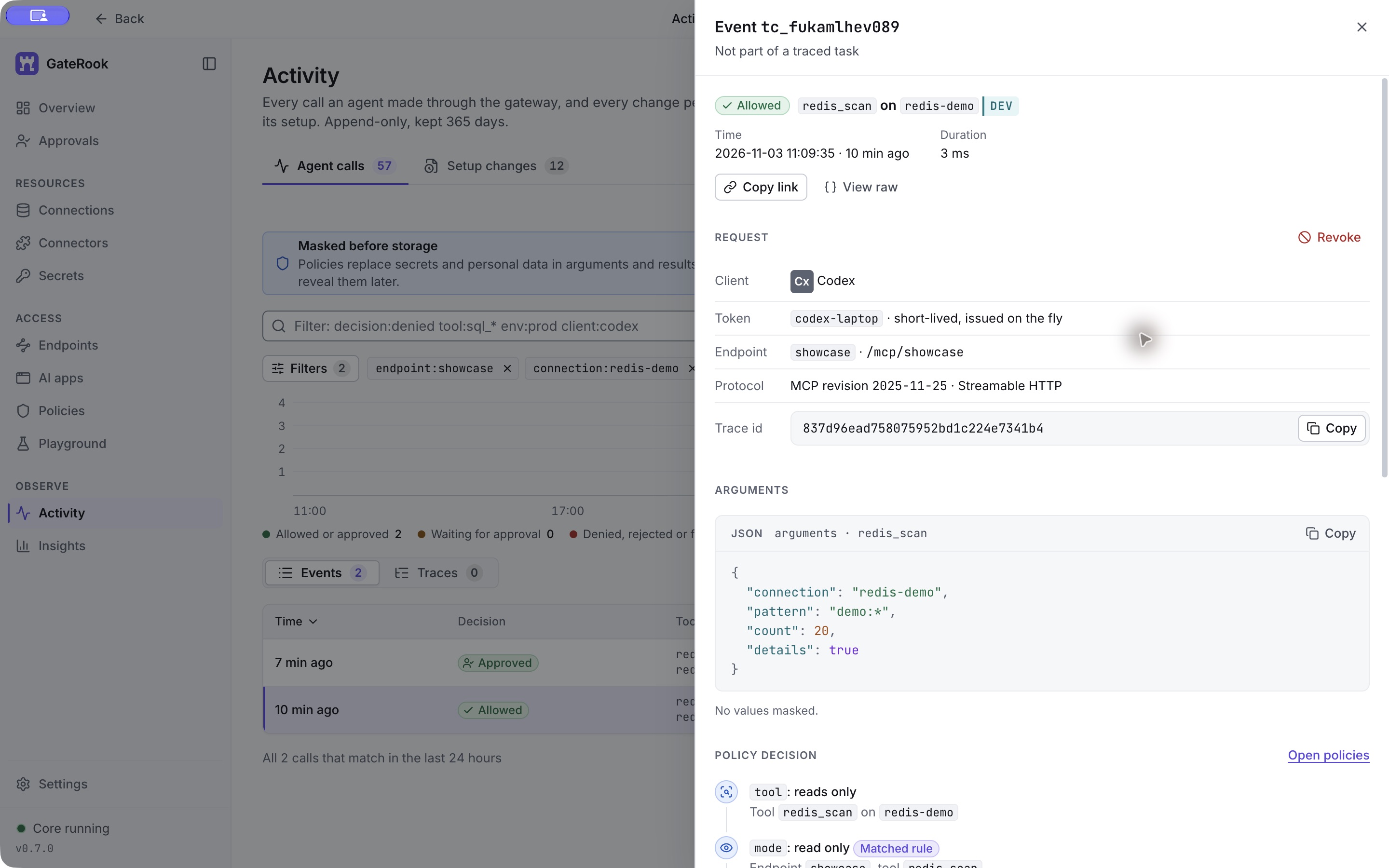
Scroll to Result. The event records the four-key summary, response size and hash, masking count, and timing. In this capture the scan's full response body is not retained in the audit log; the result summary and fingerprint remain available.
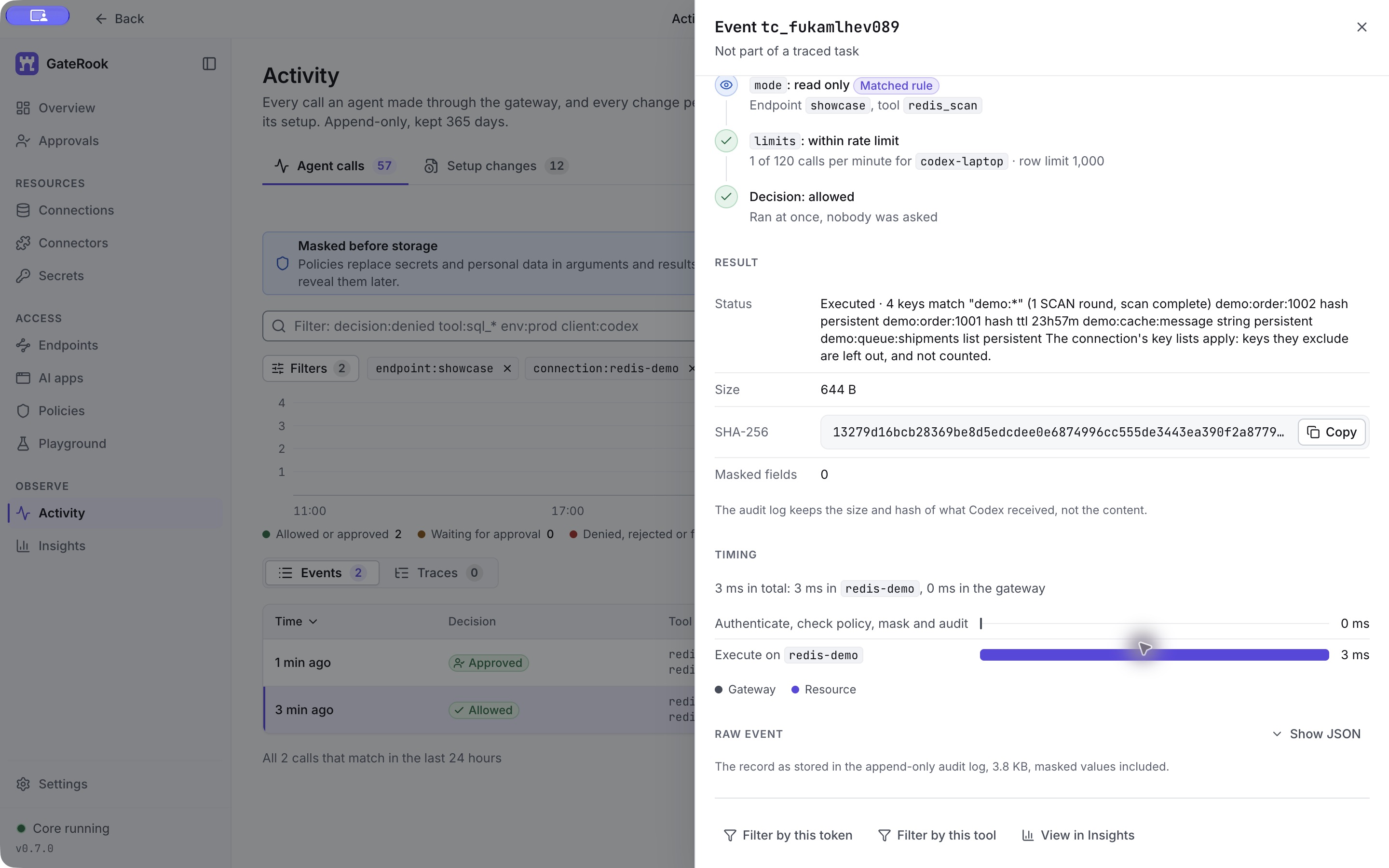
For larger namespaces, pass the returned nextCursor as the next call's cursor until complete is true. Treat the cursor as opaque. Redis SCAN is incremental, can repeat keys across pages, and does not provide a transactional snapshot. Its COUNT is a work hint, not an exact count guarantee; see the Redis SCAN documentation.
10. Request a read and approve the exact action
Ask your AI:
Read demo:order:1001 through redis-demo, with a limit of 10 elements. Show its fields and remaining TTL. Wait for my approval.
The redis_get arguments are:
{
  "connection": "redis-demo",
  "key": "demo:order:1001",
  "limit": 10
}
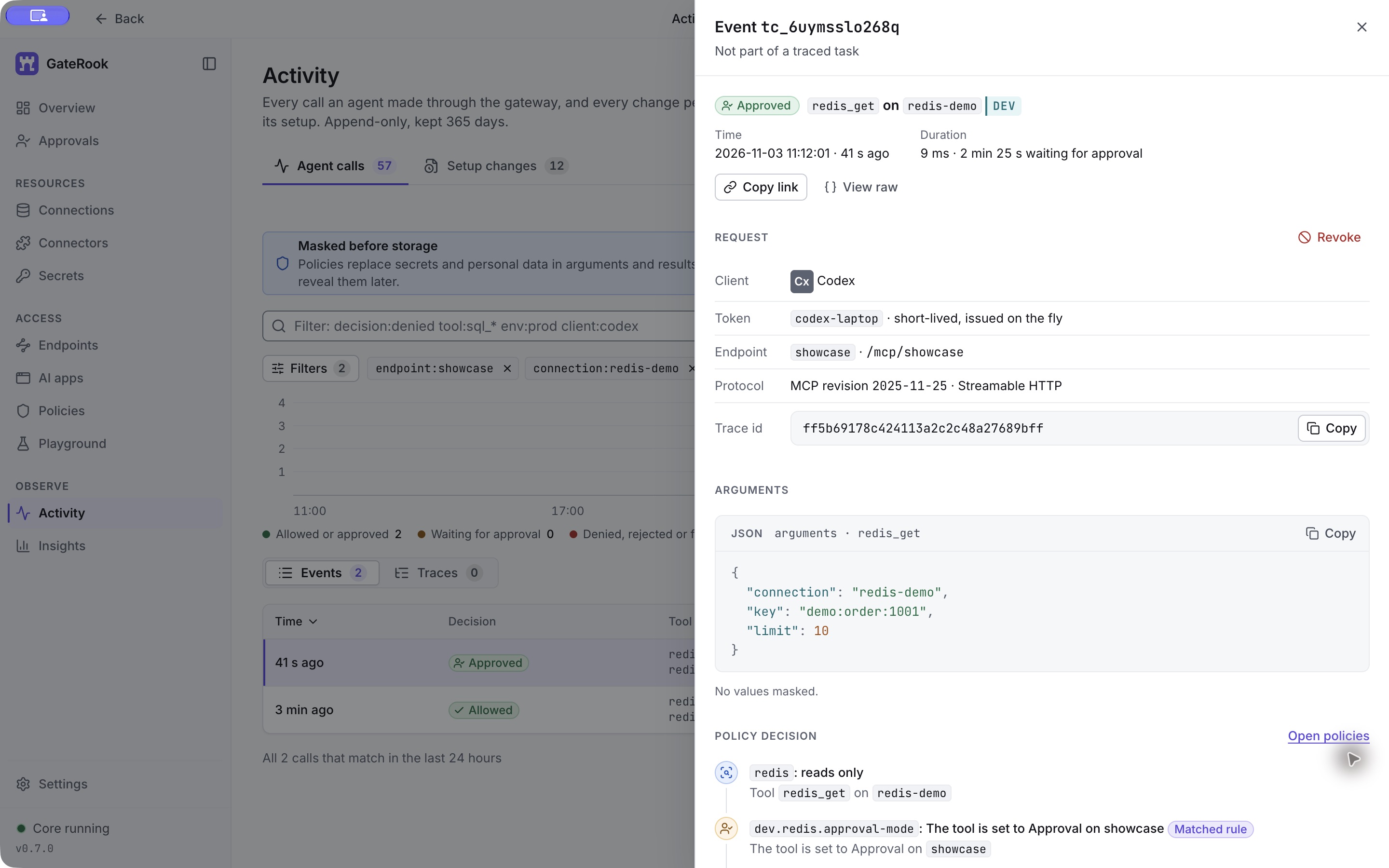
GateRook holds the request because redis_get is in Approval mode. Open the pending item in Approvals and review the client, endpoint, connection, key, limit, and prepared Redis action. It starts with TYPE, PTTL, and MEMORY USAGE, then selects a bounded read for the key's type. For this hash, the read uses HLEN and HSCAN.
Select Approve and run yourself to allow this one action, or reject it. The AI cannot approve its own request. In this configuration an unanswered request expires after five minutes. While a request is pending, the client should follow its approval handle rather than issue the read again.
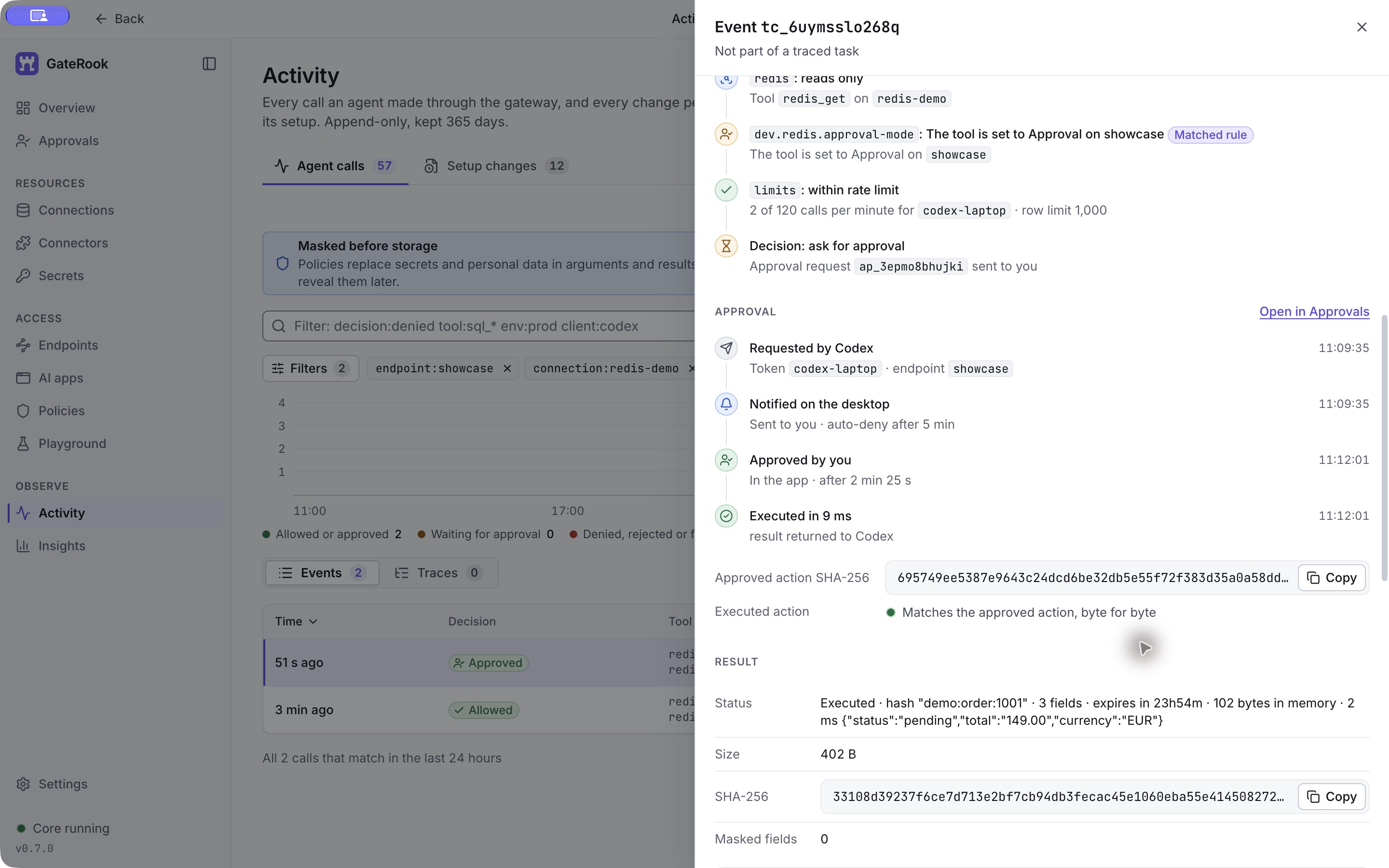
The person approved the recorded request at 11:12:01 local time. The screenshot below shows the completed event in Activity. GateRook protected the approval decision screen from capture in this macOS session, so the approval evidence is captured from its Activity timeline after the decision.
11. Verify the returned value and approval evidence
Open the read event and scroll to Approval. The timeline shows the request, desktop notification, Approved by you, and execution. It also reports that the executed action matches the approved action byte for byte.
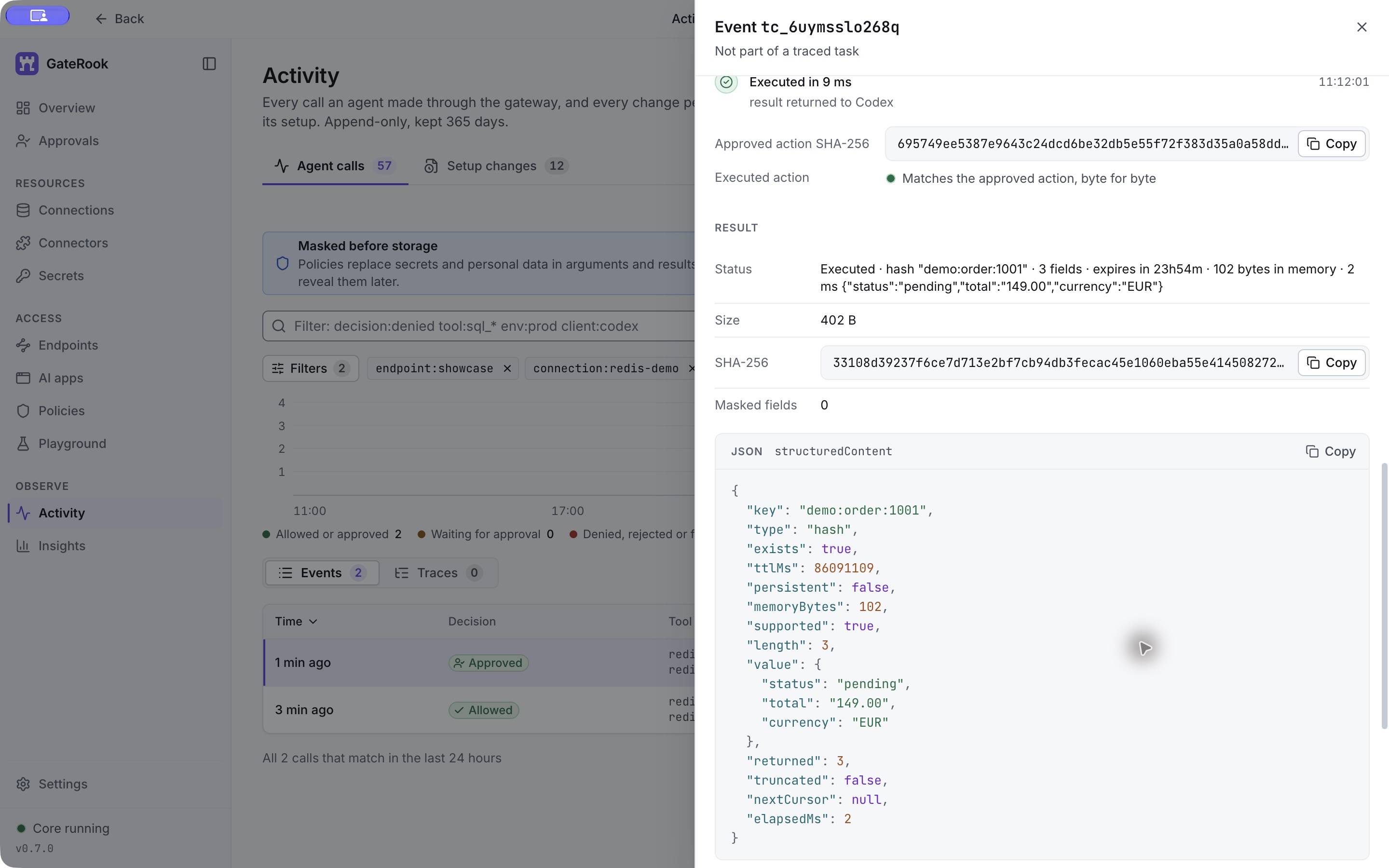
The completed read returned this structured result:
{
  "key": "demo:order:1001",
  "type": "hash",
  "exists": true,
  "ttlMs": 86091109,
  "persistent": false,
  "memoryBytes": 102,
  "supported": true,
  "length": 3,
  "value": {
    "status": "pending",
    "total": "149.00",
    "currency": "EUR"
  },
  "returned": 3,
  "truncated": false,
  "nextCursor": null,
  "elapsedMs": 2
}
value.status: "pending" is the order's business status. The approval itself is completed. truncated: false and returned: 3 show that all three fields were returned. The TTL is lower than during the scan because time passed while the read waited for approval.
12. Follow future calls in Activity
Keep the Activity filter endpoint:showcase connection:redis-demo to isolate this connection. The overview now contains two successful events: Allowed for the scan and Approved for the value read.
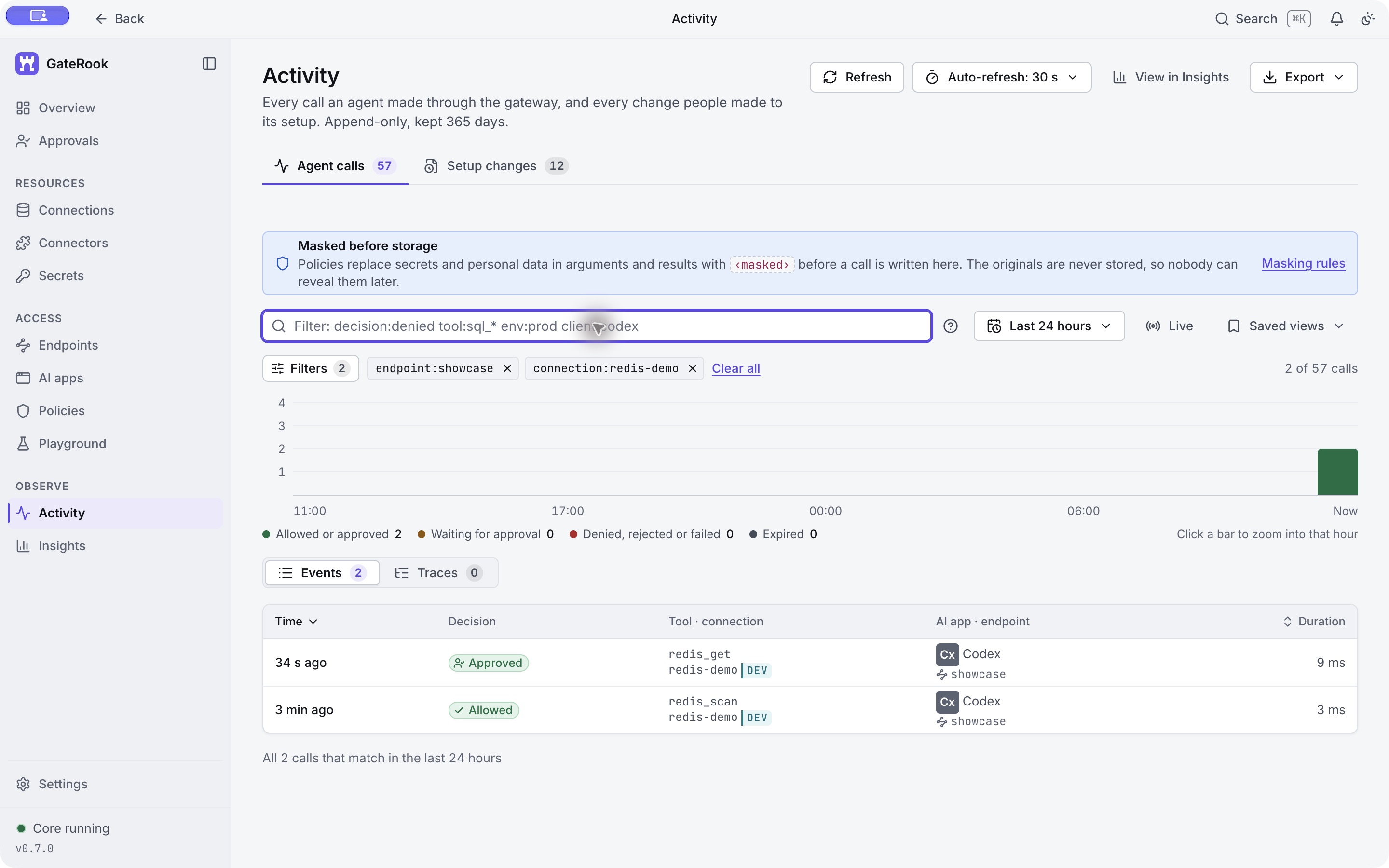
Open a row to inspect the client, endpoint, tool arguments, policy decision, and timing. For an approved call, also inspect the human decision and approved-action hash. Allowed means the configured rules let the call run without asking; Approved records a human decision before execution.
The scan took 3 ms in Activity; the read took 9 ms of execution after a 2 minute 25 second approval wait. The connector's elapsedMs: 2 covers a narrower part of the read, so it differs from the Activity total. The read result was 402 bytes, and zero fields were masked because the fixture contains only synthetic data. These are observations from this run, not performance guarantees.
Activity shows the result information available for each event. Here the approved read includes its structured response, while the scan has a summary, size, and SHA-256 fingerprint. Do not assume every event retains the complete response body. Use Setup changes to inspect configuration changes separately from agent calls.
Keep or stop the demo
This walkthrough leaves redis_get in Approval mode and redis_scan in Read only. Keep the container running to try more bounded reads. To stop and later resume it without removing the volume or credentials:
docker stop gaterook-redis-showcase
docker start gaterook-redis-showcase
The order's TTL continues to elapse while the container is stopped; it may be gone when you return. Use the persistent demo:order:1002 key for a later read, or deliberately reseed the disposable fixture. A stopped container will make GateRook's connection test fail until it is started again.