
A payment test passes, but the order page still says “Pending.” You ask your coding assistant why. It finds the line that renders the badge and suggests changing it. Before editing anything, you need to know what the page is reading. Did the payment handler save the new status? Is Redis still serving the old one?
GateRook lets you ask those questions in the IDE where you already have the code open. It runs on your computer and connects your AI app to the services you choose through the Model Context Protocol (MCP). Here’s how that changes an ordinary debugging session.
Check one order in two places
Suppose your test shop keeps orders in PostgreSQL and caches their status in Redis. In GateRook, add both development connections to one endpoint. An endpoint is the set of connections and tools you make available to an AI app. Enable the reads you need, connect your editor, and give the assistant a question with a narrow scope.
For test order 1042, read the status from the orders table. Then check the status and remaining time to live for the Redis key
test:order:1042. Show the two values side by side.
If PostgreSQL says paid while Redis says pending with four minutes left, you have a lead. In the same conversation, ask the assistant to trace the order page’s read path and find where the payment handler refreshes or invalidates that key. If both stores say paid, start with the API response and the UI’s status mapping. Either answer helps you decide where to spend the next ten minutes.
With both reads in the conversation, you can ask for a regression test that warms the cache, records the payment and immediately fetches the order again. That sequence exercises the bug a payment-handler test can miss. The connector guides show which reads each service supports. PostgreSQL · Redis
Review the change that resets your test order
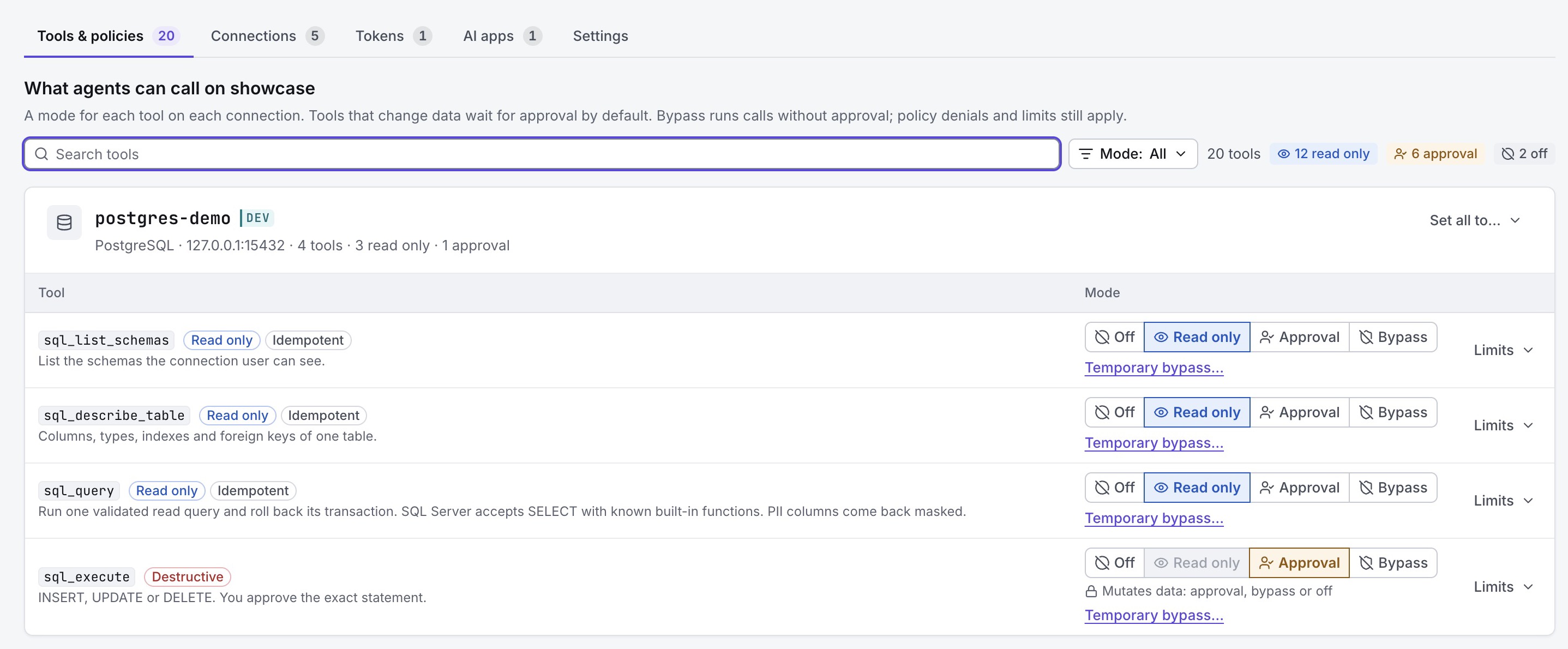
Once you’ve changed the payment handler, you may need to put the test order back into its starting state and replay the payment. On a development connection whose database role can update that fixture, set the SQL change tool to Approval. Schema inspection and queries can stay in Read only.
Ask the assistant to reset order 1042 from paid to pending. GateRook pauses the proposed update. In Approvals, you can inspect the target connection and the exact SQL. Look at the WHERE clause. Does it restrict the update to order 1042 and check that the current status is still paid? If it only filters by status, decline it. Once the statement matches the intended reset, approve that request and check how many rows changed. Then replay the test and ask for the same two reads again.
See what happened after you close the chat
A teammate reviewing the fix might ask, “Did the assistant actually query the development database, or did it infer the status from the test code?” Open Activity and filter by the connection. The query entry shows which client called the tool, on which endpoint, and with what arguments. The update entry lets you inspect the approval decision and the execution result. You can give your reviewer the query that informed the fix and point to the test that reproduces it.
Reuse a connection in another editor
The time you spend configuring a connection pays off again when you switch editors. If you debug in Cursor and use Codex for a second look, connect each app to the same development endpoint. GateRook keeps the service credentials locally and applies the endpoint’s tool settings to calls from either app. Each client can receive the results of its permitted reads, so choose the databases, schemas and keys you want it to see.
For a first run, one development database and a read-only login are enough. In Connections, add and test the database. In AI apps, connect your editor. Ask it to describe a table you’re working on, then open Activity and inspect the call. The next time a test and a screen disagree, you’ll already have a way to check the data from the conversation where you’re fixing the code. Get started with GateRook