
Amazon Keyspaces uses GateRook’s Apache Cassandra connector. Over TLS on port 9142 with service-specific credentials.
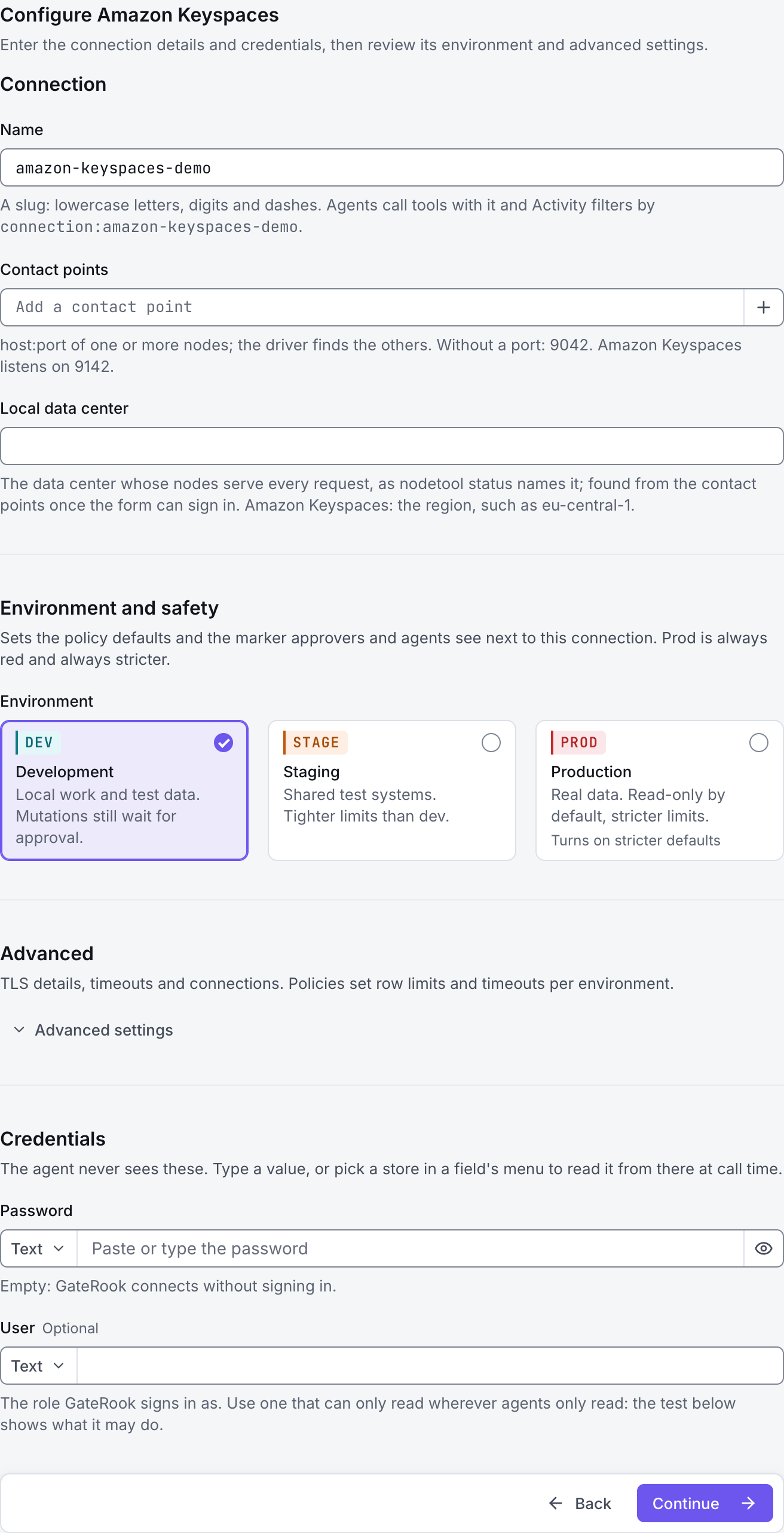
The screenshots show GateRook 2.0.0: the Amazon Keyspaces form, the endpoint selector, and this connector’s actual tool preview. The form and preview have not been saved. Select a screenshot to open it at full size.
1. Create a connection and enter the settings
In GateRook, open Connections, select Add connection, search for Amazon Keyspaces, choose its card and select Continue to configure. GateRook downloads the official Apache Cassandra connector module when you choose it. Wait for the download and verification to finish before configuring the connection.
Choose the AWS Region that contains your Amazon Keyspaces tables. Obtain the regional CQL endpoint and service-specific Amazon Keyspaces username and password.
Grant that identity permission to read the intended keyspaces and tables. An AWS access-key ID and secret are not the username/password pair used by this Cassandra connection form.
Enter a Name, for example amazon-keyspaces-demo. Your AI app uses this name to choose the connection.
Enter the regional endpoint with port 9142 in Contact points, and set Local data center to the AWS Region, such as eu-central-1 for tables in that region.
Select TLS for Connection type. Under Advanced, set TLS server name to the regional endpoint hostname and retain Verify the CA and host name. Add an AWS-documented CA only if the system trust store does not provide it.
Fill User and Password with the service-specific credentials, set Keyspace, and restrict Keyspaces to the intended application data.
Choose Development, Staging or Production to match the service. Review the connector’s limit and access settings before continuing.
2. Test the connection and add it to an endpoint
Select Continue to test. GateRook checks the settings from your computer. Review the result and resolve any connection, certificate or permission error before continuing.
Check the regional endpoint, port 9142 and service-specific credentials first. If authentication succeeds but a table is unavailable, verify its Region and IAM access; changing Keyspaces cannot grant permissions the AWS identity lacks.
After the test passes, select Continue to add to an endpoint. Choose the endpoint your AI app uses, review its tool modes, then select Save connection. GateRook offers default as the starter endpoint.

3. Use the connection from your AI IDE
After saving Amazon Keyspaces on the endpoint and passing its connection test, ask your AI app to use amazon-keyspaces-demo, or the name you chose. If its tools are missing, confirm the endpoint assignment and refresh the MCP connection or start a new chat.
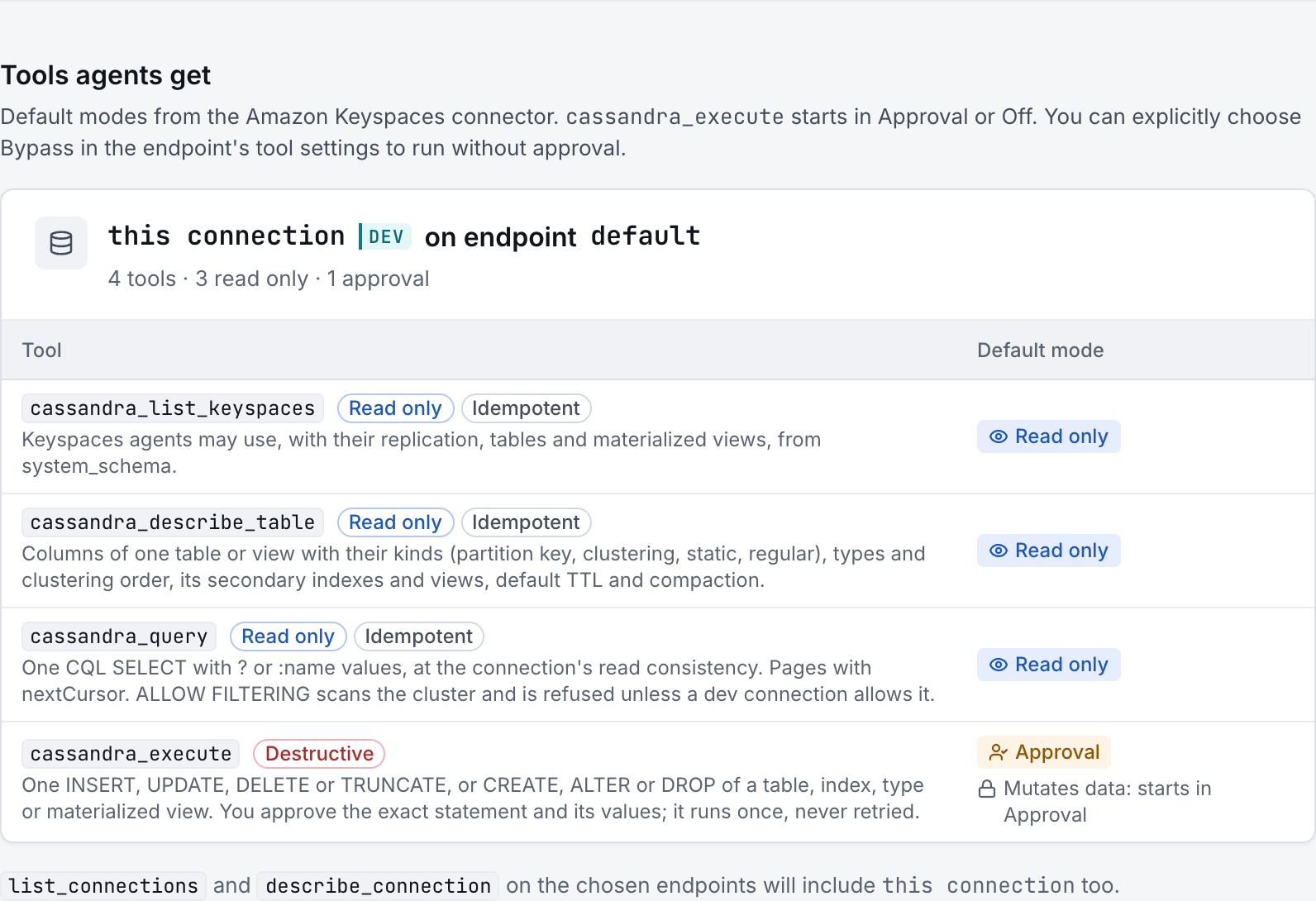
The preview below shows this connector’s default tools before saving. The table explains what each tool can do; connection settings, credentials and endpoint policies can restrict access further.
Start with a small read request. Replace example resource names with existing resources your connection may access. Open Activity after the call to inspect its connection, tool, arguments, policy decision and result metadata.
Ask your AI, for example
- “List the permitted keyspaces and tables.”
- “Describe the primary key and columns of the orders table, if present.”
- “Read at most 10 rows from orders for one known partition key; do not use ALLOW FILTERING.”
| Tool | What it does | Starts as |
|---|---|---|
cassandra_list_keyspaces | List permitted keyspaces and tables using the schema metadata exposed by Amazon Keyspaces. | Read only |
cassandra_describe_table | Show the table’s columns, partition and clustering keys, types and supported table metadata. Cassandra-specific index, view and compaction features are not promised. | Read only |
cassandra_query | One CQL SELECT with ? or :name values, at the connection's read consistency. Pages with nextCursor. ALLOW FILTERING scans the cluster and is refused unless a dev connection allows it. | Read only |
cassandra_execute | Submit one supported CQL data or schema change for approval. Amazon Keyspaces supports a subset of Cassandra CQL; secondary indexes and materialized views are not available. The statement runs once and is not retried. | Approval |
You can change each tool’s mode on the endpoint. Every call your AI makes appears in Activity.