
Azure SQL Managed Instance uses GateRook’s SQL Server connector. With SQL authentication over verified TLS; Microsoft Entra sign-in is not supported.
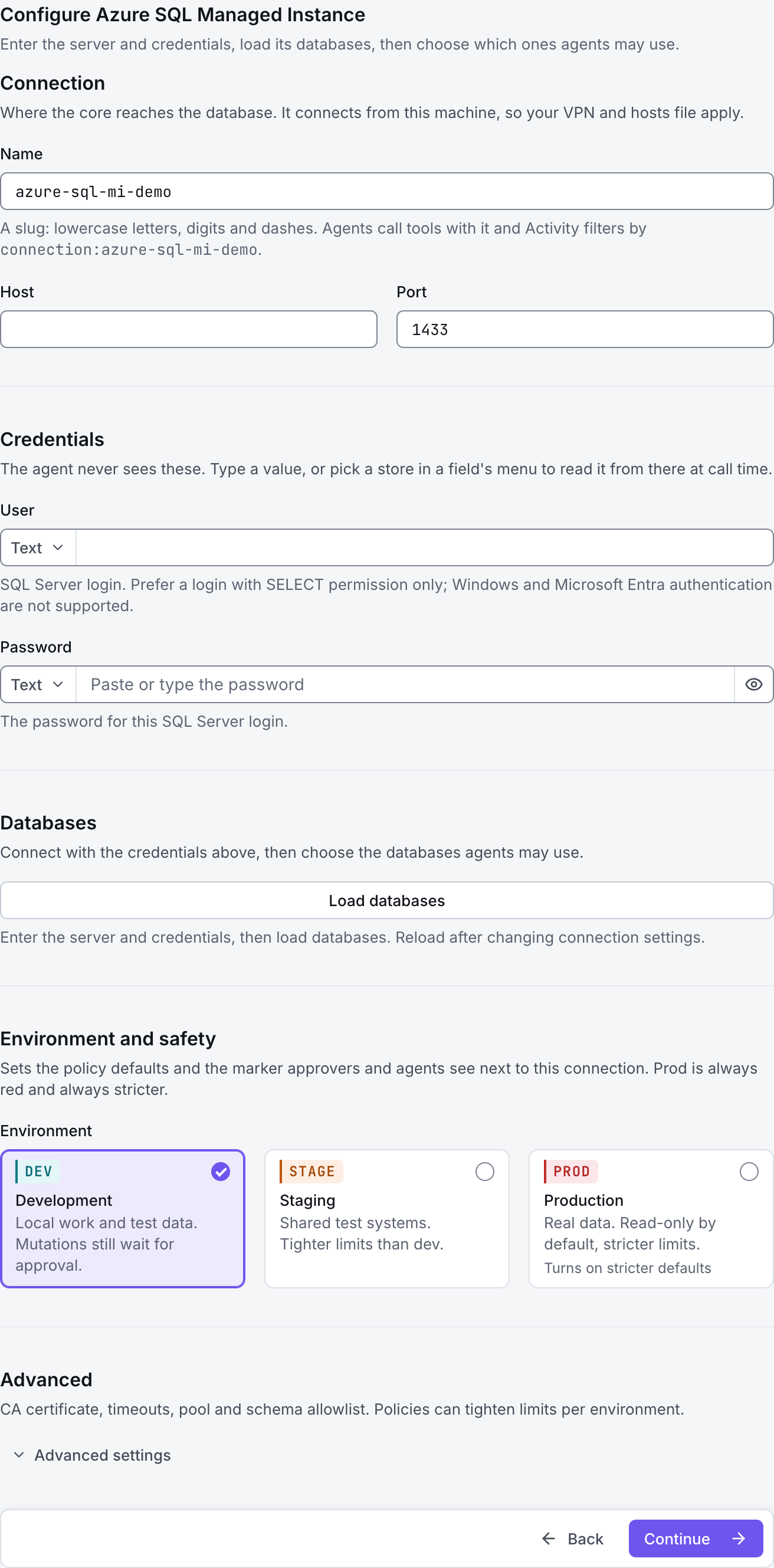
The screenshots show GateRook 2.0.0: the Azure SQL Managed Instance form, the endpoint selector, and this connector’s actual tool preview. The form and preview have not been saved. Select a screenshot to open it at full size.
1. Create a connection and enter the settings
In GateRook, open Connections, select Add connection, search for Azure SQL Managed Instance, choose its card and select Continue to configure.
Obtain the managed instance’s SQL endpoint and a SQL-authentication user and password. GateRook does not perform Microsoft Entra or Windows sign-in for this connector.
Choose the endpoint reachable from this computer: a VNet-local endpoint or an explicitly configured public endpoint.
Enter a Name, for example azure-sql-mi-demo. Your AI app uses this name to choose the connection.
Choose Azure SQL Managed Instance. Enter a Name, the endpoint Host, User and Password. Use Port 1433 for the VNet-local endpoint or 3342 for its public endpoint.
Keep SSL mode at verify-full. Copy the public endpoint hostname exactly, including its public component, when using the public endpoint.
Select Load databases and choose the databases to expose. Match Default schema to the database user and restrict Schema allowlist if appropriate.
Choose Development, Staging or Production to match the service. Review the connector’s limit and access settings before continuing.
2. Test the connection and add it to an endpoint
Select Continue to test. GateRook checks the settings from your computer. Review the result and resolve any connection, certificate or permission error before continuing.
If the public connection times out, confirm that the public endpoint is enabled and its network rules permit the required port. A private hostname still requires the VNet network path.
After the test passes, select Continue to add to an endpoint. Choose the endpoint your AI app uses, review its tool modes, then select Save connection. GateRook offers default as the starter endpoint.

3. Use the connection from your AI IDE
After saving Azure SQL Managed Instance on the endpoint and passing its connection test, ask your AI app to use azure-sql-mi-demo, or the name you chose. If its tools are missing, confirm the endpoint assignment and refresh the MCP connection or start a new chat.
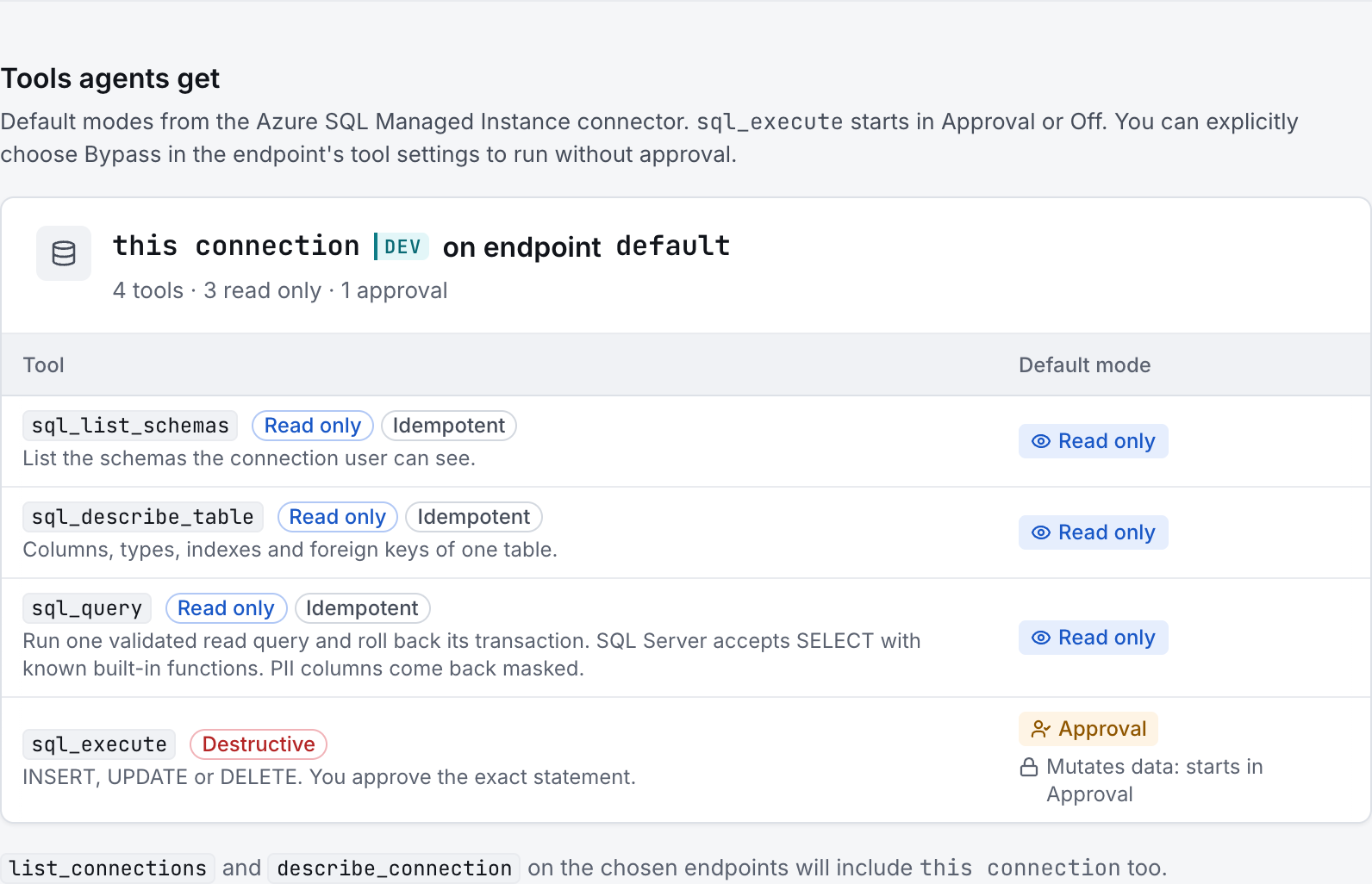
The preview below shows this connector’s default tools before saving. The table explains what each tool can do; connection settings, credentials and endpoint policies can restrict access further.
Start with a small read request. Replace example resource names with existing resources your connection may access. Open Activity after the call to inspect its connection, tool, arguments, policy decision and result metadata.
Ask your AI, for example
- “List tables in the selected Azure SQL Managed Instance database.”
- “Describe the selected managed-instance table and its indexes.”
- “Count recent records by status in my Azure SQL Managed Instance connection.”
| Tool | What it does | Starts as |
|---|---|---|
sql_list_schemas | List schemas, tables and views in the selected SQL Server database, within the connection and policy restrictions. | Read only |
sql_describe_table | Describe a SQL Server table’s columns, types, keys and indexes where available. | Read only |
sql_query | Run one validated SELECT using supported built-in T-SQL functions, then roll back the transaction. The login’s database permissions and the configured output limits still apply. | Read only |
sql_execute | Run one supported data or schema change with Approval by default. Database permissions and the environment policy determine which changes are allowed. | Approval |
You can change each tool’s mode on the endpoint. Every call your AI makes appears in Activity.