
Azure Cosmos DB for MongoDB uses GateRook’s MongoDB connector. RU and vCore accounts over TLS. They support only part of MongoDB's aggregation stages and operators.
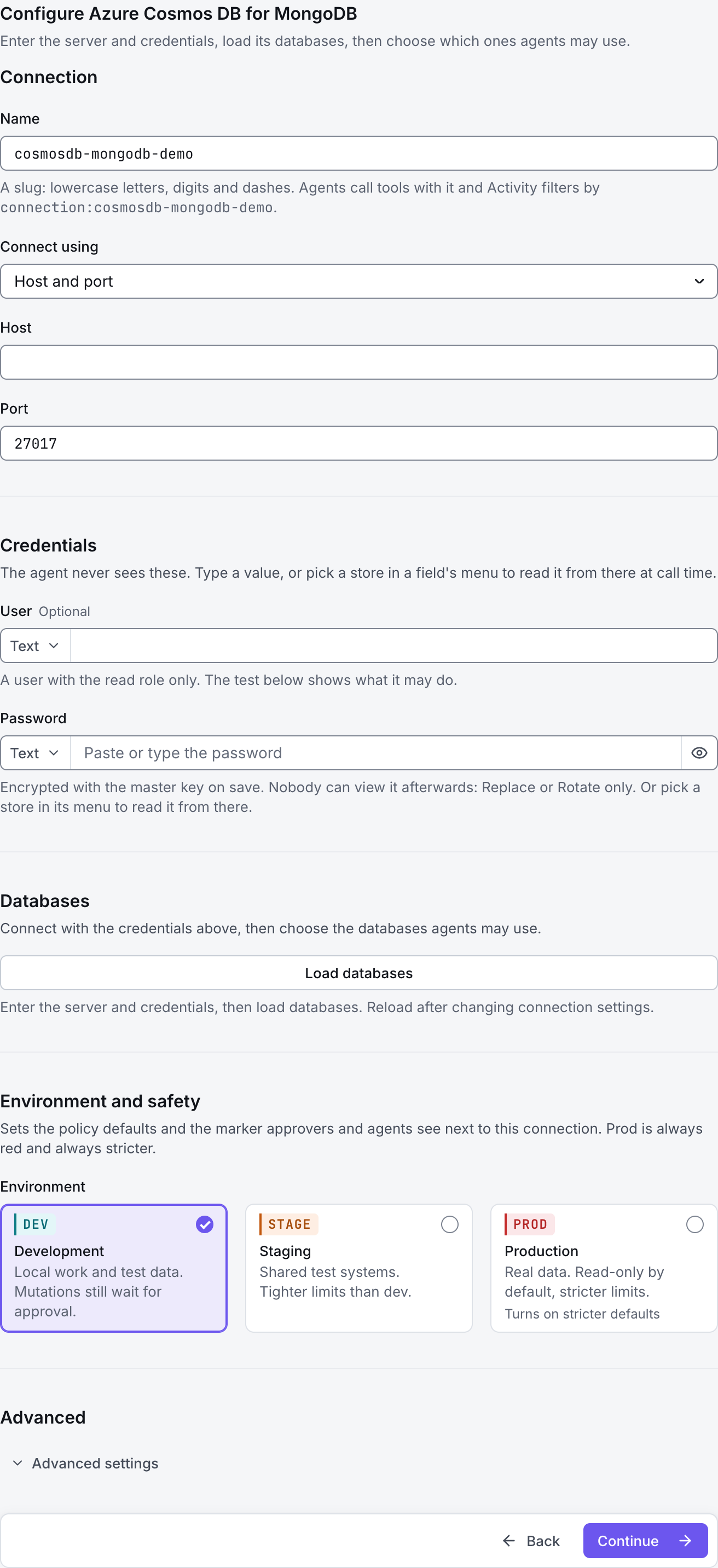
The screenshots show GateRook 2.0.0: the Azure Cosmos DB for MongoDB form, the endpoint selector, and this connector’s actual tool preview. The form and preview have not been saved. Select a screenshot to open it at full size.
1. Create a connection and enter the settings
In GateRook, open Connections, select Add connection, search for Azure Cosmos DB for MongoDB, choose its card and select Continue to configure.
Copy the MongoDB connection details for your Azure Cosmos DB account. Use the endpoint and port for that account's MongoDB service; the account's other APIs use different addresses.
Prepare the supported database username and password or account credential, and allow the GateRook computer through the account's networking rules. Use a private network connection when the account has a private endpoint.
Enter a Name, for example cosmosdb-mongodb-demo. Your AI app uses this name to choose the connection.
Choose Connection string in Connect using and paste the credential-free MongoDB URI. Keep the account's required options and port; do not replace them with the defaults of a local MongoDB server.
Select TLS for Connection type and fill in User and Password separately. If the provider string specifies an authentication mechanism, remove authMechanism from the URI and choose that Mechanism in Advanced; match Auth database to authSource when present.
Use Load databases and select only the required Databases. In Advanced, narrow Collections the agent may read with entries such as shop.orders; replace these examples with your own database and collection names.
Choose Development, Staging or Production to match the service. Review the connector’s limit and access settings before continuing.
2. Test the connection and add it to an endpoint
Select Continue to test. GateRook checks the settings from your computer. Review the result and resolve any connection, certificate or permission error before continuing.
If sign-in fails, confirm that the endpoint, credentials and authentication mechanism belong to the same Cosmos DB account. If a later query is rejected, check MongoDB API compatibility and query limits for that account rather than assuming every MongoDB operation is available.
After the test passes, select Continue to add to an endpoint. Choose the endpoint your AI app uses, review its tool modes, then select Save connection. GateRook offers default as the starter endpoint.

3. Use the connection from your AI IDE
After saving Azure Cosmos DB for MongoDB on the endpoint and passing its connection test, ask your AI app to use cosmosdb-mongodb-demo, or the name you chose. If its tools are missing, confirm the endpoint assignment and refresh the MCP connection or start a new chat.
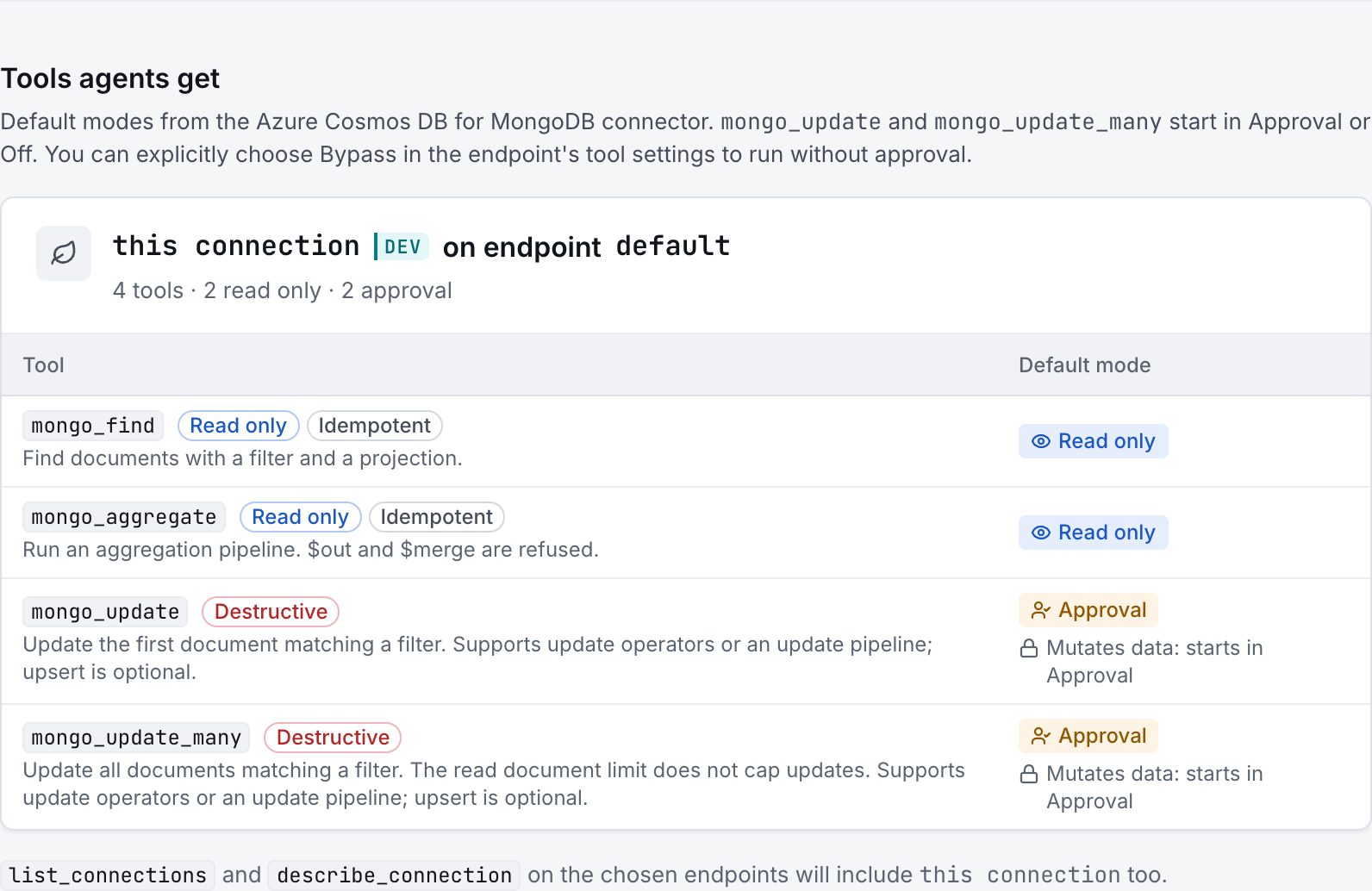
The preview below shows this connector’s default tools before saving. The table explains what each tool can do; connection settings, credentials and endpoint policies can restrict access further.
Start with a small read request. Replace example resource names with existing resources your connection may access. Open Activity after the call to inspect its connection, tool, arguments, policy decision and result metadata.
Ask your AI, for example
- “List the permitted databases and collections without changing anything.”
- “Inspect the fields and indexes of the orders collection, if it exists.”
- “Show at most 10 recent order documents, returning only status and creation time.”
| Tool | What it does | Starts as |
|---|---|---|
mongo_find | Find documents with a filter and a projection. | Read only |
mongo_aggregate | Run an aggregation pipeline. $out and $merge are refused. | Read only |
mongo_update | Update the first document matching a filter. Supports update operators or an update pipeline; upsert is optional. | Approval |
mongo_update_many | Update all documents matching a filter. The read document limit does not cap updates. Supports update operators or an update pipeline; upsert is optional. | Approval |
You can change each tool’s mode on the endpoint. Every call your AI makes appears in Activity.