
Amazon DocumentDB uses GateRook’s MongoDB connector. Over TLS with the Amazon RDS CA bundle. It supports only part of MongoDB's aggregation stages and operators.
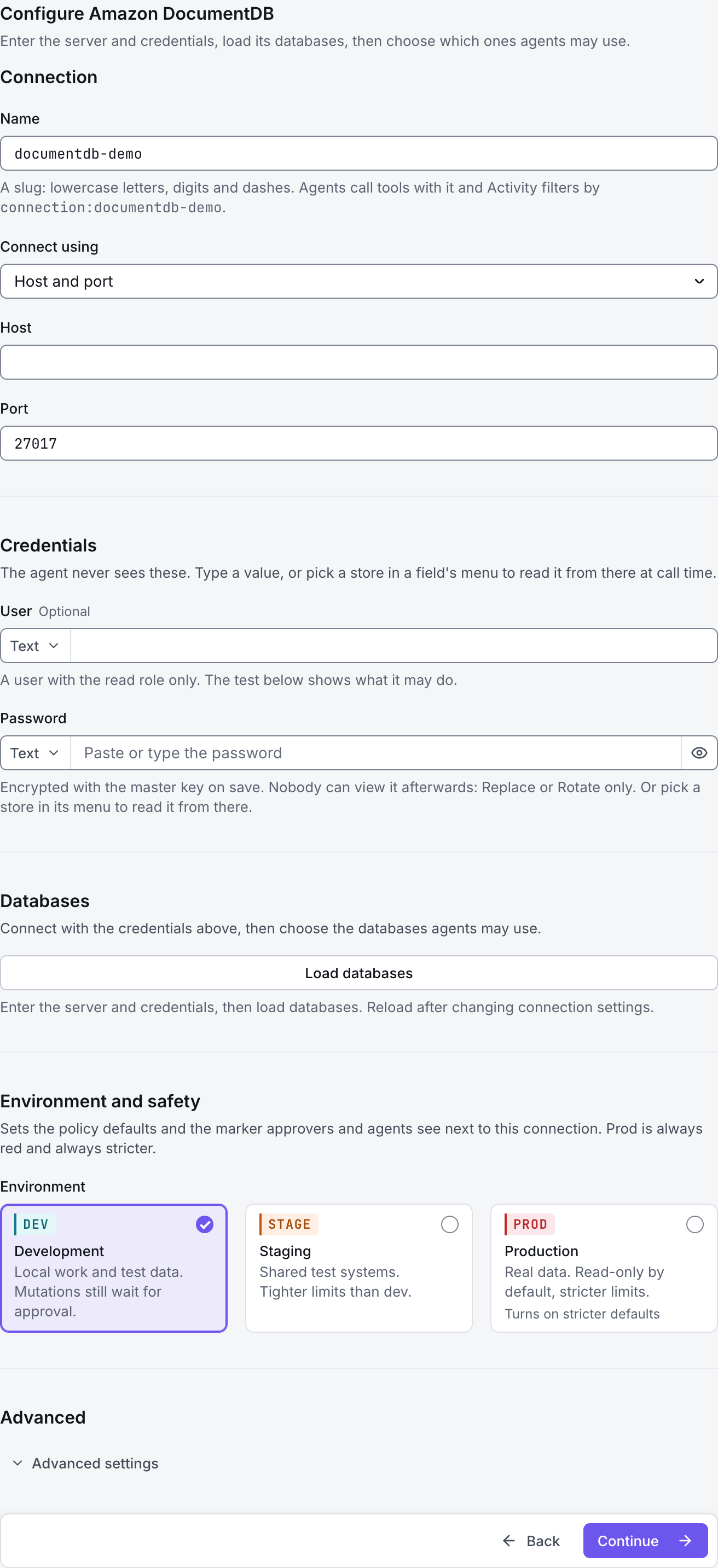
The screenshots show GateRook 2.0.0: the Amazon DocumentDB form, the endpoint selector, and this connector’s actual tool preview. The form and preview have not been saved. Select a screenshot to open it at full size.
1. Create a connection and enter the settings
In GateRook, open Connections, select Add connection, search for Amazon DocumentDB, choose its card and select Continue to configure.
Use an Amazon DocumentDB cluster endpoint and a database user with permission to read the required collections. Obtain the AWS CA bundle used by the cluster.
The GateRook computer must be able to reach the cluster's VPC network and database port. A public AWS console login alone does not provide network access to DocumentDB.
Enter a Name, for example documentdb-demo. Your AI app uses this name to choose the connection.
Select Connection string under Connect using and enter the credential-free MongoDB URI from the cluster connection instructions. Preserve the cluster's replica-set and retry-write options; use the settings documented for its engine version.
Choose TLS for Connection type. Enter User and Password, then paste the AWS CA bundle into CA certificate (PEM) in Advanced. Set Auth database and Read preference to agree with any matching URI options.
Use Load databases and select only the required Databases. In Advanced, narrow Collections the agent may read with entries such as shop.orders; replace these examples with your own database and collection names.
Choose Development, Staging or Production to match the service. Review the connector’s limit and access settings before continuing.
2. Test the connection and add it to an endpoint
Select Continue to test. GateRook checks the settings from your computer. Review the result and resolve any connection, certificate or permission error before continuing.
For a server-selection timeout, verify VPC routing, security groups and DNS. For a certificate error, check the current AWS CA bundle and the actual cluster hostname. DocumentDB implements a compatible MongoDB API, so validate the specific aggregation operators your analysis needs.
After the test passes, select Continue to add to an endpoint. Choose the endpoint your AI app uses, review its tool modes, then select Save connection. GateRook offers default as the starter endpoint.

3. Use the connection from your AI IDE
After saving Amazon DocumentDB on the endpoint and passing its connection test, ask your AI app to use documentdb-demo, or the name you chose. If its tools are missing, confirm the endpoint assignment and refresh the MCP connection or start a new chat.
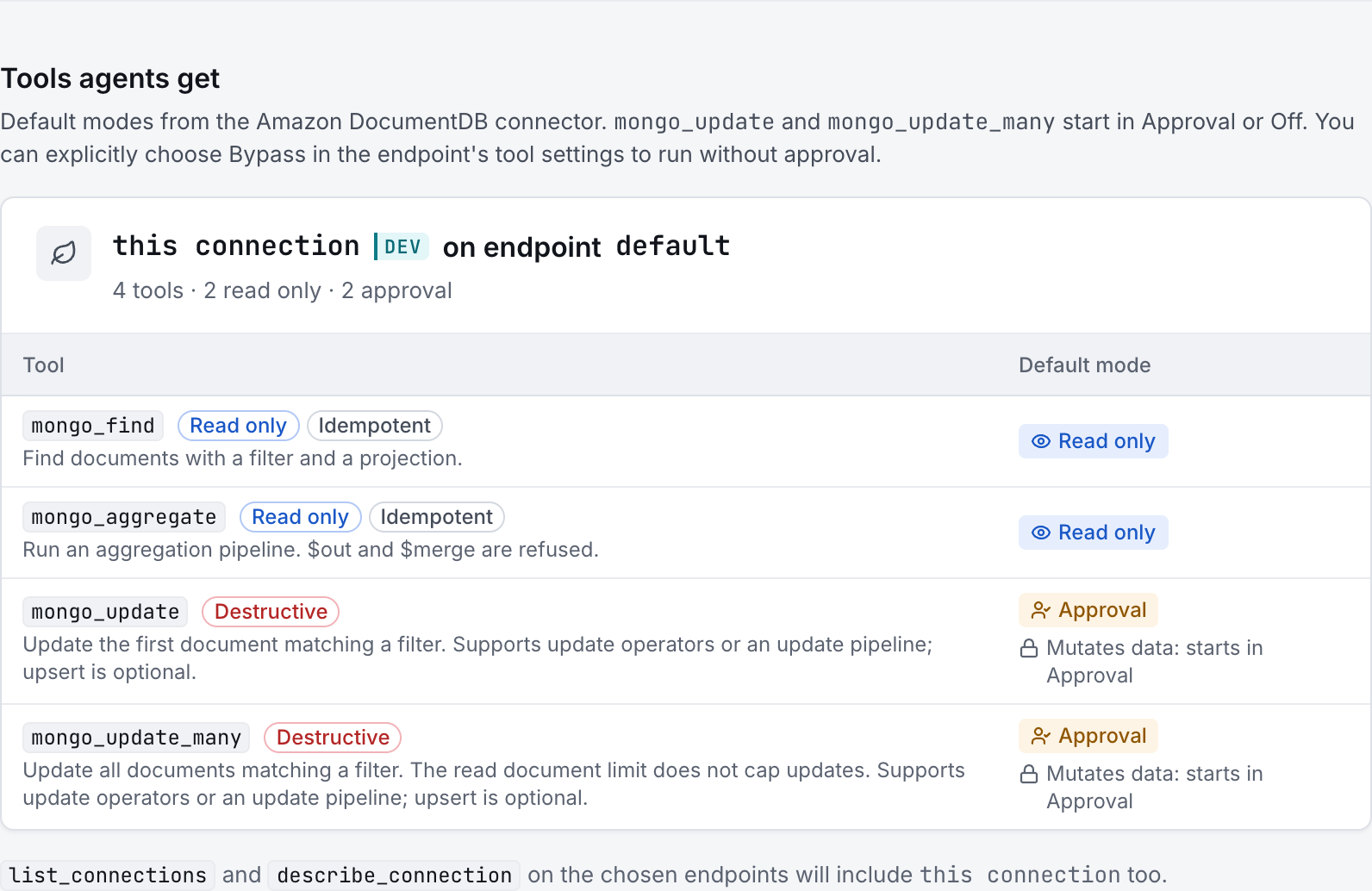
The preview below shows this connector’s default tools before saving. The table explains what each tool can do; connection settings, credentials and endpoint policies can restrict access further.
Start with a small read request. Replace example resource names with existing resources your connection may access. Open Activity after the call to inspect its connection, tool, arguments, policy decision and result metadata.
Ask your AI, for example
- “List the permitted databases and collections without changing anything.”
- “Inspect the fields and indexes of the orders collection, if it exists.”
- “Show at most 10 recent order documents, returning only status and creation time.”
| Tool | What it does | Starts as |
|---|---|---|
mongo_find | Find documents with a filter and a projection. | Read only |
mongo_aggregate | Run an aggregation pipeline. $out and $merge are refused. | Read only |
mongo_update | Update the first document matching a filter. Supports update operators or an update pipeline; upsert is optional. | Approval |
mongo_update_many | Update all documents matching a filter. The read document limit does not cap updates. Supports update operators or an update pipeline; upsert is optional. | Approval |
You can change each tool’s mode on the endpoint. Every call your AI makes appears in Activity.