
Tables, Query, Scan and PartiQL. Changes wait for approval.
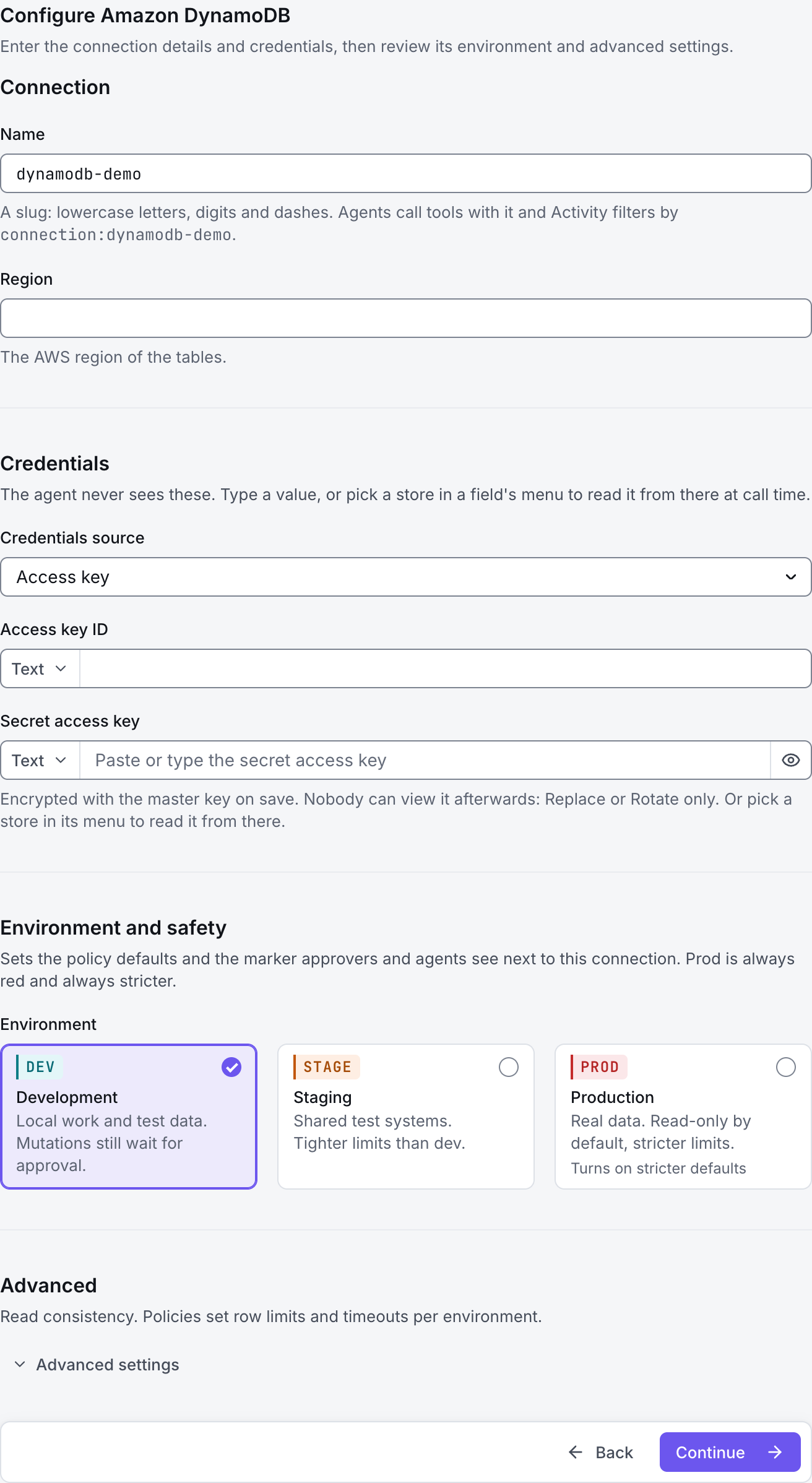
The screenshots show GateRook 2.0.0: the Amazon DynamoDB form, the endpoint selector, and this connector’s actual tool preview. The form and preview have not been saved. Select a screenshot to open it at full size.
1. Create a connection and enter the settings
In GateRook, open Connections, select Add connection, search for Amazon DynamoDB, choose its card and select Continue to configure.
Choose the AWS region containing your DynamoDB tables. Prepare an AWS profile on this computer or an access key with the permissions needed for those tables.
Decide which tables the AI may read. Query operations use a partition-key value; scans read through a table or index and can consume more read capacity.
Enter a Name, for example dynamodb-demo. Your AI app uses this name to choose the connection.
Enter Region and restrict Tables to the intended names or patterns, such as orders-*. An empty list allows every table the credentials may read.
In Credentials source, choose AWS profile on this computer and enter Profile, or choose Access key and fill Access key ID and Secret access key.
If you use a dedicated IAM role, fill Role to assume and its External ID. Keep the recommended Session policy so AWS enforces the permissions of each call.
Choose Development, Staging or Production to match the service. Review the connector’s limit and access settings before continuing.
2. Test the connection and add it to an endpoint
Select Continue to test. GateRook checks the settings from your computer. Review the result and resolve any connection, certificate or permission error before continuing.
If tables are missing, verify their region and the table allowlist. Access-denied errors can come from the credentials, assumed-role trust policy or table/index permissions; a successful sign-in alone does not grant query access.
After the test passes, select Continue to add to an endpoint. Choose the endpoint your AI app uses, review its tool modes, then select Save connection. GateRook offers default as the starter endpoint.

3. Use the connection from your AI IDE
After saving Amazon DynamoDB on the endpoint and passing its connection test, ask your AI app to use dynamodb-demo, or the name you chose. If its tools are missing, confirm the endpoint assignment and refresh the MCP connection or start a new chat.
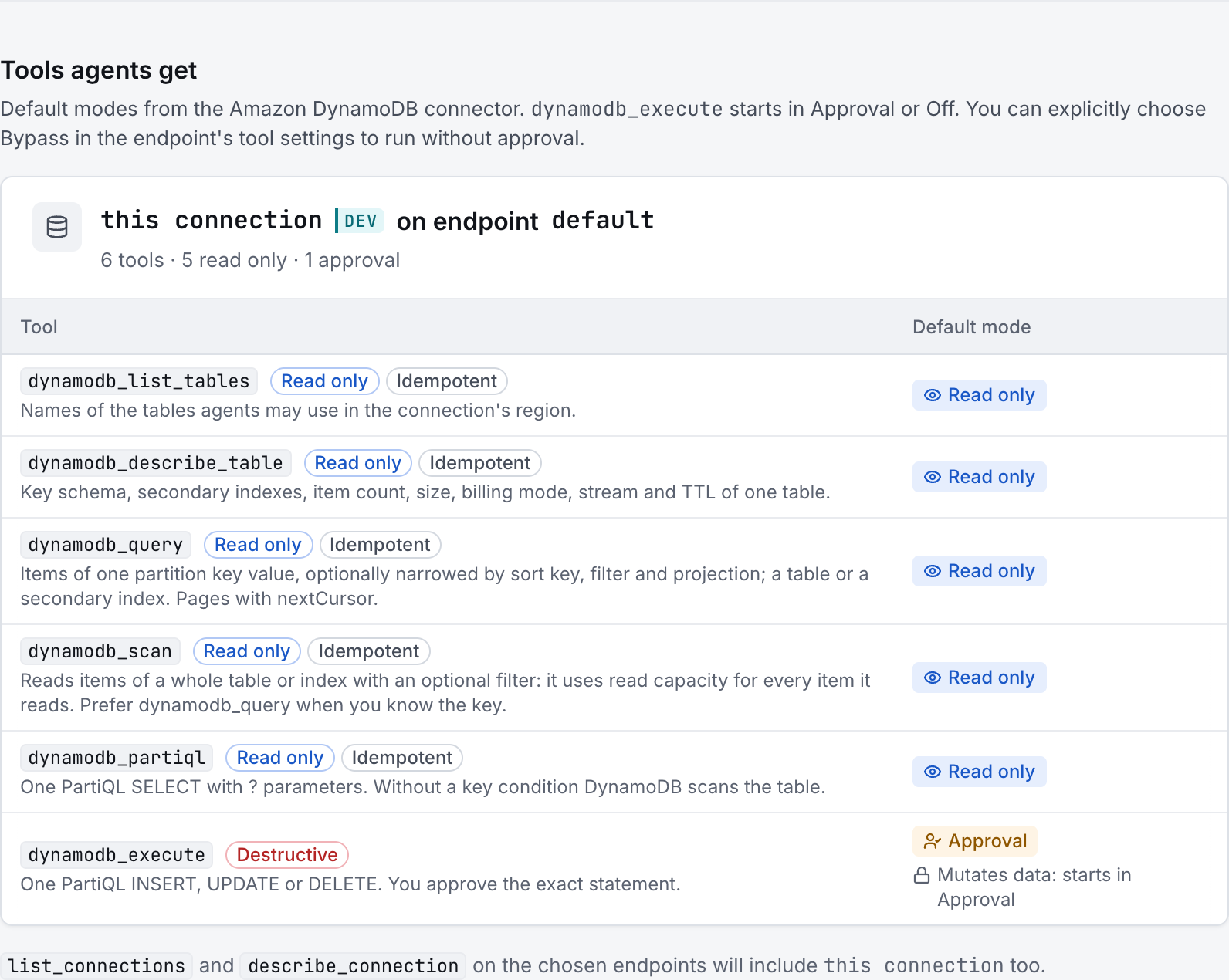
The preview below shows this connector’s default tools before saving. The table explains what each tool can do; connection settings, credentials and endpoint policies can restrict access further.
Start with a small read request. Replace example resource names with existing resources your connection may access. Open Activity after the call to inspect its connection, tool, arguments, policy decision and result metadata.
Ask your AI, for example
- “List the tables available through dynamodb-demo.”
- “Describe the keys and secondary indexes of orders on dynamodb-demo.”
- “Using dynamodb-demo, query orders for partition key customerId equal to customer-123; do not scan the whole table.”
| Tool | What it does | Starts as |
|---|---|---|
dynamodb_list_tables | Names of the tables agents may use in the connection's region. | Read only |
dynamodb_describe_table | Key schema, secondary indexes, item count, size, billing mode, stream and TTL of one table. | Read only |
dynamodb_query | Items of one partition key value, optionally narrowed by sort key, filter and projection; a table or a secondary index. Pages with nextCursor. | Read only |
dynamodb_scan | Reads items of a whole table or index with an optional filter: it uses read capacity for every item it reads. Prefer dynamodb_query when you know the key. | Read only |
dynamodb_partiql | One PartiQL SELECT with ? parameters. Without a key condition DynamoDB scans the table. | Read only |
dynamodb_execute | One PartiQL INSERT, UPDATE or DELETE. You approve the exact statement. | Approval |
You can change each tool’s mode on the endpoint. Every call your AI makes appears in Activity.