
Elastic Cloud uses GateRook’s Elasticsearch connector. Elastic Cloud deployments and serverless projects with an API key.
The screenshots show GateRook 2.0.0: the Elastic Cloud form, the endpoint selector, and this connector’s actual tool preview. The form and preview have not been saved. Select a screenshot to open it at full size.
1. Create a connection and enter the settings
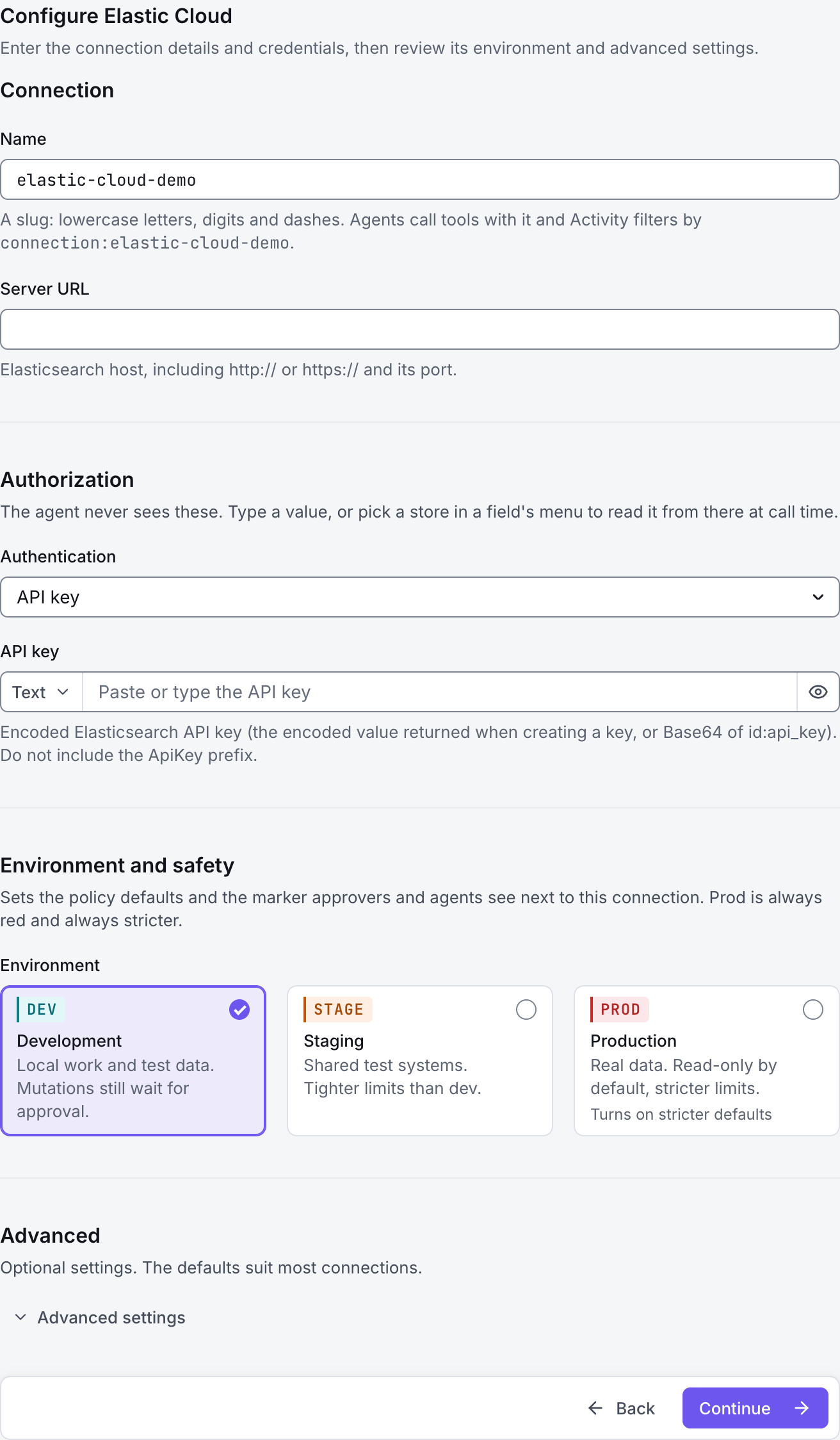
In GateRook, open Connections, select Add connection, search for Elastic Cloud, choose its card and select Continue to configure.
Copy the Elasticsearch endpoint from your Elastic Cloud deployment and create an API key with only the index read and metadata privileges needed for the task.
Use the Elasticsearch REST URL. A Cloud ID, Kibana URL and the Elastic Cloud management API endpoint are different connection values.
Enter a Name, for example elastic-cloud-demo. Your AI app uses this name to choose the connection.
Enter the HTTPS Elasticsearch endpoint in Server URL.
Set Authentication to API key and paste the encoded key into API key, without an ApiKey prefix.
Leave CA certificate (PEM) empty for a normally trusted public endpoint. Add a CA only if the chosen endpoint uses a private certificate authority.
Choose Development, Staging or Production to match the service. Review the connector’s limit and access settings before continuing.
2. Test the connection and add it to an endpoint
Select Continue to test. GateRook checks the settings from your computer. Review the result and resolve any connection, certificate or permission error before continuing.
A 401 calls for checking the encoded key and its expiration; a 403 calls for checking the key's index and metadata privileges. If the server returns HTML, verify that you copied the Elasticsearch endpoint rather than Kibana.
After the test passes, select Continue to add to an endpoint. Choose the endpoint your AI app uses, review its tool modes, then select Save connection. GateRook offers default as the starter endpoint.

3. Use the connection from your AI IDE
After saving Elastic Cloud on the endpoint and passing its connection test, ask your AI app to use elastic-cloud-demo, or the name you chose. If its tools are missing, confirm the endpoint assignment and refresh the MCP connection or start a new chat.
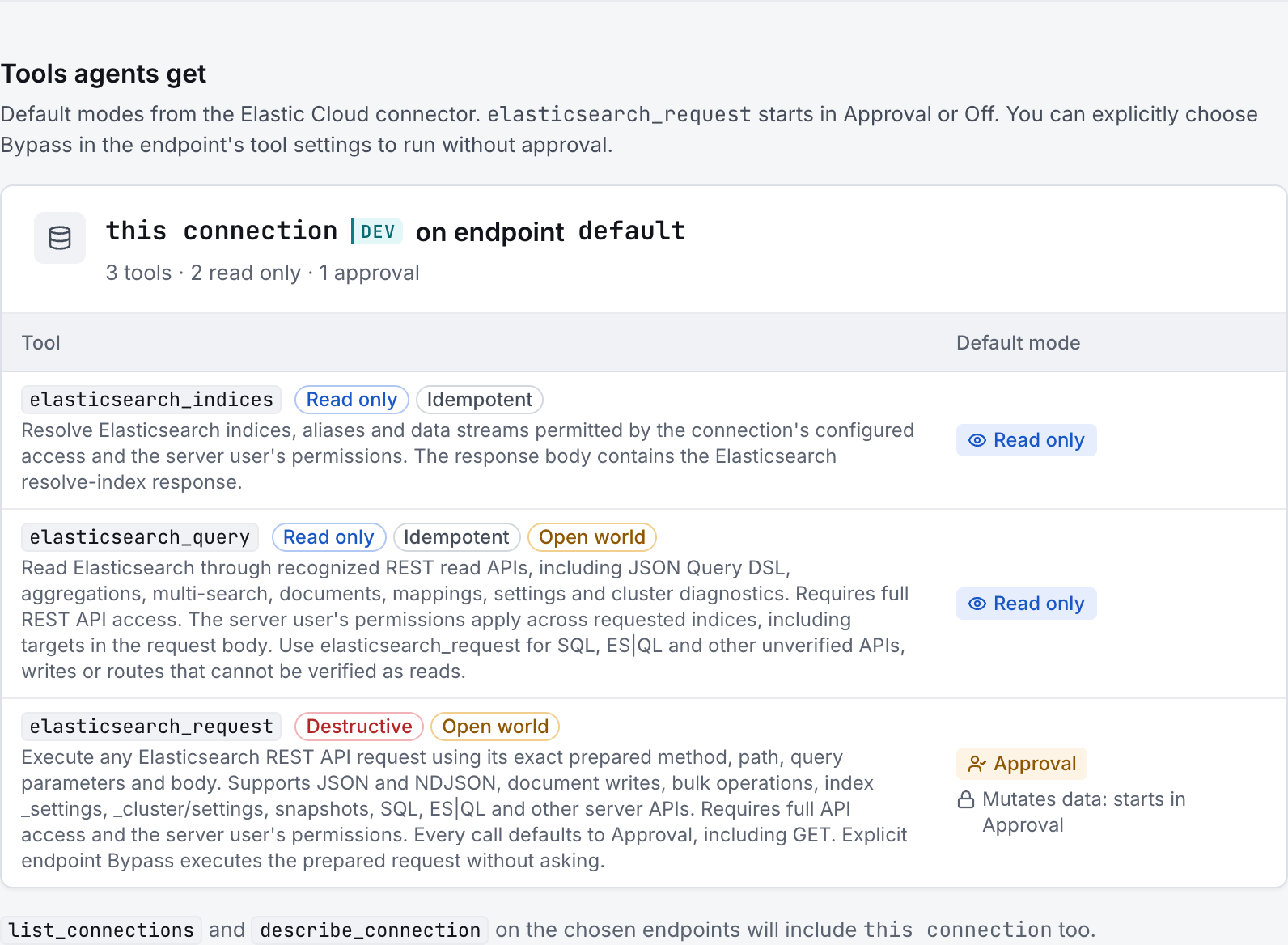
The preview below shows this connector’s default tools before saving. The table explains what each tool can do; connection settings, credentials and endpoint policies can restrict access further.
Start with a small read request. Replace example resource names with existing resources your connection may access. Open Activity after the call to inspect its connection, tool, arguments, policy decision and result metadata.
Ask your AI, for example
- “List the Elasticsearch indexes this API key can read.”
- “Show the field mappings for the orders index, if available.”
- “Search at most 10 recent orders and return only their status and creation time.”
| Tool | What it does | Starts as |
|---|---|---|
elasticsearch_indices | Resolve Elasticsearch indices, aliases and data streams permitted by the connection's configured access and the server user's permissions. The response body contains the Elasticsearch resolve-index response. | Read only |
elasticsearch_query | Read Elasticsearch through recognized REST read APIs, including JSON Query DSL, aggregations, multi-search, documents, mappings, settings and cluster diagnostics. Requires full REST API access. The server user's permissions apply across requested indices, including targets in the request body. Use elasticsearch_request for SQL, ES|QL and other unverified APIs, writes or routes that cannot be verified as reads. | Read only |
elasticsearch_request | Execute any Elasticsearch REST API request using its exact prepared method, path, query parameters and body. Supports JSON and NDJSON, document writes, bulk operations, index _settings, _cluster/settings, snapshots, SQL, ES|QL and other server APIs. Requires full API access and the server user's permissions. Every call defaults to Approval, including GET. Explicit endpoint Bypass executes the prepared request without asking. | Approval |
You can change each tool’s mode on the endpoint. Every call your AI makes appears in Activity.