
Documents, collections and queries. Changes wait for approval.
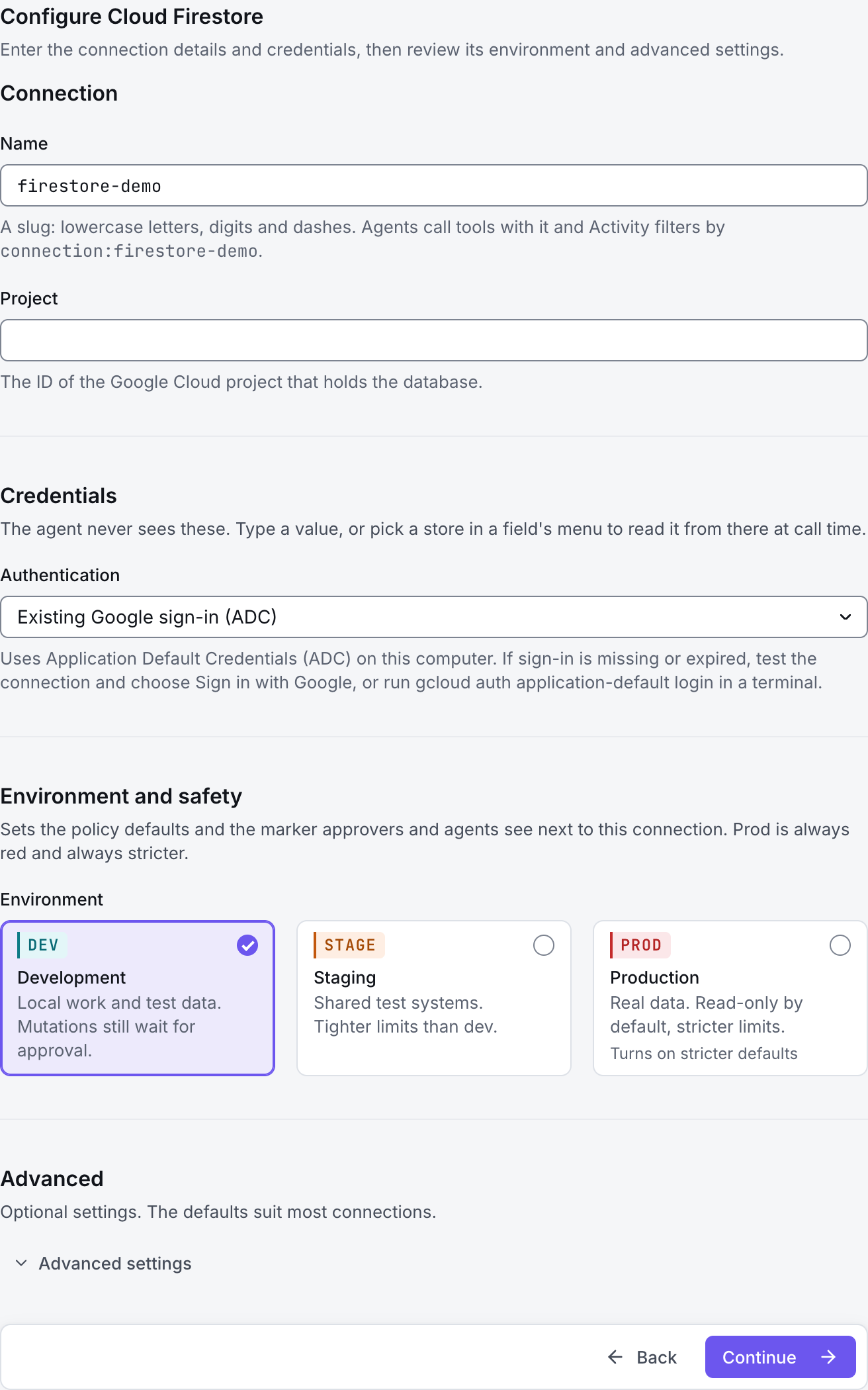
The screenshots show GateRook 2.0.0: the Cloud Firestore form, the endpoint selector, and this connector’s actual tool preview. The form and preview have not been saved. Select a screenshot to open it at full size.
1. Create a connection and enter the settings
In GateRook, open Connections, select Add connection, search for Cloud Firestore, choose its card and select Continue to configure.
Find the Google Cloud project ID and Firestore database ID. The default database is named (default).
Use local Application Default Credentials or a service account key with the required Firestore IAM access. These server credentials use IAM; client-side Firebase Security Rules are not a substitute for limiting the identity’s permissions.
Enter a Name, for example firestore-demo. Your AI app uses this name to choose the connection.
Enter Project and Database. Restrict Collections with collection IDs or paths, such as orders or /orders; read the form’s distinction between an ID and a path before using wildcards.
Under Authentication, choose Existing Google sign-in (ADC) or Service account key (JSON) and provide the selected credential source.
Set Service account to impersonate for a dedicated identity if appropriate. A reader can use roles/datastore.viewer; grant broader data permissions only when approved changes are required.
Choose Development, Staging or Production to match the service. Review the connector’s limit and access settings before continuing.
2. Test the connection and add it to an endpoint
Select Continue to test. GateRook checks the settings from your computer. Review the result and resolve any connection, certificate or permission error before continuing.
If sign-in is missing or expired, the test can offer Sign in with Google, or you can refresh ADC using gcloud auth application-default login. Check the database ID, IAM access and collection restrictions if the expected collections are absent.
After the test passes, select Continue to add to an endpoint. Choose the endpoint your AI app uses, review its tool modes, then select Save connection. GateRook offers default as the starter endpoint.

3. Use the connection from your AI IDE
After saving Cloud Firestore on the endpoint and passing its connection test, ask your AI app to use firestore-demo, or the name you chose. If its tools are missing, confirm the endpoint assignment and refresh the MCP connection or start a new chat.
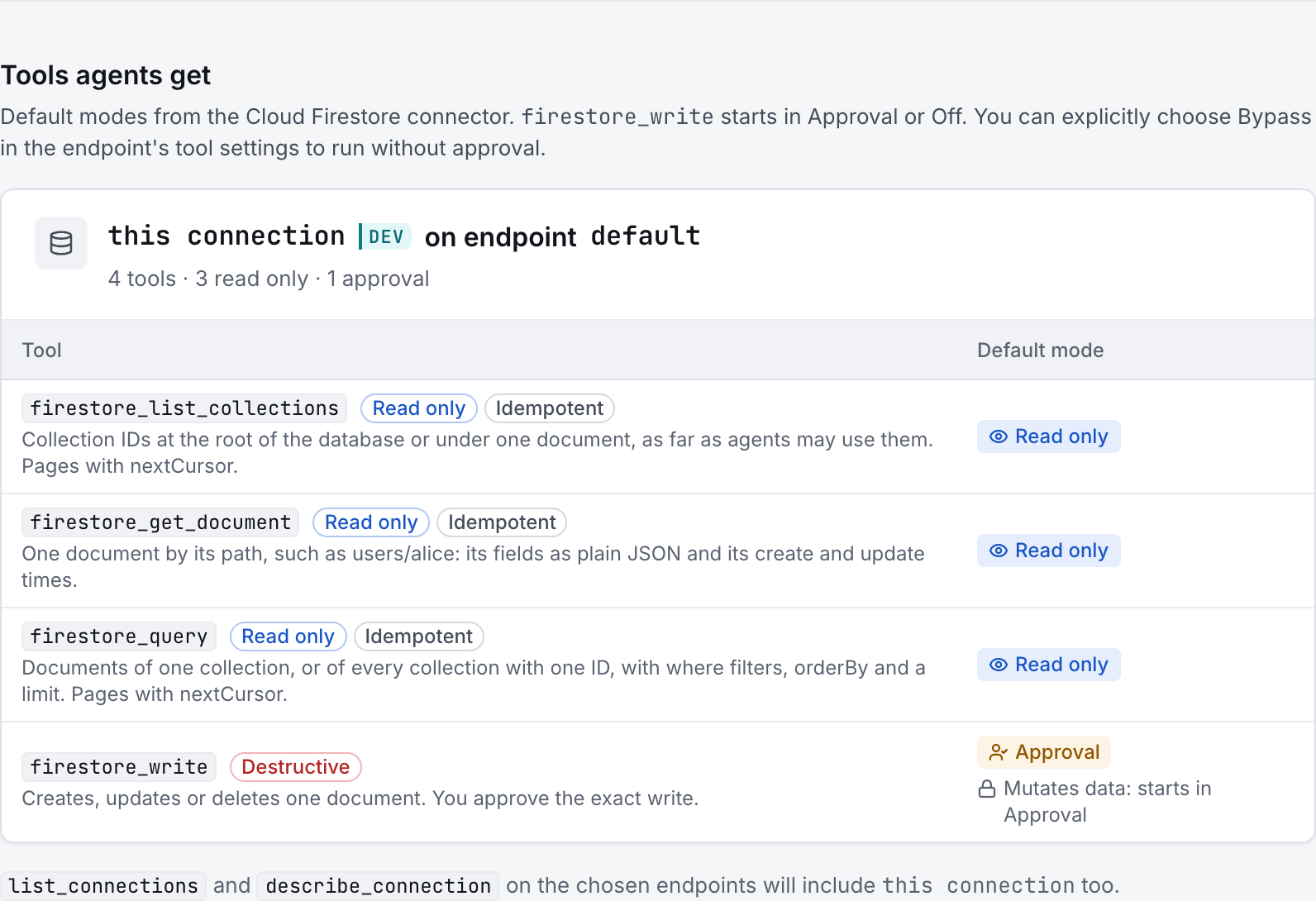
The preview below shows this connector’s default tools before saving. The table explains what each tool can do; connection settings, credentials and endpoint policies can restrict access further.
Start with a small read request. Replace example resource names with existing resources your connection may access. Open Activity after the call to inspect its connection, tool, arguments, policy decision and result metadata.
Ask your AI, for example
- “List the collections available through firestore-demo.”
- “Read the document orders/order-123 on firestore-demo.”
- “Using firestore-demo, show at most five orders whose status is pending.”
| Tool | What it does | Starts as |
|---|---|---|
firestore_list_collections | Collection IDs at the root of the database or under one document, as far as agents may use them. Pages with nextCursor. | Read only |
firestore_get_document | One document by its path, such as users/alice: its fields as plain JSON and its create and update times. | Read only |
firestore_query | Documents of one collection, or of every collection with one ID, with where filters, orderBy and a limit. Pages with nextCursor. | Read only |
firestore_write | Creates, updates or deletes one document. You approve the exact write. | Approval |
You can change each tool’s mode on the endpoint. Every call your AI makes appears in Activity.