
Indexes and documents of Meilisearch and Meilisearch Cloud: full-text search with filters, facets and sorting. Document writes and deletes wait for approval.
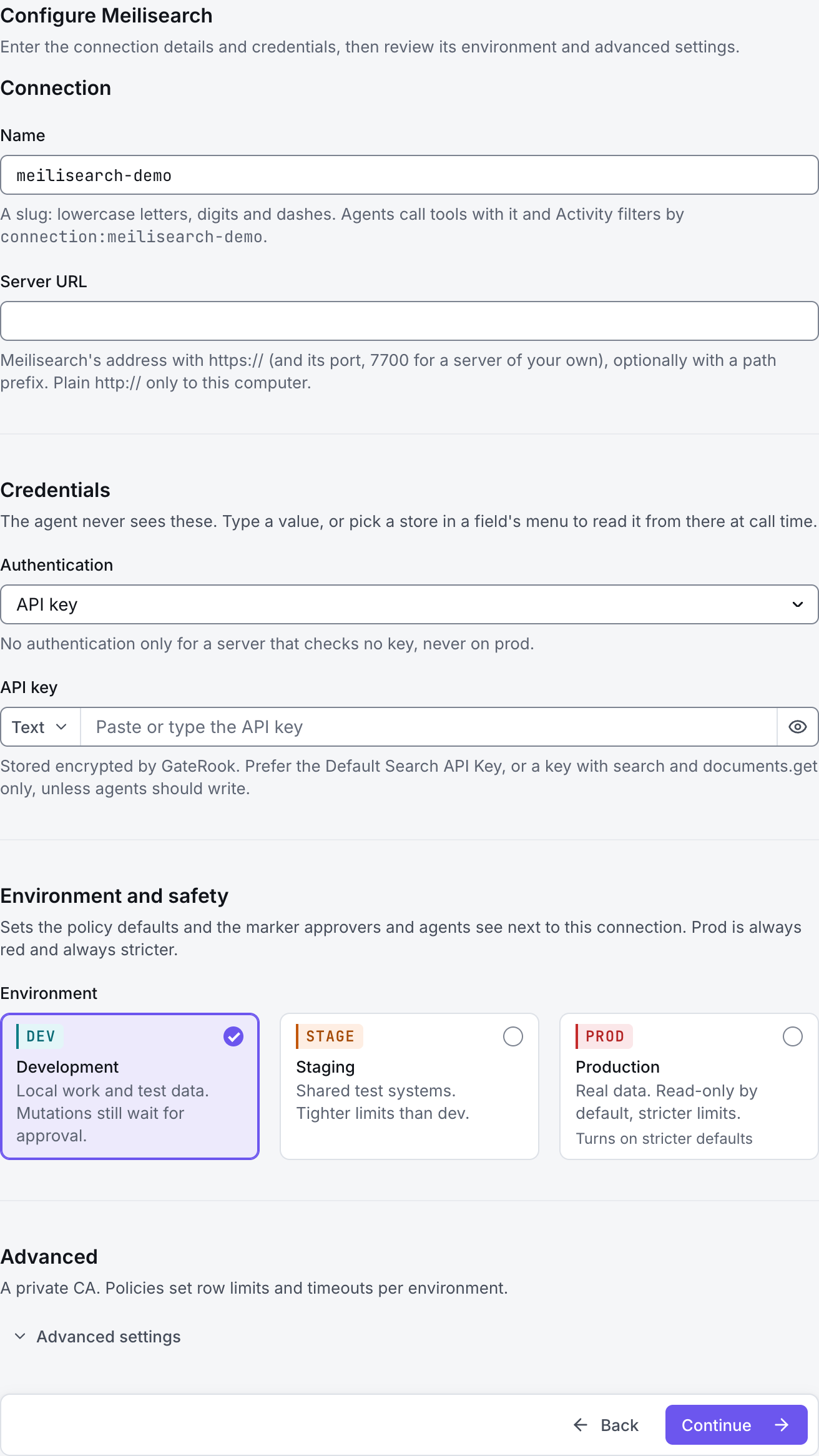
The screenshots show GateRook 2.0.0: the Meilisearch form, the endpoint selector, and this connector’s actual tool preview. The form and preview have not been saved. Select a screenshot to open it at full size.
1. Create a connection and enter the settings
In GateRook, open Connections, select Add connection, search for Meilisearch, choose its card and select Continue to configure.
Obtain the Meilisearch server URL and an API key restricted to the indexes and read operations the AI needs.
A search key can run searches; other read tools may require additional actions. Avoid using the server’s master key for routine AI queries.
Enter a Name, for example meilisearch-demo. Your AI app uses this name to choose the connection.
Enter Server URL, including its port for a self-managed deployment, and restrict Indexes to the intended index UIDs or patterns.
Select API key under Authentication and enter it. Choose No authentication only for a development server that deliberately checks no key.
If the server uses a private CA, enter CA certificate (PEM) under Advanced.
Choose Development, Staging or Production to match the service. Review the connector’s limit and access settings before continuing.
2. Test the connection and add it to an endpoint
Select Continue to test. GateRook checks the settings from your computer. Review the result and resolve any connection, certificate or permission error before continuing.
Check the key’s actions and index restrictions if some tools are denied. An index’s display name may differ from its UID; use the UID in requests.
After the test passes, select Continue to add to an endpoint. Choose the endpoint your AI app uses, review its tool modes, then select Save connection. GateRook offers default as the starter endpoint.

3. Use the connection from your AI IDE
After saving Meilisearch on the endpoint and passing its connection test, ask your AI app to use meilisearch-demo, or the name you chose. If its tools are missing, confirm the endpoint assignment and refresh the MCP connection or start a new chat.
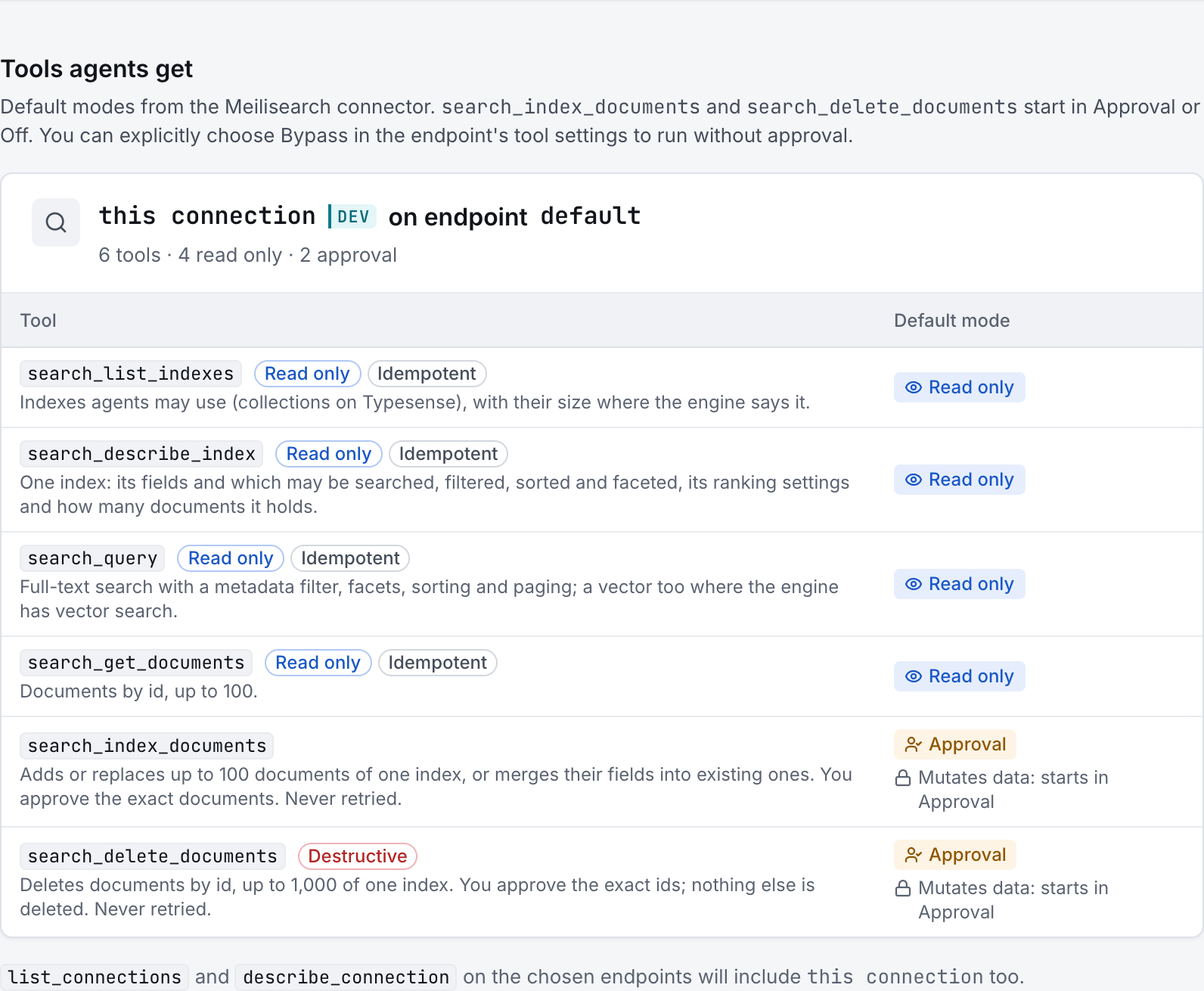
The preview below shows this connector’s default tools before saving. The table explains what each tool can do; connection settings, credentials and endpoint policies can restrict access further.
Start with a small read request. Replace example resource names with existing resources your connection may access. Open Activity after the call to inspect its connection, tool, arguments, policy decision and result metadata.
Ask your AI, for example
- “Search products on meilisearch-demo for wireless headphones and return five results.”
- “Describe the products index on meilisearch-demo if the key permits it.”
- “Using meilisearch-demo, fetch product-123 from the products index.”
| Tool | What it does | Starts as |
|---|---|---|
search_list_indexes | List the permitted Meilisearch indexes and available document counts. | Read only |
search_describe_index | Show the primary key, readable searchable/filterable/sortable attributes, ranking rules, configured embedders and index statistics. | Read only |
search_query | Search with text, filters, facets, sorting and pagination. Vector or hybrid search requires a configured embedder; choose it when the index has more than one. | Read only |
search_get_documents | Documents by id, up to 100. | Read only |
search_index_documents | Adds or replaces up to 100 documents of one index, or merges their fields into existing ones. You approve the exact documents. Never retried. | Approval |
search_delete_documents | Deletes documents by id, up to 1,000 of one index. You approve the exact ids; nothing else is deleted. Never retried. | Approval |
You can change each tool’s mode on the endpoint. Every call your AI makes appears in Activity.