
Weaviate Cloud uses GateRook’s Weaviate connector. A cluster's REST endpoint and an API key.
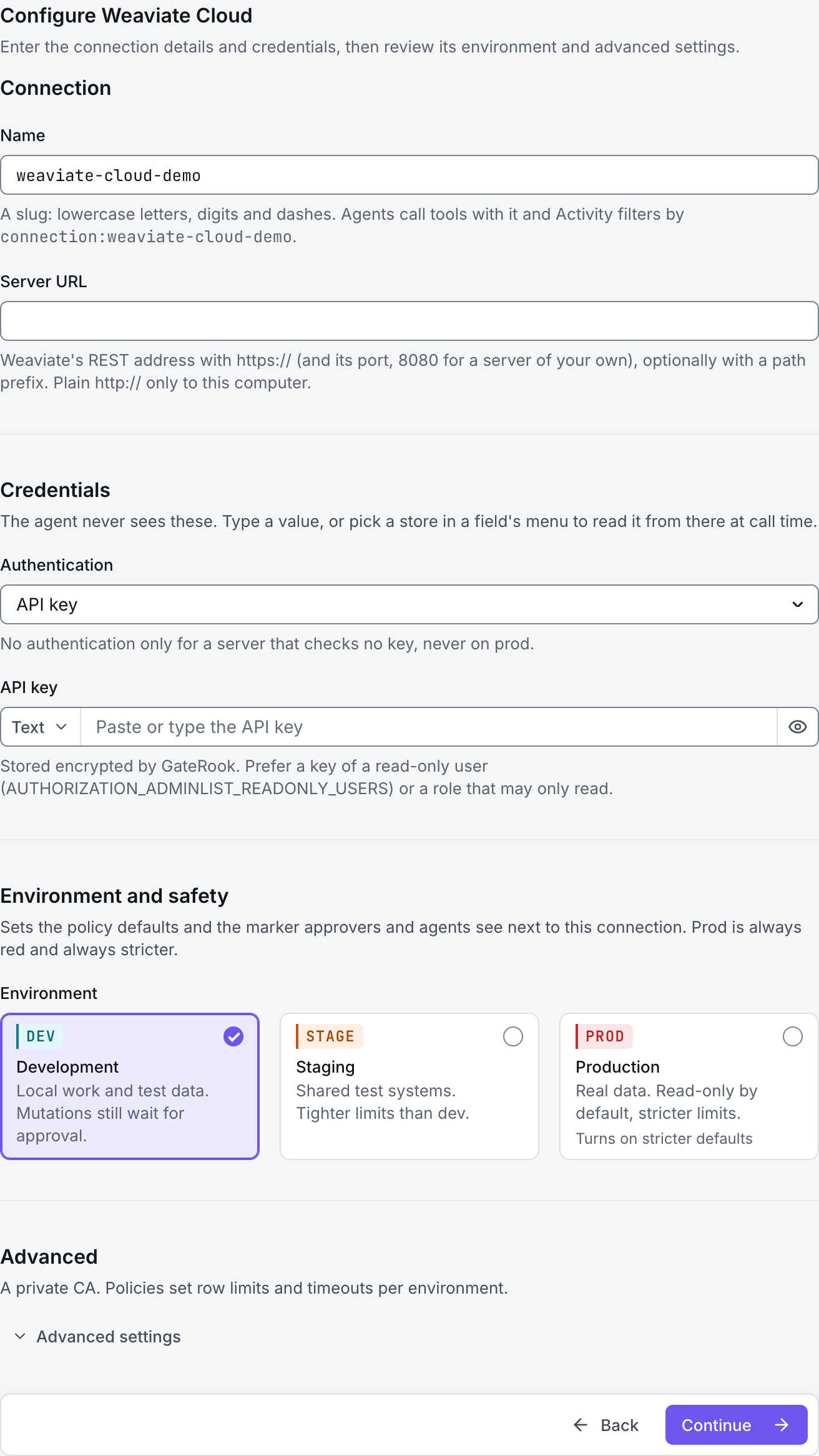
The screenshots show GateRook 2.0.0: the Weaviate Cloud form, the endpoint selector, and this connector’s actual tool preview. The form and preview have not been saved. Select a screenshot to open it at full size.
1. Create a connection and enter the settings
In GateRook, open Connections, select Add connection, search for Weaviate Cloud, choose its card and select Continue to configure.
Copy the Weaviate Cloud cluster's REST endpoint and a key with read permission for the intended collections. Prefer a viewer or appropriately scoped role over an administrator role.
Confirm the cluster is available and the GateRook computer can reach its endpoint. The console address and the gRPC endpoint are different from the REST URL used by this connector.
Enter a Name, for example weaviate-cloud-demo. Your AI app uses this name to choose the connection.
Enter the cluster REST address in Server URL, preserving HTTPS.
Select API key under Authentication, and paste the assigned key into API key.
Limit Collections to the required names, preserving their actual capitalization. Add CA certificate (PEM) only when a private endpoint requires a private CA.
Choose Development, Staging or Production to match the service. Review the connector’s limit and access settings before continuing.
2. Test the connection and add it to an endpoint
Select Continue to test. GateRook checks the settings from your computer. Review the result and resolve any connection, certificate or permission error before continuing.
If collection discovery is denied, check the key's role and schema-read permissions as well as object-read permissions. A working vector query can still require additional model-provider credentials when the collection uses external vectorization; begin with a plain object read.
After the test passes, select Continue to add to an endpoint. Choose the endpoint your AI app uses, review its tool modes, then select Save connection. GateRook offers default as the starter endpoint.

3. Use the connection from your AI IDE
After saving Weaviate Cloud on the endpoint and passing its connection test, ask your AI app to use weaviate-cloud-demo, or the name you chose. If its tools are missing, confirm the endpoint assignment and refresh the MCP connection or start a new chat.
The preview below shows this connector’s default tools before saving. The table explains what each tool can do; connection settings, credentials and endpoint policies can restrict access further.
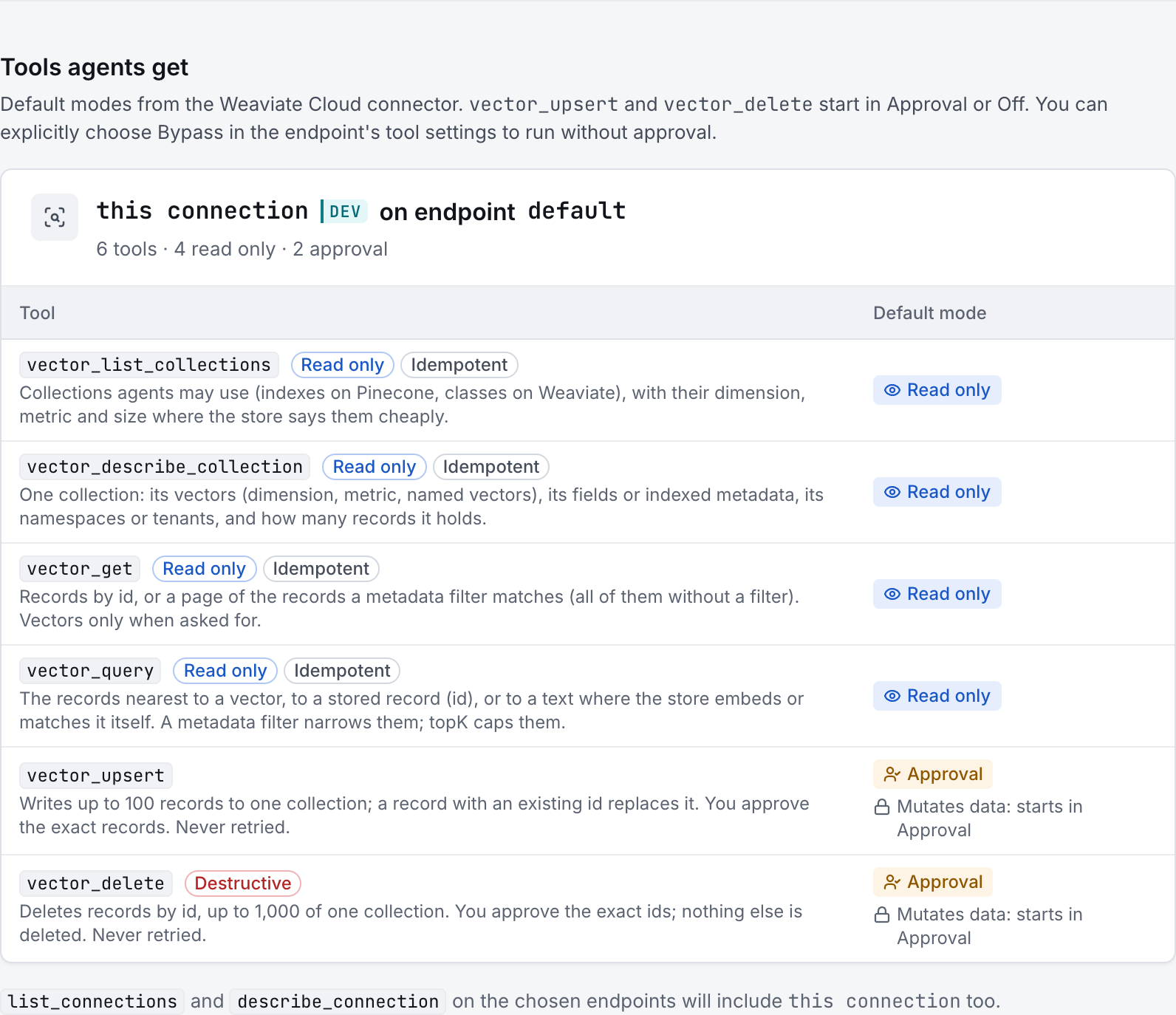
Start with a small read request. Replace example resource names with existing resources your connection may access. Open Activity after the call to inspect its connection, tool, arguments, policy decision and result metadata.
Ask your AI, for example
- “List the permitted Weaviate collections and their properties.”
- “Describe the vectorizer and vector configuration for one collection.”
- “Read at most 10 objects from a selected collection with a property filter, without changing them.”
| Tool | What it does | Starts as |
|---|---|---|
vector_list_collections | List the permitted Weaviate collections. | Read only |
vector_describe_collection | Show collection properties, vectorizer or named-vector configuration, supported text search, tenants and available object count. | Read only |
vector_get | Read objects by UUID or a bounded metadata-filter page, with a tenant when the collection uses multi-tenancy. Include vectors only when requested. | Read only |
vector_query | Search by vector or stored object UUID, or use text keyword search. Semantic and hybrid text search require a configured vectorizer; choose a target vector when needed. | Read only |
vector_upsert | Writes up to 100 records to one collection; a record with an existing id replaces it. You approve the exact records. Never retried. | Approval |
vector_delete | Deletes records by id, up to 1,000 of one collection. You approve the exact ids; nothing else is deleted. Never retried. | Approval |
You can change each tool’s mode on the endpoint. Every call your AI makes appears in Activity.